1
AXIS 241Q/S/QA/SA - Video & Image Settings
Text Overlay Settings
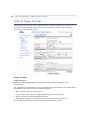
Include date, time and/or text of your choice to be viewed on the image. The color of the
text may be set to white or black, while background color may be set to white, black,
transparent or semitransparent. The position of the text is set either to the top or the bottom of the image.
Video Stream
The Maximum video stream time can be set as Unlimited, or a maximum stream time per
session in seconds, minutes or hours can be defined. When the set time has expired, a new
stream can be started by refreshing the page in the Web browser. Note that the maximum
video stream time does not apply to clients connecting via multicast.
To avoid bandwidth problems on the network, the frame rate allowed to each viewer can
also be limited. Select either Unlimited or define a maximum frame rate per viewer.
Test
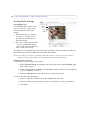
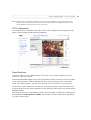
For a preview of the image and overlay settings before saving, click Test. When you are
satisfied with the settings, click Save.
Video Source Settings
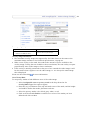
These settings allow you to enter a descriptive name for the video source, and also to
eliminate any black borders surrounding the image, by making Offset adjustments. See the
online help for more information.
AXIS 241S only:
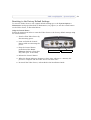
Select the physical connector the video source is connected to, BNC or Y/C. The AXIS 241S
supports conversion between composite video and Y/C (s-video) using an ACC Y/C to BNC
cable.
• BNC (composite video) connects a standard video camera or other video equipment
• Y/C (S-video) connects a Y/C (S-video) camera or other video equipment
21