1
Chapter 6: Performing Library Operations
Performing Media Operations
This topic focuses on using the library user interface, not the host
application, to unload tape drives. Using the library to unload tape
drives may necessitate performing an inventory with the host
application. See your host application documentation for more
information.
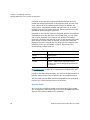
Details about unloading tape drives include:
• The tape drive and storage slot must be assigned to the same
partition.
• Only drives with media loaded appear on the screen.
• You can select only partitions to which you have been given access.
• If the affected partition is online, it will be taken offline before the
unload operation is performed, and brought back online after it is
complete.
You can unload media from the operator panel or the Web client.
Operator Panel
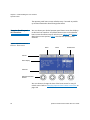
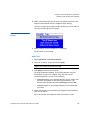
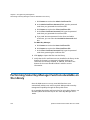
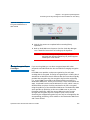
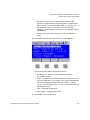
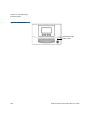
1 Select Actions > Tape Drive > Unload.
2 If more than one tape drive is installed in the library, use the Up and
Down buttons to select a tape drive to unload.
3 Press Unload.
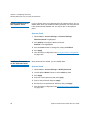
Web Client
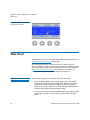
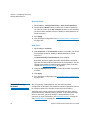
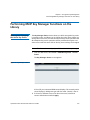
1 Select Operations > Drive > Unload.
2 If more than one partition exists, select the partition that contains
the tape drive you want to unload.
3 Click Next.
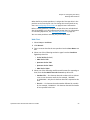
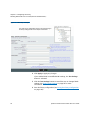
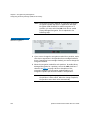
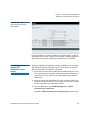
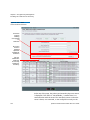
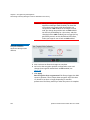
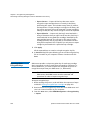
The Unload Drive - Partition (Mode) screen displays, where
Partition is the name of the partition and Mode is the current
mode of the partition. The screen contains a list of all tape drives in
the partition that are loaded with a cartridge.
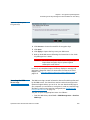
4 Select the tape drive you want to unload.
Note: If not all drives appear on the screen, use the Page 1 of x
arrows to view the additional cartridges.
162
Quantum Scalar i40 and Scalar i80 User’s Guide