1
X100 Series Main User Manual
105
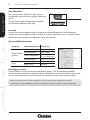
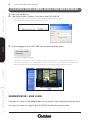
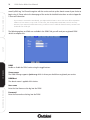
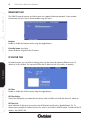
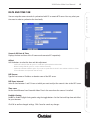
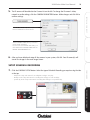
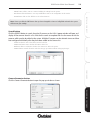
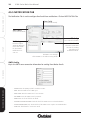
-- USER: User name
-- GROUP: Select the group of user. The Admin group has all privilege of system by default and the User group only
has main console privilege by default.
-- PASSWORD: The password of the User for logging into the system.
-- CONFIRM PASSWORD: Retype the password.
-- DESCRIPTION: Specify some details for this account (i.e. Security Manager)
INSTALL & CONNECT
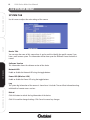
User Config.
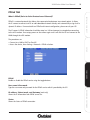
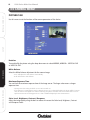
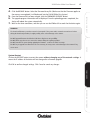
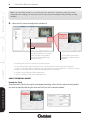
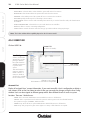
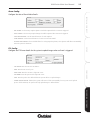
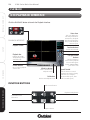
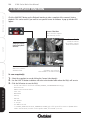
Use this section to configure User settings. To add a NEW User, ensure no User is selected in the
Account List window, then enter the following details:
-- DISABLE USER: Tick this box to disable the user account.
-- Select or modify the User’s privileges.
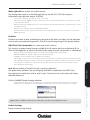
Once details have been added, click on the ADD button to add the new User to the Account List.
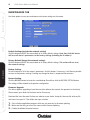
-- To change details of an account, click on the user name of the list first, and then modify the data of this account.
SETUP
Click the EDIT button to save the changes made.
-- To delete a User Name from the Account List, click on the DELETE button.
-- To clear all the fields for a selected User, click on the CLEAR button.
Note: Ensure you click the EDIT button after you have changed the User’s account fields otherwise the system
will not save your settings.
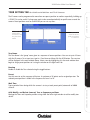
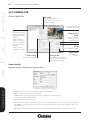
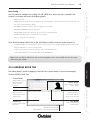
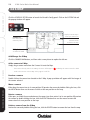
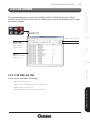
4.5.4 ADDRESS BOOK TAB
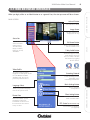
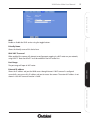
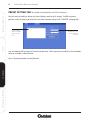
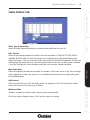
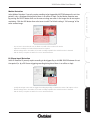
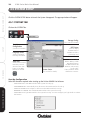
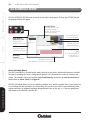
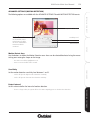
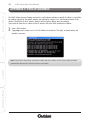
Contact Details
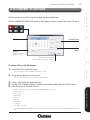
Add the Name, Phone,
Email and Remark
(notes) for your
contacts
CONFIGURE
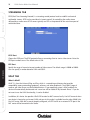
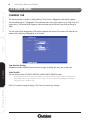
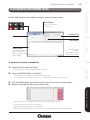
The Address Book is useful for keeping a record of User’s contact details in case of an emergency.
Click on ADDRESS BOOK Tab:
DELETE button
Click to remove selected
contact details
DELETE button
Click to save new
contact details to the
Address Book.
Click on the arrow
button and select an
image for the contact.
EDIT button
Contact List
Click to edit selected
contact details
Saved contacts will be
listed here
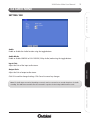
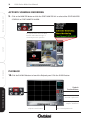
Click OK to Save changes
Click CANCEL to exit without saving details
RECORDING SOFTWARE
ADD button