1
4 Connect to the Playback Device
Supplied cables
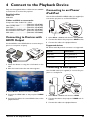
Connecting to an iPhone/
iPad/iPod
HDMI cable
USB cable
Use the iPhone/iPad/iPod-HDMI cable (not supplied) to
connect the projector to an iPhone/iPad/iPod.
Only use the supplied cable or cables that are available
as accessories to connect the projector.
Cables available as accessories
Component Video Cable YUV / YPbPr
.............................................. (PPA1210 / 253447083)
Video-(CVBS) cable ................... (PPA1320 / 253526178)
VGA cable ................................... (PPA1250 / 253447070)
iPhone/iPad/iPod-HDMI cable . (PPA1280 / 253447091)
iPhone/iPad/iPod-A/V cable...... (PPA1160 / 253372471)
MHL cable .................................... (PPA1240 / 253520048)
Connecting to Devices with
HDMI Output
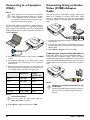
Use the HDMI to mini HDMI cable to connect the projector to a computer or laptop.
VG
Y-PbA
HD -P
MI r
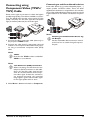
1 Select Menu > Source and switch to Component.
2 Connect the cable to the projector's HDMI socket.
3 Connect the cable to the playback device.
Supported devices
All devices with 30-pin dock connector are supported.
VG
Y-PbA
HD -P
MI r
1 Switch the device on using the on/off switch on the
side.
2 After the initial screen the main menu appears.
Device
Generation
iPod nano
up to generation 6
iPod touch
up to generation 4
iPhone
up to generation 4
iPad
up to generation 2
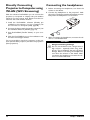
Connecting to Smartphone
Use the HML cable (not supplied) to connect the projector to a smartphone.
VG
Y-P A
HDb-P
MI r
3 Select Menu > Source and switch to HDMI.
4 Connect the HDMI cable to the projector's HDMI
socket.
5 Connect the cable to the mini-HDMI socket of the
playback device.
Connect to the Playback Device
1 Select Menu > Source and switch to HDMI.
2 Connect the cable to the projector's HDMI and ý
sockets.
3 Connect the cable to the playback device.
15