1
Installing the Bluetooth Wireless Keyboard into Your iPhone/iPad
You must sync your iPhone/ iPad with the Bluetooth keyboard manually before using.
No further sync is needed if the first sync runs successfully. Please follow the detailed
instructions as below to complete the sync procedure.
Follow the path Settings General Bluetooth on your iPhone/ iPad to enable \the
Bluetooth function on your iPhone/ iPad.
When Bluetooth is turned on, your iPhone/iPad will start searching for Bluetooth devices
automatically. At the same time press and hold both “Esc” and “k” keys on the keyboard
simultaneously. Your keyboard will be found by your iPhone /iPad automatically. When the
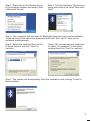
keyboard is found, press the “Bluetooth Keyboard” appearing on the iPhone/ iPad screen,a
window will pop up with a syncing passkey.Type in the passkey shown given by the iPhone/
iPad on the keyboard and then press the “enter” key. Now the Bluetooth keyboard should be
connected to your iPhone/ iPad as shown in below picture.
Other Considerations
1 Power-saving design : When the keyboard does not take any action about 2 seconds into
hibernation , press any KEY or touch screen wake .
2.When you press the FN + F11 , the keypad keys do not output the value of users to leave
after the others in order to prevent false triggering .3 2 AAA dry batteries : the whole boost
to 3.0V. The whole system is 3.0V system .
4