1
Copyright 2009, Samson Technologies Corp.
Printed May, 2009 v1.1
Samson Technologies Corp.
45 Gilpin Avenue
Hauppauge, New York 11788-8816
Phone: 1-800-3-SAMSON (1-800-372-6766)
Fax: 631-784-2201
www.samsontech.com
Table of Contents
Introduction . . . . . . . . . . . . . . . . . . . . . . . . . . . . . . . . . . . . . . . . . . . . 2
Go Mic Features . . . . . . . . . . . . . . . . . . . . . . . . . . . . . . . . . . . . . . . . . 4
Go Mic Layout . . . . . . . . . . . . . . . . . . . . . . . . . . . . . . . . . . . . . . . . . . 5
Installing the Go Mic . . . . . . . . . . . . . . . . . . . . . . . . . . . . . . . . . . . . . . 6
Getting Started with Windows XP . . . . . . . . . . . . . . . . . . . . . . . . . . . . . 6
Getting Started with Windows Vista . . . . . . . . . . . . . . . . . . . . . . . . . . . . 9
Getting Started with MAC OS X . . . . . . . . . . . . . . . . . . . . . . . . . . . . . . 11
Operating the Go Mic . . . . . . . . . . . . . . . . . . . . . . . . . . . . . . . . . 13 - 19
Go Mic Quick Start . . . . . . . . . . . . . . . . . . . . . . . . . . . . . . . . . . . . . . 13
Powering the Go Mic . . . . . . . . . . . . . . . . . . . . . . . . . . . . . . . . . . . . . 15
Setting Up the Signal Level . . . . . . . . . . . . . . . . . . . . . . . . . . . . . . . . . 15
Stand Mounting the Go Mic . . . . . . . . . . . . . . . . . . . . . . . . . . . . . . . . 15
Polar Patterns . . . . . . . . . . . . . . . . . . . . . . . . . . . . . . . . . . . . . . . . . 16
Microphone Placement . . . . . . . . . . . . . . . . . . . . . . . . . . . . . . . . . . . 16
P-Popping . . . . . . . . . . . . . . . . . . . . . . . . . . . . . . . . . . . . . . . . . . . 17
Application Notes . . . . . . . . . . . . . . . . . . . . . . . . . . . . . . . . . . . . . . .18
Go Mic Specifications . . . . . . . . . . . . . . . . . . . . . . . . . . . . . . . . . 20 - 21
Introduction
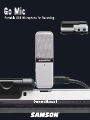
Congratulations on your purchase of the Samson Go Mic portable USB studio condenser.
The Go Mic is a dual-pattern studio microphone featuring high quality onboard digital
converters and USB interface fit into an extremely portable, fold-up design making it ideal
for professional digital recording or webcasting. The Go Mic is a studio quality condenser
microphone offering both unidirectional, or cardioid, and omnidirectional pick-up patterns,
plus there’s a 10 dB PAD for recording hot signals. The Go Mic’s built-in audio interface
features a robust headphone output allowing you to monitor your recordings. The clever
clip design allows you to mount the microphone on your laptop or you can convert the
clip mount to a convenient desk stand. You can even mount the Go Mic on a standard
microphone stand with the included adapter. You get everything you need to get started
recording on your computer including USB cable, cable clip, mic stand mount and handy
carry case to keep your mic protected during transport. The Go Mic is perfect for recording
any acoustic audio source on your favorite DAW (Digital Audio Workstation). Just plug in the
supplied USB cable, launch your DAW and start recording. The Go Mic faithfully reproduces a
variety of sound sources including vocals, acoustic string and wind instruments, percussion,
and overhead cymbals, to name a few. It is also great for VoIP, chatting and webcasting.
The extended frequency and fast transient response ensures an accurate reproduction with
linear characteristics from bottom to top. Whether you’re recording your latest song idea,
a podcast, or your band’s next big hit, the Go Mic is the simplest and most comprehensive
solution for high quality recording on a Mac or PC. Just plug it in and start creating!
Introduction
In these pages, you’ll find a detailed description of the features of the Go Mic USB Studio
Condenser Microphone, as well as step-by-step instructions for its setup and use, and full
specifications. You’ll also find a warranty card enclosed—please don’t forget to fill it out and
mail it in so that you can receive online technical support and so we can send you updated
information about these and other Samson products in the future. Also, be sure to check out
our website (www.samsontech.com) for complete information about our full product line.
With proper care your Go Mic will operate trouble free for many years. We recommend you
record your serial number in the space provided below for future reference.
Serial number: __________________________
Date of purchase: __________________
Should your unit ever require servicing, a Return Authorization number (RA) must be
obtained before shipping your unit to Samson. Without this number, the unit will not be
accepted. Please call Samson at 1-800-3SAMSON (1-800-372-6766) for a Return Authorization
number prior to shipping your unit. Please retain the original packing materials and if
possible, return the unit in the original carton and packing materials. If you purchased your
Samson product outside the United States, please contact your local distributor for warranty
information and service.
Go Mic Features
•
Compact, dual pattern studio condenser with built-in audio interface and USB digital I/O.
•Compatible with most any Mac and PC based Digital Audio Workstation that support the
USB Audio class.
•Unique, fold up design with integral clip makes the microphone extremely portable and
ideal for most recording solutions, especially for mobile laptop recording.
•The microphone’s capsules are extremely detailed and the switchable Cardioid and Omni
pick-up patterns make it ideal for recording voice, conferences, acoustic instruments and
for just about any other sound source.
•The onboard headphone amplifier allows you to listen to your recording directly from
the microphone, plus you can use the output to connect active studio monitors.
•A software controlled, analog direct monitor mode is provided for zero latency
monitoring.
•Computer controlled analog Input Gain with Peak LED makes it easy to set the proper
level and get a clean signal.
•The on-board, high quality AD converters with 16 Bit, 48K sampling rate provide better
than CD quality recording.
•On the road, in the studio or in a fixed installation, the solid construction with die cast
base make the microphone a reliable audio tool, day in and day out.
• A 10 foot USB cable, cable clip and mic stand adapter are included to easily set up
the microphone right out of the box, plus you can keep it safe while carrying it in the
included zipper pouch.
•The Go Mic is perfect for recording voice, music, live instruments, podcasts, or for
chatting and VoIP.
Go Mic Layout
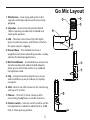
1.Windscreen – Dual stage grill protects the
capsules and helps reduce wind noise and ppopping.
2.Capsules – Dual, internally shock isolated
10mm capsules provide both Cardioid and
Omni polar patterns.
2
1
3
6
3. LED – The dual color Power/Clip LED lights
green to indicate power, and flashes red when
the input signal is clipping.
4
5
4. Diecast Base – The molded zinc base is
weighted and shock isolated to provide a sturdy
solution for desktop applications.
5. Mic Stand Mount – A standard Euro-mount mic
stand mounting hole and included adapters
allow you to attach the Go Mic to a standard
microphone stand.
7
8
6. Clip – Integral mounting clip for easy set-up
and installation up on just about any laptop
computer.
8.USB – Mini-B size USB connector for interfacing
with your PC or Mac.
7. Phones - 1/8-inch (.35mm) stereo jack for
connecting headphones or studio monitors.
9. Pattern switch – Selector switch used to set the
microphone for Cardioid, Cardioid with a 10 dB
Pad, or Omni pick-up pattern.
9
Installing the Go Mic
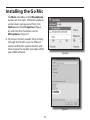
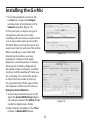
Installing the Go Mic is a simple procedure
that takes just a few minutes. Since the Go
Mic is USB compliant, you can use either
a MAC or PC, connect the included USB
cable and plug and play. You will be able
to control your Go Mic using the standard
audio interface controls in the MAC or
Windows operating system. You will find
detailed instructions on setting up with
MAC OS and Windows in the following
sections of this manual.
Figure 1
Getting Started with Windows XP
Figure 2
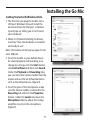
1. The first time you plug the Go Mic into
a USB port, Windows will install the
universal drivers for that port. A balloon
tip will pop up, telling you it has “Found
new Hardware” (figure 1).
2.When it is finished installing the drivers,
it will say “Your new hardware is installed
and ready to use” (figure 2).
N
ote: This balloon will not pop up again for
the same USB port.
Figure 3
Installing the Go Mic
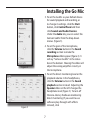
3.To set the Go Mic as your default device
for sound playback and recording, or
to change its settings, click the Start
button, click Control Panel and then
click Sounds and Audio Devices.
Under the Audio tab, you can select the
Samson GoMic from the drop-down
menus. (figure 3).
Figure 4
Figure 5
4.To set the gain of the microphone,
click the Volume button in the Sound
recording section to make the
Microphone slider appear (figure 4). It
will say “Samson Go Mic” in the status
bar at the bottom. Moving this slider will
adjust the analog amplifier circuitry in
the microphone.
5.To set the direct monitoring level or the
playback volume in the headphones,
click the Volume button in the Sound
playback section instead. Adjusting the
Speaker slider on the left changes the
headphone level (figure 5). To turn off
the zero-latency hardware monitoring
direct monitoring (if you want to use
software play-through with effects
instead), click
Installing the Go Mic
the Mute checkbox in the Microphone
section on the right. (If the Microphone
section does not appear at first, click
Options and then Properties (figure
6), and click the checkbox next to
Microphone. (Figure 7)
6.To prevent system sounds from coming
through the Go Mic, select a different
sound card for the system default, and
then choose the Go Mic manually within
your DAW software.
Figure 6
Figure 7
Installing the Go Mic
Getting Started with Windows Vista
1.The first time you plug the Go Mic into a
USB port, Windows Vista will install the
universal drivers for that port. A balloon
tip will pop up, telling you it has “Found
new Hardware”.
2.When it is finished installing the drivers,
it will say “Your new hardware is installed
and ready to use”.
Note: This balloon will not pop up again for the
same USB port.
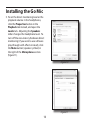
3.To set the Go Mic as your default device
for sound playback and recording, or to
change its settings, click the Start button,
click Control Panel and then click Sound.
Under the Playback and Recording tabs,
you can select the Samson GoMic from the
menus and use the Set Default button to
set it as the default device. (figure 8).
Figure 8
4.To set the gain of the microphone, make
sure the Samson GoMic is selected in the
Recording tab and click the Properties
button. Under the Levels tab, move the
Microphone slider to adjust the analog
amplifier circuitry in the microphone
(figure 9).
Figure 9
Installing the Go Mic
5.To set the direct monitoring level or the
playback volume in the headphones,
click the Properties button in the
Playback tab instead, and open the
Levels tab. Adjusting the Speakers
slider changes the headphone level. To
turn off the zero-latency hardware direct
monitoring (if you want to use software
play-through with effects instead), click
the Mute button (speaker symbol) in
the right of the Microphone section
(figure11).
Figure 10
Figure 11
10
Installing the Go Mic
Getting Started with MAC OS X
The following example is for setting up the Go
Mic in MAC OS X .
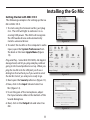
1.To start using the Samson Go Mic, just plug
it in. The LED will light to indicate it is receiving USB power. The MAC will recognize
the USB audio device and automatically
install a universal driver.
2.To select the Go Mic as the computer’s audio
input, open the System Preferences from
the dock or the main Apple Menu (figure
12).
Plug and Play - Some MAC OS DAW’s, like Apple’s
Garage band, will let you plug and play without
going to the Sound preference set up. When you
plug the Go Mic into the USB port you’ll see a
dialog box that will ask you if you want to select
the Go Mic. Select yes and you’re ready to go.
3.Next open the Sound preference (figure 13).
4. Now, click in the Input tab and select Go
Mic (figure 14).
5. To set the gain of the microphone, adjust
the Input volume slider at the bottom of the
Sound dialog box.
6.Next, click in the Output tab and select Go
Mic .
11
Figure 12
Figure 13
Go Mic
Figure 14
Installing the Go Mic
7. To set the playback volume in the
headphones, adjust the Output
volume slider at the bottom of the
Sound dialog box (figure 15).
At this point you can begin using your
microphone with most any audio
recording software, but you need to select
it as an input and output device within
the DAW. When selecting the inputs and
outputs just look for and select the Go Mic.
Go Mic
When recording in your DAW with
monitoring turned on, you may
experience a delay on the signal
playback, commonly know as latency.
The amount of latency depends on
the speed of your computer, available
memory and the number of tracks you
are recording. You can set the Go Mic
to Direct Monitor mode to listen to
the signal directly off the input of the
microphone to eliminate the latency.
Figure 15
Using the Direct Monitor
1.To turn direct monitoring on or off,
open the Audio/MIDI Setup (figure
16) utility located in the Utility folder
inside the Applications folder.
Figure 16
2. Now click the checkbox in the Thru
column in Audio/MIDI Setup.
12
Operating the Go Mic
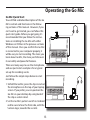
Go Mic Quick Start
You will find a detailed description of the Go
Mic’s controls and functions in the following sections of this manual. However, if you
can’t wait to get started, you can follow this
quick start guide. Before you get going it’s
recommended that you follow the instructions on installing the Go Mic with either
Windows or OS Mac in the previous sections
of this manual. Once you confirm the Go Mic
is connected to your computer properly, it
will be easy to start recording. The more you
learn about Go Mic, the more you’ll discover
its versatility and powerful features.
There are many ways to use the microphone,
and our quick start example is for a typical
set-up for recording vocals.
Just follow the simple steps below to start
recording.
1.Unfold the Go Mic, press the clip in and set
the microphone on the top of your laptop
screen. If you prefer, you can position the
Go Mic on your desktop by using back of
the clip as a desk stand.
2. Set the Go Mic’s pattern switch to Cardioid
and be sure to face the front side, with the
Samson logo, towards the vocalist.
13
Operating the Go Mic
Go Mic Quick Start - continued
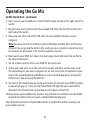
3.Next, connect your headphones to the PHONES output located on the right side of the
Go Mic.
4.Plug the mini-B size (small) end of the included USB cable into the USB socket on the
right side of the Go Mic.
5.Now, plug the other end of the USB cable into an available USB port on your
computer.
Note: Be sure to check the installation guide for Windows and Mac OS to confirm your
computer has recognized the Go Mic. Also, make sure your computer’s output level is set
to maximum for full volume in the Go Mic headphone monitor.
6.Next, launch your DAW, turn down the main output level and select the Go Mic for
the input and outputs.
7. Set up a mono record track in your DAW for the vocal track.
8.At this point you want to set the level of the Go Mic and there are few ways to do
this depending on your exact computer set up. You can set the microphone’s input
level in the Sound playback in Windows or in the Sound dialog box in the System
Preferences if you are using the MAC OS.
9.Set level of the microphone by raising the Input level control in your DAW or system
to about half way up. If you see the Power/Peak LED light red, your sgnal will be
distorted. Turn the MIC level control down until it does not flash red.
10.Next, put on your headphones, speak or sing into the mic and then raise the DAW’s
output level control until you reach a comfortable listening level.
Now, follow the instructions of your DAW software to enable the track for recording and
you’re ready to record.
14
Operating the Go Mic
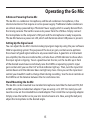
A Note on Powering the Go Mic
The Go Mic is a condenser microphone, and like all condenser microphones, it has
internal electronics that require an active power supply. Traditional studio condensers
are almost always powered by a Phantom Power supply which is usually derived from
the mixing console. The Go Mic receives its power from the USB bus. Simply connect
the microphone to the computer’s USB port and the microphone is ready to operate.
The Go Mic features a power on LED, which will illuminate when USB power is present.
Setting Up the Signal Level
You can adjust the Go Mic’s internal analog input gain stage by using the your software
DAW or operating system. The purpose of the level, or gain, controls are to optimize
the amount of good signal relative to any associated noise. A good mic or instrument
pre-amplifier, like the one inside Go Mic, will also have a PEAK indicator to show when
the input signal is clipping. To set a good level on the mic, set the Go Mic up in front
of the desired sound source and slowly raise the DAW’s or operating system’s input
gain control until you see the CLIP or Peak indicator light up. Then, turn the input trim
control down until the indicator does not light any more. Once you set the input level
control you shouldn’t need to change them during recording. Use the level controls on
the DAW to set the balance between the mic and stereo mix.
Stand Mounting the Go Mic
The Go Mic can be mounted to a standard microphone stand like the Samson BT4, BL3
or MB1 using the included nut adapter. If you are using a U.S. 5/8” mic stand, you will
need to screw on the included Euro stand adapter. Then install the nut spacing adapter.
Simply screw the Go Mic on to your mic stand or boom arm. Now, using the ball joint,
adjust the microphone to the desired angle.
15
Operating the Go Mic
Polar Patterns
The most important characteristic of any microphone is its directionality or “pick-up
pattern”. There are three basic categories of pick up patterns; omni, bidirectional (or
figure 8) and unidirectional. Omni mics pick up sound from all directions, bidirectional
mics pick up the sound directly in front and back of the microphone while rejecting
the sound on the left and right sides, and unidirectional (cardioid) mics pick up the
sound in front of the microphone. While bidirectional microphones are very useful for
a variety of applications, a majority of “miking” situations in recording require cardioid
or omni microphones. The cardioid pick up pattern allows for better separation of
instruments in the studio and more control over feedback in live sound reinforcement.
When positioned correctly, the cardioid pick-up pattern allows you to pick up more of
the sound you want and less of the sound you don’t want. If you need to pick up sound
from all around, for example when recording a meeting around a conference table,
the Omni pattern is ideal. When the Go Mic is set to Omni pattern it will pick up sound
in a 360-degree pattern. This can also be used to pick up the ambient room sound for
natural reverb when recording acoustic instruments.
Microphone Placement
In order to maximize the sound quality, you must pay careful attention to the
placement of your Go Mic and how it is positioned for the instrument or vocalist
that you are miking. All microphones, especially cardioid microphones, exhibit a
phenomenon known as “proximity effect.” Very simply put, proximity effect is a
resulting change in the frequency response of a microphone based on the position
of the mic capsule relative to the sound source. In general, as the microphone moves
closer to the sound source, the bass response increases.You can also make subtle
changes to the frequency response by making minor adjustment to the position.
Specifically, when you point a cardioid mic directly at the sound source (on axis) you
16
Operating the Go Mic
will get the best frequency response, however when you start pointing the
microphone slightly away (off axis) you will notice the high frequency response
dropping off and the microphone will start to sound like it has more bass and less
highs.
For most vocal applications you’ll want to position the microphone directly in front
of the artist about 4 to 18 inches. If you are close miking a vocal, set the microphone
to a slight angle to reduce p-popping. The same may be true for miking instruments,
however, you can make some pretty amazing equalization adjustments by slightly
changing the angle of the capsule to the sound source. This can be a very useful
technique in capturing the optimum sound of drum set, acoustic guitar, piano or other
instruments in a live room or sound stage. Experimentation and experience are the
best teachers in getting good sounds, so plug in!
P-Popping
P-popping is that annoying pop that you can get when the microphone diaphragm
gets a blast of air from a vocalist pronouncing words with the letter “P” included. There
are a few ways to deal with the problem including using an external pop filter. Some
famous engineers have relied on an old nylon stocking over a bent clothes hanger,
which actually works very well. As mentioned above, you can also try placing the
microphone slightly off axis (on a slight angle) from the vocalist. This can often solve
the problem without using an external pop filter. However, the simplest, most reliable
way to reduce P-popping (without the bad smell of old nylons) is to use a pop filter
attached the microphone stand like the Samson PS-01. Using a pop filter also makes it
easy to maintain a good level by keeping the vocalist at a constant distance from the
microphone.
17
Application Notes
The Go Mic is a great microphone choice for many instrument miking situations. Below is a
brief guide on using the Go Mic in some typical applications:
Vocals
Position the microphone directly in front of the artist so that the microphone grill is
approximately 4 to 18 inches away. When close miking vocals, use of an external pop filter
like the Samson PS01 is strongly recommended. You can use the Cardioid pattern to record a
group of vocalists by positioning them around the front of the microphone. Just remember
that the extreme sides of the microphone pick up less with less high frequency response, so
have them stand together tight, and/or move the microphone from one to two feet away
from the group to pick up more room sound. You can also set the pattern to Omni mode
and have a group of vocalist in a circle around the microphone.
Acoustic Guitar
There are a variety of ways that the Go Mic can be used to mic an acoustic guitar. The
microphone placement will depend on the type of instrument and what kind of sound
you’re looking to capture, for example the tonal quality you want to focus on, and how much
finger slide or pick noise you may or may not want. When miking a standard steel string
acoustic, a good place to start is with the microphone positioned and pointing towards the
end of the fingerboard at a distance of about 6 inches to 2 feet away from the instrument.
You can experiment by moving the microphone slightly in the direction of the sound hole,
which will produce more low frequencies, or move it in the direction of the fingerboard to
capture more high-end or to remove any unwanted boominess. For nylon string acoustic,
try positioning the microphone above the bridge to emphasize more of the attack from the
sound of the finger picking, or for less, move the mic closer to the sound hole. If you have a
pair of Go Mics, try one positioned at the fingerboard and the second over the sound hole.
18
Application Notes
Piano
You can achieve outstanding results using the Go Mic on acoustic piano. Several placement
approaches can be used depending on the size of the piano, and the type of sound you are
looking to record. When miking a Grand Piano, (for an ambient sound like that used in a
classical recital), a Go Mic can be positioned directly in front of the instrument. Open the lid
to the full position and place the microphone five to twenty feet in front of the instrument.
For a more contemporary ensemble sound, place two Go Mics in the piano, positioning one
over the low strings and the other over the high strings.
Overhead Drum Kit
Because of its extended high frequency response and fast transient response, the Go Mic
performs outstandingly when used as an overhead cymbal microphone. You can position
one Go Mic on a boom mic stand directly above the kit pointing from front to back. For
stereo miking, use two Go Mic’s placed over the drum set at a distance of three to five feet.
You can experiment with the exact placement depending on the size of the room and
whether you’re looking for an ambient or close-miked sound. In general, when miking
a drum kit, it’s a good idea to start with the overhead mics. Even though you use the
overhead mics mostly for the cymbals, you can get the entire kit to sound great with just
one overhead. Then it will be easier to just bring up your individual mics for more attack and
thickness in the overall sound.
19
Go Mic Specifications
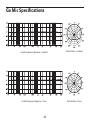
Go Mic Frequency Response - Cardioid
Polar Pattern - Cardioid
Go Mic Frequency Response - Omni
Polar Pattern - Omni
20
Go Mic Specifications
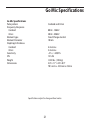
Go Mic Specifications
Polar pattern
Frequency Response Cardioid
Omni
Element type Element Diameter
Diaphragm thickness Cardioid Omni
Sensitivity SPL Weight
Dimensions
Cardioid and Omni
80Hz - 18kHZ
20Hz - 20kHZ
Fixed Charge electret
10mm
4 microns
2 microns
-47 +/- 2dB/Pa
121 db
0.23 lbs. (.105 kg)
2.8” x 1.7” x 23”x 0.9”
70.5 mm x 43.5mm x 23mm
Specifications subject to change without notice.
21
Samson Technologies Corp.
45 Gilpin Avenue
Hauppauge, New York 11788-8816
Phone: 1-800-3-SAMSON (1-800-372-6766)
Fax: 631-784-2201
www.samsontech.com