1
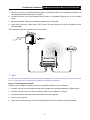
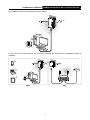
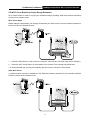
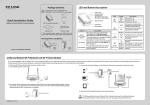
TL-WPA4220/TL-WPA2220 Chapter 5 300Mbps AV500/AV200 WiFi Powerline Extender Pair Button 5.1 Pair (Secure with 128 bits-AES) The Homeplug AV standard uses 128-bit AES (Advanced Encryption Standard) to safely transmit data between powerline dvices. For the powerline devices to communicate with each other, they all need to use the same Network Membership Key (NMK). Otherwise, they cannot unscramble the encrypted data sent in the powerline network. The Pair button allows you to set up a secure powerline connection with other HomePlug AV compliant powerline devices which also support the Pair feature. Here takes TP-LINK powerline devices for example (TL-WPA4220 for device A, TL-PA4010 for device B and C). 5.2 Setting Up a Powerline Network with the Pair Button You can connect a number of devices on a powerline network, but you can use the Pair button on only two devices at a time. Create a Powerline network using the Pair button: Step 1. Press and hold the Pair button of powerline device A TL-WPA4220 for one second, the Power LED will start flashing. Step 2. Within two minutes, press and hold the Pair button of powerline device B TL-PA4010 for one second, the Power LED will start flashing. Step 3. Wait for about 60 seconds while your powerline devices A and B are connecting. The Power LED on both devices will stop flashing and become solid light when the connection is made. Join an existing Powerline network: Powerline devices A and B have formed a powerline network, and powerline device C wants to join this network. Step 1. Press and hold the Pair button on powerline device C TL-PA4010 for one second. Step 2. Within two minutes, press and hold the Pair button on Powerline device A/B for one second. Step 3. Wait for about 60 seconds while your powerline devices are connecting. The Power LED on powerline device A/B and C will stop flashing and become solid light when the connection is made. Note: The sequence of Step 1 and Step 2 can be exchanged. Leave an existing Powerline network: Powerline devices A, B and C have formed a powerline network, and the user wants to remove one device (powerline adapter C) from this network. Step 1. Press and hold the Pair button on powerline device C for at least 10 seconds. Powerline device C will reset and restart. Step 2. Wait for the reset to complete. 5.3 Reset To reset the powerline device: 37