1
Troubleshooting
Symptom
Possible Solutions
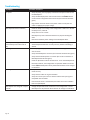
No power
• Verify the power cord is properly connected to the power outlet and to
the Mondopad™.
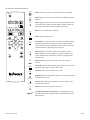
• Verify the Mondopad power switch is ON and that the Power button
on the remote or keypad has been turned on (the front LED should be
green).
• Plug another electrical device to the power outlet to verify that the
outlet is supplying the proper voltage.
Mondopad shuts down suddenly
• Check the Sleep Timer setting in the Configuration 2 OSD menu. Disable
the Sleep Timer, if desired.
• Verify that a source is active.
• Mondopad may have overheated. Remove any objects blocking the
vents.
• Review the Windows power settings of the Mondopad tablet.
Mondopad is turning on and/or off
automatically at the same time of
day
• Check both the Date & Time settings and the Schedule settings in the
Advanced Option OSD menu to verify accuracy. Disable scheduling, if
desired.
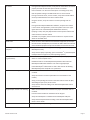
No image
• If attempting to display an external source, see “No image from external
source” below.
• Verify that Mondopad is turned on (the front LED should be solid green).
• Verify that the Mondopad PC is turned on (the PC LED on the back of
Mondopad should be solid green).
• Check the Operation mode in the OSD menu. To see the Mondopad Collaboration software, the Configuration 1> Operation Mode must be set
to AIO. Note: Mondopad must be powered off and back on for changes
to take effect.
No image from external source
• Verify that connections between the source and the tablet have been
made correctly.
• Verify that the cables are in good condition.
• Verify the correct input source is selected and that the input signal is
compatible with the tablet.
• If the external source is not detected, the Video source menu defaults
back to PC/Mondopad.
Mondopad is not acting like a simple
monitor
Page 30
• Change the Operation mode to Monitor in the Configuration 1 menu.
Mondopad must be powered off and back on for changes to take effect.