1
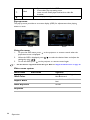
Hiding the image
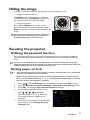
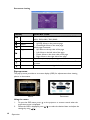
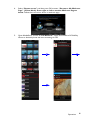
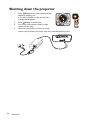
In order to draw the audience's full attention to the presenter, you can:
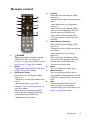
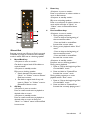
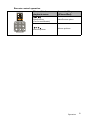
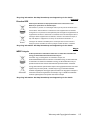
• Using the remote control
Use Blank on the remote control to hide the
screen image. Press again Blank or any keys on
the remote control to restore the image.
• Using the projector
Press and hold Blank for 3 seconds on the
projector to hide the screen image. Press again
Blank or any keys on the projector to restore the
image.
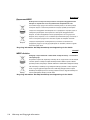
Do not block the projection lens from projecting as
this could cause the blocking object to become
heated and deformed or even cause a fire.
Securing the projector
Utilizing the password function
For security purposes and to help prevent unauthorized use, the projector includes an
option for setting up password security. The password can be set through the Settings
menu.
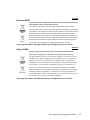
You will be inconvenienced if you activate the power-on lock functionality and subsequently
forget the password. Print out this manual (if necessary) and write the password you used in this
manual, and keep the manual in a safe place for later recall.
Setting power on lock
•
Once a password has been set, the projector cannot be used unless the correct password is
entered every time the projector is started.
•
When setting a password for the projector that its password function is used for the first
time, enter the default password (1, 1, 1, 1, 1, 1) of the projector by pressing the arrow key
five times if you are prompted for a password.
1.
2.
3.
4.
5.
Press
/
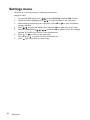
until the Settings menu is highlighted and then press OK to enter.
Go to the Advanced > Security Settings > Change Security Settings menu.
Press OK. The message 'Input Current Password' displays.
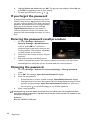
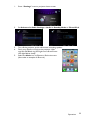
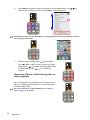
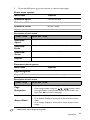
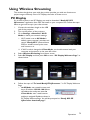
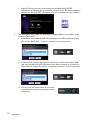
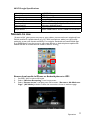
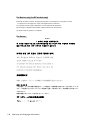
As pictured to the right, the four arrow
keys ( ,
, , ) respectively
represent 4 digits (1, 2, 3, 4). Press the
arrow keys to enter six digits for the
password.
Once the correct password is set, the OSD
menu returns to the Change Security
Settings menu.
Operation
39