1
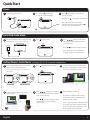
Quick Start
Power
1
2
Connect to power source
Press & hold
power button
(3 seconds) to power unit ON.
3
2
Press
repeatedly to cycle between
standby and ON.
Press & hold
outlet
(3 seconds) to turn iW2 OFF
Note: When the iW2 is OFF (not in
standby mode) you must press & hold
to begin using your iW2 speaker.
12V
wait 20 seconds to allow system to startup
Local iPod Audio Mode
1
2
Connect iPad/iPhone/iPod using iPod USB
sync cable (iPod and aux-in play in parallel)
Press
for iPod mode
3
Press
buttons on the iW2 or
iW2 remote, in iPod mode, to control
your iPod music.
Press
buttons to adjust volume.
Note: Use iPod mode for both iPod
docking and Aux-in audio playback.
AirPlay Wireless Audio Mode
1
(visit pages 8-9 for Wi-Fi network configuration)
Verify that your iW2 speaker is successfully
connected to your Wi-Fi network.
2
Press
for AirPlay wireless mode
3
(visit page 8 for connecting your iW2 speaker to your
Wi-Fi network)
status
network setup
Connected
status
network setup
AirPlay only works with iPod touch, iPhone, iPad,
or iTunes (Mac or PC)
Not Connected
AirPlay Wireless Audio Mode
4
Select the iHome iW2 as your AirPlay
audio speaker
iHome iW2 speaker
Look for the AirPlay logo
to select your speaker
English
Launch iTunes or use your iPad, iPhone,
iPad touch. Verify iW2 and AirPlay source
device is on same Wi-Fi network.
5
Press
buttons on the iW2 or
use your iTunes, iPad, iPhone, or iPod
touch controls directly.
Press
buttons to adjust volume
or control volume on your AirPlay
source device.
!
Note: for AirPlay streaming:
iPad, iPhone, and iPod touch support
point-to-point audio streaming to one
AirPlay enabled speaker.
iTunes supports point-to-multipoint audio
streaming to up to three AirPlay enabled
speakers (performance depends on your
Wi-Fi network and environment).
5