1
22
3
AP6522 Access Point
Initial Access Point Configuration
Once the access point is installed and powered on, complete the following steps to get the device up and running
using the Initial Setup Wizard:
NOTE
When connecting to an AP6522 model access point, note that the baud
rate is 115,200 as opposed to 19,200.
1. Attach an Ethernet cable from the access point to a controller with an 802.3af compatible power source
or use the PWRS-14000-148R power supply to supply power to the AP6522 (once fully cabled).
If your host system is a DHCP server, an IP address is automatically assigned to the AP6522 and can be
used for device connection. However, if a DHCP server is not available, you’ll need to derive the IP address
from the AP6522 MAC address. Using this method, the last two bytes of the AP6522 MAC address become
the last two octets of the IP address.
AP6522 MAC address - 00:C0:23:00:F0:0A
AP6522 IP address equivalent - 169.254.240.10
To derive the AP6522’s IP address using its factory assigned MAC address:
a. Open the Windows calculator be selecting Start > All Programs > Accessories > Calculator. This menu
path may vary slightly depending on your version of Windows.
b. With the Calculator displayed, select View > Scientific. Select the Hex radio button.
c. Enter a hex byte of the AP6522’s MAC address. For example, F0.
d. Select the Dec radio button. The calculator converts F0 into 240. Repeat this process for the last
AP6522 MAC address octet.
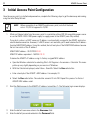
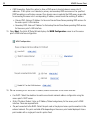
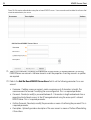
2. Point the Web browser to the AP6522’s IP address (using https://). The following login screen displays.
3. Enter the default username admin in the Username field.
4. Enter the default password motorola in the Password field.