1
EN DSC mode
Power on the device and press “MODE” button to enter DSC mode. To take photo press “REC/SNAP” button.
Press “MENU” button to enter DSC settings. Press “UP”
or “DOWN” button to navigate, then press “REC/SNAP”
to enter submenu.
1. Image Size: [5M 2560x1920/3M 2048x1536/2M
1600x1200/1M 1280x1024]
2. Time Stamp: [On/Off ]
3. Night mode: [disable/auto]
Playback mode
Power on the device and press “MODE” button twice to
enter playback mode. Press “UP” or “DOWN” button to
select item, press “REC/SNAP” button to preview. Press
“MENU” button to enter playback mode options. Now
press “UP” or “DOWN” button to navigate, then press
“REC/SNAP” to enter submenu.
1. Delete [This image/All/Cancel]
2. Show thumbnails [OK/Cancel]
3. Volume adjust [1/2/3/4/5/6]
USB mode
Use USB cable and connect DVR recorder to USB port
6
of PC computer. System will recognize new USB mass
storage and install it automatically. Now you can access
files stored on SD card.
Playback on TV
Connect DVR recorder to TV set using AV cable. Power
on the device and enter playback mode automatically.
Follow operations described earlier in “Playback mode”.
Specification:
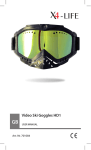
¯ 1 MPix CMOS sensor,
¯ Wide angle lens,
¯ Video mode: HD 1280x720@30fps or 640x390@30fps,
¯ Video format: AVI,
¯ Snapshot up to 2560x1920pix,
¯ Microphone built-in,
¯ AV output,
¯ Standard ¼” tripod mount,
¯ Li-Ion rechargeable battery.
¯ 2.5” TFT LCD display,
¯ For car use, automatic start up engine record function,
¯ SD/SDHC card support: up to 64GB.
* Specification and appearance of device are subject to
change without prior notice.