1
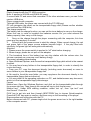
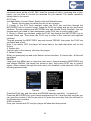
Press the play key again, you can adjust the FM frequency by hand through the
NEXT/PRVE key. Press the MENU key then get into FM Submenu, through the
NEXT/PREV key, you can select: Save Station, Auto Scan (as picture 2)
If you select the “Save Station” option, and press the play key for confirmed then the
station would be kept. Press the play key again, you can see that the station has been
saved (as picture 3). Press the menu key, then you can select: Del Station or Auto Scan.
If you select “Del Station” and press the play key for confirmed then the present station
would be delete.
Note: if there is station kept in the player you can change the state between “Normal”
and “Preset”(picture 1 and picture 3), and only in the Preset state, you can get into
picture 4(that is to say you can Delete station)
If you select the “Auto Scan” option, press the play key for confirmed, then you will get
into the preset state (as picture 3). But the frequency would be changed quickly.
After Auto scan, the station that scanned would be
Saved, and the station also can be deleted as above measure. When Auto Scan, press
PREV key or NEXT key would stop Auto scan.
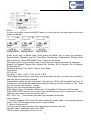
FM Record
Press the VOL key, then it begins FM Record, press the play key, it would pause the
record; long press the menu key then the record would be saved and back to the
"Normal" state. The picture as below:
Recording
Record Pause Saving record Normal state
VOICE
Long press MENU key to enter the main menu, through pressing NEXT/PREV key to
choose Voice, and press PLAY key to confirm.
If there are recorded files in the player, press the play key and then begin to play.
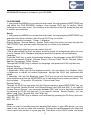
Record
In voice pause/stop state, press the vol key, then begin to record, the picture as below:
Voice stopped
Voice playing
Recording
Press the menu key and then the recorded file would be saved and return to the voice
stopped interface .In voice state, press the menu key, you can get the submenu: Repeat
Mode, Equalizer, 3D, Play Rate, File Browse; which is same as the Music mode, please
refer to it.
PHOTO
7