1
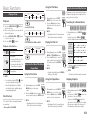
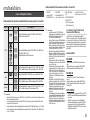
Slow Motion Play/Step Motion Play
Slow Motion Play
hzZyx
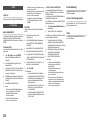
• In pause mode, press the SEARCH (
)
button.
Each time you press the SEARCH (
)
button, the playback speed will change as
follows: * 1/8 * 1/4 * 1/2
• To return to normal speed playback, press
the PLAY (
) button.
✎NOTE
▪▪ The player does not play sound in Slow mode.
Step Motion Play
hzZyx
• In pause mode, press the PAUSE (
)
button.
Each time you press the PAUSE (
)
button, a new frame appears.
• To return to normal speed playback, press
the PLAY (
) button.
✎NOTE
▪▪ The player does not play sound in step mode.
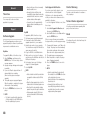
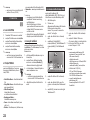
Using the TOOLS button
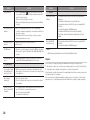
During playback, you can operate the disc menu by pressing the TOOLS button.
✎NOTE
▪▪ Depending on the disc, the Tools menu
may differ.
20
Moving to a Desired Scene
Directly
hzZy
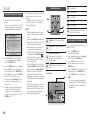
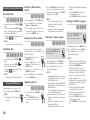
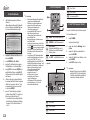
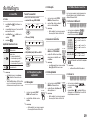
1. During playback, press the TOOLS button.
2. Press the ▲▼ buttons to select Title,
Chapter or Playing Time.
3. Press the ◄► or number button to select
the desired Title, Chapter or Playing Time,
then press the ENTER button.
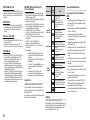
Repeating the Title or Chapter
3. Press the REPEAT A-B button at the point
where you want repeat play to stop (B).
4. To return to normal play, press the REPEAT
A-B buttons to select Off.
✎NOTE
▪▪ If you set point (B) less than 5 seconds of
playing time after point (A), a prohibition
message appears.
▪▪ Depending on the disc, the menu items may
differ and this menu may not be available.
Selecting the Audio Language
hzZx
hzZy
Lets you repeat the disc title or chapter.
Depending on the disc, the Repeat function
may not be available.
REPEAT
1. During playback, press the REPEAT button.
2. Press the ▲▼ buttons to select
Chapter or Title, then press the
ENTER button.
3. To retur n to normal play, press the
REPEAT button again.
4. Press the ▲▼ buttons to select Off, then
press the ENTER button.
Repeating a Section
hzZy
1. During playback, press the REPEAT
A-B button.
2. Press the REPEAT A-B button at the
point where you want repeat play to
start (A).
REPEAT
You can also operate this function
by pressing the AUDIO button on
the remote control.
AUDIO
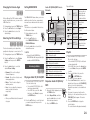
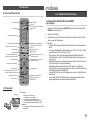
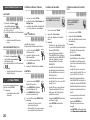
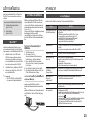
1. During playback, press the TOOLS button.
2. Press the ▲▼ buttons to select Audio.
3. Press the ◄► buttons to select the
desired audio language.
✎NOTE
▪▪ The ◄► indicator will not appear on the screen
if the BONUSVIEW section does not contain any
BONUSVIEW audio settings.
▪▪ Information about the main feature/BONUSVIEW
mode will also appear if the Blu-ray Disc has a
BONUSVIEW section.
Press the ◄► button to switch between main
feature and BONUSVIEW audio modes.
▪▪ This function depends on the selection of audio
languages encoded on the disc and may not be
available.
▪▪ A Blu-ray Disc can contain up to 32 audio
languages and a DVD up to 8.
▪▪ Some Blu-ray Discs may allow you to select
either the PCM or Dolby digital audio soundtrack
in English.
▪▪ If you press the AUDIO button on the remote
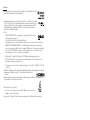
control, the Audio bar appears.
Press the RETURN button to remove the Audio bar.
Selecting the Subtitle Language
hZx
You can also operate this function
AUDIO
by pressing the SUBTITLE
button on the remote control.
SUBTITLE
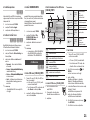
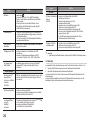
1. During playback, press the TOOLS button.
SUBTITLE
2.
Press the ▲▼ buttons to select Subtitle.
3. Press the ◄► buttons to select the
desired subtitle language.
✎NOTE
▪▪ Depending on the Blu-ray Disc / DVD, you may
be able to select the desired subtitle in the Disc
Menu. Press the DISC MENU button.
▪▪ This function depends on the selection of
subtitles that are encoded on the disc and may
not be available on all Blu-ray Discs/DVDs.
▪▪ A Blu-ray Disc can contain up to 255 subtitle
languages and a DVD up to 32.
▪▪ Information about the main feature/BONUSVIEW
mode will also appear if the Blu-ray Disc has a
BONUSVIEW section.
▪▪ This function changes both the primary and
secondary subtitles at the same time.
▪▪ The total number of primary and secondary
subtitles are displayed respectively.
▪▪ If you press the SUBTITLE button on the remote
control, the subtitle bar appears.
Press the RETURN button to remove the subtitle
bar.