1
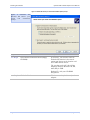
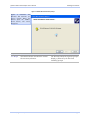
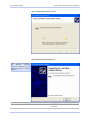
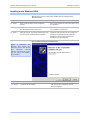
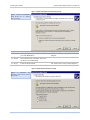
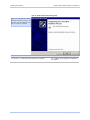
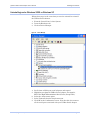
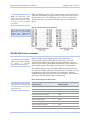
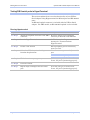
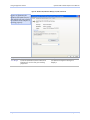
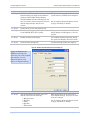
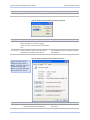
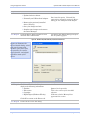
Using configuration utilities Step Step 4 Quatech USB-to-Serial Adapter User’s Manual Procedure Description The RS-232 USB Serial Port Advanced Options dialog box displays the firmware revision of the USB-to-Serial adapter. There are no user-configurable settings for RS-232-only USB-to-Serial adapters. The RS-422/485 Advanced Dialog box also lets you set the connector signals selection and the duplex mode, and receiver control. See the Setting advanced options section on page 44 section for details. Step 5 Click Cancel to close the property box. Step 6 With Device Manager open, expand the Ports (COM & LPT) device group. The ports associated with the USB-toSerial adapter should appear in the list of ports. Step 7 Double click the desired port. The USB Serial Port Properties dialog box opens and displays the General tab. Step 8 Click the Port settings tab. The Port Settings dialog box displays. Figure 18 - Windows XP/2000 USB serial port, Port settings box Figure 18 illustrates the USB Ports Settings box, which lets you set the default port settings, view the advanced options, and restore the default settings. Step Step 9 Page 18 Procedure Description This Port Settings tab allows you to set default values for the following: ¾ Bits per second ¾ Data bits ¾ Parity ¾ Stop bits ¾ Flow control Most applications do not make use of these default settings, but prefer to make their own settings. See the Setting advanced options section on page 44 section for details. Rev 1.00 (August 2006)