1
Conformance Approvals
6. Modify the IP, subnet mask
or gateway address. Enter
the new addresses into the
corresponding fields.
FCC Warning
7. You will need to enter a User
Name and Password for the
Remote Management Card
in the authentication window,
as shown in figure 3.
*Default user name: cyber;
Default password: cyber.
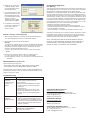
Figure 3. Authentication window.
8. If IP address is successfully,
you will see a message that
the IP set up is OK, as
shown in figure 4.
Figure 4. Setup IP Address successfully message.
Method 2: Using a command prompt
1. Obtain the MAC address from the label on the Remote Management
Card. Each Management Card has a unique MAC address.
2. Use the ARP command to set the IP address.
Example:
To assign the IP Address 192.168.10.134 for the Remote Management
Card, which has a MAC address of 00-0C-15-0A-0A-0A you will type in
the following command prompt from a PC connected to the same
network as the Remote Management Card.
(1) Type in “arp-s 192.168.10.134 00-0C-15-0A-0A-0A” then press
Enter.
This equipment has been tested and found to comply with the limits for a
Class B digital device, pursuant to part 15 of the FCC Rules. These limits
are designed to provide reasonable protection against harmful
interference in a residential installation. This equipment generates, uses
and can radiate radio frequency energy and, if not installed and used in
accordance with the instructions, may cause harmful interference to radio
communications. However, there is no guarantee that interference will not
occur in a particular installation. If this equipment does not cause harmful
interference to radio or television reception, which can be determined by
turning the equipment off and on, the user is encouraged to try to correct
the interference by one or more of the following measures:
- Reorient or relocate the receiving antenna.
- Increase the separation between the equipment and receiver.
- Connect the equipment into an outlet on a circuit different from that to
which the receiver is connected.
- Consult the dealer or an experienced radio/TV technician for help.
This device compiles with Part 15 of the FCC Rules. Operation is subject
to the following two conditions: (1) this device may not cause harmful
interference, and (2) this device must accept any interference received,
including interference that may cause undesired operation.
NOTE: THE MANUFACTURER IS NOT RESPONSIBLE FOR ANY
RADIO OR TV INTERFERENCE CAUSED BY UNAUTHORIZED TO
THIS EQUIPMENT. SUCH MODIFICATIONS COULD VOID THE
USER’S AUTHORITY TO OPERATE THE EQUIPMENT.
3. Use the Ping command to assign a size of 123 bytes to the IP.
(1) Type in “ping 192.168.10.134 -l 123” then press Enter
(2) If the replies are received, your computer can communicate with the
IP address.
WEB INTERFACE Login Account
There are two user account types.
- Administrator (default username: cyber; default password: cyber)
- Viewer (default username: device; default password: cyber)
The administrator can access full functions, including enable/disable the
Viewer account, and the viewer can access the read function but can not
control or change any setting.
Trouble Shooting
Problem
Solution
Unable to configure
the Remote
Management Card
by method 1 or
method 2
1. Check the LED status , the normal condition
is both yellow and green led are on.
If green led is off :
►Check if the Remote Management Card is
properly seated in the UPS and the UPS
power is on.
If yellow led is off :
►Check if the network connection is valid.
2. Check if the operated PC is on the same
physical network as Remote Management
Card is.
Unable to ping
the Remote
Management Card
1. Use method1 and method2 to get correct IP
address of the Remote Management Card.
2. If the operated PC is on the different physical
network from the Remote Management Card,
verify the setting of subnet mask and the IP
address of gateway.
Lost the user name
and password
Please refer to the “Reset to Default Setting /
Recover from a Lost Password”
part in the user’s manual.
CyberPower North America
CyberPower Systems (USA), Inc.
Phone: (952)-403-9500 Toll-free: (877)297-6937
4241 12th Avenue E. Suite 400, Shakopee, MN 55379
E-mail: [email protected]
Website: www.CPSww.com
CyebrPower Europe
CyberPower Systems, Inc.
E-mail: [email protected]
Website: www.cpsww.eu
CyberPower Systems France
Z.I. Saint Séverin 28220 CLOYES sur le Loir – France
Tél : +33(0)2 37 98 61 50
E-mail : [email protected]