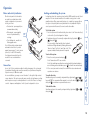
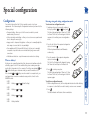
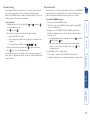
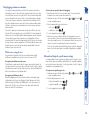
1
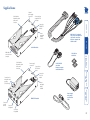
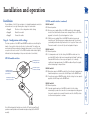
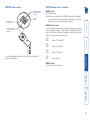
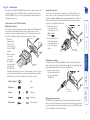
AdderLink X2-Series L A W PO ER Remote Extenders R TO LO C PO WE OC AL TO L R PO WE TE MO RE AL OC w m o r.c de d w.a ww m o r.c de d w.a ww TO L m o r.c de .ad ww Further information Troubleshooting ........................................................................19 Getting assistance......................................................................19 Radio Frequency Energy ...........................................................21 Installation ...................................................................................4 Stage A - Configuration switch settings ................................4 LOCAL module switches.....................................................4 REMOTE module switches .................................................5 Stage B - Mounting a module – desk or rack ........................6 Installation Advice..............................................................6 Stage C - Connections.............................................................7 Connections at the LOCAL module ...................................7 Connections at the REMOTE module................................8 Operation...................................................................................10 Power and activity indicators...............................................10 General use ...........................................................................10 Locking and unlocking the system ......................................10 Installation and operation Configuration ............................................................................11 What are hotkeys? ...........................................................11 Entering, using and exiting configuration mode...........11 Password setting ...................................................................12 Password override.................................................................12 Hot plugging and mouse restoration ..................................13 Which restore setting do I use?.......................................13 Microsoft and Logitech -specific mouse settings ................13 Image controls - sharpness and brightness .........................14 Skew adjustment (X2-Silver and X2-Gold only) ..................15 Miscellaneous settings..........................................................16 Flash upgrade ............................................................................17 Stage A - Download the upgrade files ................................17 Stage B - Create a startup diskette ......................................17 Copy the downloaded files to the disk...........................17 Stage C - Reconfigure the LOCAL connections and begin .18 Stage D - Reconfigure the REMOTE connections and begin18 Stage E - Return all connections to their usual states ........18 Introduction .................................................................................2 Supplied items .............................................................................3 Special configuration Welcome Contents 1 Welcome Mouse extension RS232 serial extension Digital audio extension Brightness control Sharpness control Skew adjustment Up to 300 metres separation between the local and remote modules via a single Category 5, or higher, cable PC RS232 SERIAL MOUSE KEYBOARD VIDEO AUDIO X2 X2 LOCAL REMOTE The video monitor, mouse, keyboard, serial device and audio accessories* connect to the REMOTE Extender. PSU A special multi-cable simplifies the connection of the keyboard, video, mouse and audio ports* to the LOCAL Extender. * * X2-Gold only Video extension Keyboard extension This table indicates the functional differences between the three variants within the X2-Series: X2 X2-Silver X2-Gold Thank you for choosing one of the AdderLink X2-Series products. These compact modules allow you to place the controlling keyboard, video monitor, mouse and a serial device up to 300 metres from a computer system. The range topping X2-Gold modules also allow you to extend your audio accessories away from your computer. There are three variants in the X2-Series and each consists of two modules: a local module that attaches to your computer system and a remote module to which the peripherals are connected. The long distance link between the two modules is made via Category 5, or higher, twisted pair cabling. Special circuitry within the remote module allows you to make adjustments to the sharpness and brightness settings to suit your own preferences. Additionally, the X2-Silver and X2-Gold models also feature Skew adjustment to counteract the effects of uneven lengths of twisted pair cables that are used to carry the video signals. Introduction 2 Supplied items Optional power supply connection Connection from computer RS232 serial port OT E EM TO R L C A w w w .a dd er .c om L O Multi-cable for keyboard, video, mouse and (X2-Gold only) audio connections between computer and LOCAL module LOCAL X2 module Multi-cable connection from computer Self adhesive rubber feet Power supply connection Connections for microphone and speakers (X2-Gold only) TO C LO L A W PO ER Connection to RS232 serial device de d w.a m o r.c REMOTE X2 module Connection to keyboard Connection to LOCAL module Power and signal activity indicator TE MO RE ww Connection to video Connection monitor to keyboard Serial for RS232 connection between computer and LOCAL module Switch bank to determine certain modes and fuunctions PO WE R Power and signal activity indicator Connection to REMOTE module Power supply and countryspecific mains cable Switch bank to determine certain modes and functions 3 Installation and operation Installation LOCAL module switches OFF: Normal operation ON: Transparent mode O ON N 1 OFF: Normal operation ON: Flash upgrade/reset password modes 2 34 OFF: Normal operation ON: Reset LOCAL module OFF: Microphone input mode ON: Stereo line-in mode ON 1 2 34 Note: When shipped, all switches are set in the OFF positions and this will produce normal operation with normal microphone input (at the REMOTE module). LOCAL Switch 3 OFF: Microphone input on REMOTE module. Use this setting if a standard monochannel microphone is connected to the MIC input on the REMOTE unit. ON: Stereo line-in input on REMOTE module. Use this setting if a stereo input is applied to the MIC input on the REMOTE unit. LOCAL Switch 4 OFF: Normal operation. ON: Suspend operation and reset the LOCAL module. Use this setting momentarily to produce the same effect as removing and restoring power if incorrect operation has occurred. Return the switch to the OFF position to allow normal operation to continue. LOCAL Switch 2 OFF: Normal operation. ON: Set transparent mode. Use this setting if the GOLD modules are to be used with KVM switches that are not manufactured by Adder Technology. Cascaded KVM switches often use special signals to set or identify conditions. In transparent mode, the GOLD modules will pass the signals without attempting to interpret them. The basic operation of the LOCAL and REMOTE modules are controlled by the banks of four switches located on the side of each module. The switches are monitored at all times and may be changed when power is on or off (the only exception to this rule is switch 1 of the LOCAL module which initiates slightly different functions depending on the power state when it is switched). Stage A - Configuration switch settings LOCAL Switch 1 OFF: Normal operation. ON: (Before power is applied) Places the LOCAL module into flash upgrade mode so that the internal software can be changed. Please see the ‘Flash upgrade’ section in the ‘Special configuration’ section. ON: (Whilst power is applied) Places the REMOTE module into password override mode. This allows any pre-configured passwords to be altered - particularly useful when they have been lost or forgotten. Please see the ‘Password override’ section in the ‘Special configuration’ chapter. The installation of the X2-Series extender set is straightforward and can best be achieved in most cases by following these stages for each module: • Stage A Check or set the configuration switch settings • Stage B Mount the module • Stage C Connect the cables LOCAL module switches (continued) 4 REMOTE module switches (continued) 34 Reserved for future use Determines configuration of hotkeys in conjunction with switch 2 ON 1 2 34 Note: When shipped, all switches are set in the OFF positions and this will produce normal operation. REMOTE Switches 2 and 3 Switches 2 and 3 determine which two keyboard keys (when pressed in unison) are to be designated as ‘hotkeys’. Hotkeys signal to the REMOTE module that the next key to be pressed is a special configuration command for the module and is not to be passed to the computer system. 2 OFF 3 OFF Hotkeys = CTRL and SHIFT 2 OFF 3 ON Hotkeys = ALT and SHIFT 2 ON 3 OFF Hotkeys = CTRL and ALT 2 ON 3 ON Hotkeys disabled REMOTE Switch 4 This switch is reserved for future use. 2 1 O ON N OFF: Normal operation ON: Flash upgrade REMOTE Switch 1 OFF: Normal operation. ON: (Before power is applied) Places the REMOTE module into flash upgrade mode so that the internal software can be changed. Please see the ‘Flash upgrade’ section in the ‘Special configuration’ chapter. Determines configuration of hotkeys in conjunction with switch 3 REMOTE module switches 5 The X2-Series extender modules can be situated on a desk (or floor) or alternatively, for larger installations, mounted within optional rack mount chassis units. • For correct operation, the local and remote units must have ground connections. At the computer end, ensure that the computer or KVM switch that the LOCAL module is connected to has a ground connection. At the keyboard/monitor/mouse end, ensure that the REMOTE module’s power supply is connected to a grounded power outlet. Alternatively, a ground connection will be made via the monitor, if the monitor is itself grounded. • Try to avoid laying the interconnect cable alongside power cables where possible. 1 2 34 ON Rack mount Note: The module switches are not accessible once it is inserted into the rack, therefore, check all settings before insertion. 1 Place the rack securing plate (available as a separate kit) onto the front of the module and secure it with the two countersunk screws. 2 Orient the module on its side so that its labelled face is the correct way up and the securing plate is facing away from the rack. 3 Slide the module into the required rack position. The rectangular cut-out in the front upper lip of the rack allows the two screws on the module’s upper edge to slide through. 4 The rack mount chassis has a series of holes in its floor that are spaced to accommodate the two screws on the module’s lower edge. Ensure that the screws correctly locate into the two holes of the chosen slot. The rack securing plate on the module should now be flush with the front of the rack mount chassis. 5 Use the third (pan-head) screw, in the top hole of the rack securing plate to fasten the module to the rack. Desk mount Apply the supplied self-adhesive rubber feet to the underside of the module(s). Installation Advice Stage B - Mounting a module – desk or rack 6 Monitor (video) Blue Keyboard Purple Mouse or Speaker or SPK Light green Microphone or MIC Pink (or maroon) Mid green Twisted pair connection The link between the LOCAL and REMOTE modules is made via twisted pair cable, specified to Category 5 or higher. Ensure that the total twisted pair cable length (including patch boxes) does not exceed 300 metres. 1 Insert the connector from the twisted pair cable link into the socket marked ‘TO REMOTE’. twisted pair cable connector LOCAL Optional power connection The LOCAL module usually derives its power from the keyboard connection of the host system. If the keyboard connection will not be used then you will need to use an external power supply of the same type used for the REMOTE module. These are available from your Adder supplier. Male connector of the serial cable Multi-cable connection Most of the connections between the computer system and the LOCAL module are made via the supplied multi-cable. This has a single connection to the module, is two metres in length and splits out to the keyboard, video, mouse and (for the X2-Gold) microphone and speaker ports of the system. 1 Attach the supplied multicable to the 25way socket at the end of the LOCAL module. 2 At the other end of the multiLOCAL cable, attach the keyboard, mouse and video, Multi-cable main connector (plus optionally on X2-Gold, the microphone and speaker) connectors to the appropriate sockets at the rear of the computer system. On most systems the appropriate ports should be labelled and colour coded in a similar way to the cable connectors: Connections at the LOCAL module Serial cable connection The X2-Series extender modules offer the option to attach an RS232 serial device (such as a touch screen input) via the remote link. The link supports software or hardware handshaking up to a maximum baud rate of 56Kb/s. To make the serial connection between the LOCAL module and your computer system, use the supplied serial link cable. 1 Attach male connector of the serial link cable to the 9 pin port on the LOCAL module, labelled . 2 Connect the other end of the serial link cable to the appropriate serial LOCAL port of the computer system. The naming of the LOCAL and REMOTE modules relate to their proximity to the computer system. Hence, the LOCAL module connects directly to the system, while the REMOTE is at the other end of the twisted pair cable and attaches to the keyboard, mouse, etc. Stage C - Connections 7 REMOTE Power supply connection Power supply connection 1 Insert the IEC connector of the supplied power lead into the corresponding socket of the power supply. Connect the other end of the power lead to a nearby mains socket. IEC power connector . Twisted pair, power and serial connections 1 Insert the connector from the twisted pair cable link into the socket marked ‘TO LOCAL’. 2 Attach the output connector of the Twisted pair power supply to the connection socket at the front edge of the REMOTE module labelled POWER. 3 If a serial connection is Connection to be used, attach the from serial device lead from your serial device to the 9 way male connector on the REMOTE module labelled Keyboard, video and mouse connections The connections to the keyboard, video monitor and mouse are all made to the sockets at one end of the REMOTE module. 1 Attach the lead from the monitor to the blue D-type socket labelled on the REMOTE module. 2 Connect the keyboard lead to the purple mini-DIN socket labelled REMOTE on the REMOTE module. Connection 3 Insert the keyboard from video lead into the green Connection monitor Connection from mouse from mini-DIN socket keyboard labelled on the REMOTE module. Connections at the REMOTE module 8 ON 1 2 34 Note: When the X2-Gold REMOTE module is rack mounted, the audio connections must be made after the module has been fixed in place. Access is required to the rear and above the rack. Remember to remove the audio connections before attempting to slide out the REMOTE module. Audio connections (X2-Gold only) On the X2-Gold REMOTE module, audio connections are available at the two 3.5” jack sockets mounted on the side (same side as the switch bank). Note: The microphone input (labelled ) has a dual function whereby it can either support a mono-channel microphone or alternatively receive stereo line input. Switch 3 on the LOCAL module controls the setting of this port: LOCAL switch 3 OFF - microphone, LOCAL switch 3 ON - stereo line in. 1 Connect the microphone (or stereo line input) plug to the REMOTE module socket labelled . Note: Ensure that the setting of switch 3 on the LOCAL module matches the input to this socket: Microphone (or stereo line-in) OFF-microphone; connection ON-stereo line input). 2 Connect the speaker plug to the socket labelled . Speaker ON 1 connection 9 2 3 4 Operation REMOTE General use In use, the X2-Series extender modules should be transparent - the system and its peripherals should operate exactly as normal, the only difference being that they are now up to 300 metres apart. In some installations, you may see some ‘shadows’ to the right of high contrast screen characters. This can be caused by an incorrectly selected sharpness setting and it may be necessary to make adjustments to correct this. Please see ‘Image controls - sharpness and brightness’ in the ‘Special configuration’ section. To unlock the system 1 Enter the correct password and press . Note: Passwords are NOT case sensitive. Note: If an invalid password has been entered and the keyboard indicators are not flashing as described above, press to clear the incorrect attempt. 2 If the correct password is entered, the screen will be restored and normal operation can continue. To enable the video Simultaneously press the currently configured hotkeys (by default, long with . This command will be required to restore the video if along with is used when no password has been set. To disable the video Simultaneously, press the currently configured hotkeys (by default, along with . and ) and and ) To lock the system 1 First set a password. For further details, please refer to the ‘Password setting’ section in the ‘Special configuration’ chapter. 2 Simultaneously press the currently configured hotkeys (by default, and ) along with . The screen will go blank and the three keyboard l rol ScLock indicators will begin alternately flashing between the ps CaLock ‘Num Lock’ and ‘Scroll Lock’, and ‘Caps Lock’. This m NuLock sequence indicates that a password is required. LOCAL In situations where the computer system (and the LOCAL module) can be locked away the X2-Series extender modules offer a viable security system to deter unauthorised use. Once a password has been set, a simple key sequence allows the system to be quickly and securely detached from its peripherals. Only the correct password will reconnect the remote and local modules. On the front panel of both modules are small recessed indicators which provide confirmation of power and activity, as follows: • Constant red - power applied, no communication activity. • Flickering red - power applied, Activity/ mouse or keyboard activity power indicators occuring. • Slow flashing red - module is in flash upgrade mode. Note: Both modules contain internal automatic cut-out fuses to protect against power surges. To reset, remove power (or, for the LOCAL module, the keyboard connection) from the module for one second and then reconnect. Locking and unlocking the system Power and activity indicators 10 Special configuration Configuration Entering, using and exiting configuration mode 2 OFF 3 ON Hotkeys = and 2 ON 3 OFF Hotkeys = and 2 ON 3 ON Hotkeys disabled 3 Press the number of the required configuration option, for instance . The ‘Scroll Lock’ indicator will extinguish, leaving the ‘Num Lock’ and ‘Caps Lock’ indicators lit. l rol ScLock m NuLock ps CaLock l rol ScLock m NuLock 4 Press to confirm your option. The three keyboard indicators (‘Num Lock’, ‘Caps Lock’ and ‘Scroll Lock’) will now begin to flash in sequence again. To exit from configuration mode: 1 Within configuration mode, the three keyboard indicators should be flashing in sequence to show that the module is ready to receive a new command. 2 Press . The three indicators will return to their normal states. ps CaLock Hotkeys are two normal keyboard keys that, when pressed simultaneously with a third key, signal to the X2-Series modules that you are sending a message specifically to them and not to the computer. The hotkeys are ordinarily and , while a third keypress determines what you want the modules to do. If the standard and hotkeys are also needed for computer tasks, you can change them for another combination using switches 2 and 3 on the REMOTE module: 2 OFF 3 OFF Hotkeys = and (default setting) 2 Press the first letter of the required configuration option, for instance . All three keyboard indicators will illuminate continuously. What are hotkeys? To enter and use configuration mode: 1 Simultaneously press the currently configured hotkeys (by default, and ) along with . The three keyboard indicators (‘Num Lock’, ‘Caps Lock’ and ‘Scroll Lock’) will now begin to flash in sequence to show that you are in configuration mode. You can alter the way that the X2-Series modules operate to suit your requirements. This is done using the Configuration mode and you can affect the following settings: • Password setting – allows you to lock the remote module to prevent unauthorised system access. • Mouse restoration and settings – allows you to restore mouse operation and also to change the mouse type. • Image controls - sharpness & brightness – allows you to manually adjust the video image to ensure that it is crisp and bright. • Skew adjustment (X2-Silver and X2-Gold only) – allows you to manually compensate for possible video errors introduced by long, uneven cable connections. • Miscellaneous functions – report firmware version and restore settings. 11 To override the REMOTE password 1 Remove power from the REMOTE module. 2 With power to the system and LOCAL module still applied, change LOCAL switch 1 to the ON position. 3 Re-apply power to the REMOTE module. The REMOTE module will go directly into configuration mode so that the old password can be cleared and a new one set. • To clear a password: (within configuration mode) Press followed by and followed by again. • You can now enter a new password using the procedure outlined in steps 2 to 5 of the ‘Password setting’ section, or press to exit configuration mode. 4 Return LOCAL switch 1 to its OFF position. Note: If switch 1 remains ON, then the REMOTE module will enter configuration mode whenever it is repowered and will not operate normally. This mode allows you to override the password that has been set at the REMOTE module and place it into configuration mode so that a new one may be set. This feature is particularly useful when passwords have been lost or forgotten. To set a password 1 Simultaneously, press the hotkeys (by default, and ) along with to enter configuration mode. 2 Press followed by . 3 Now enter your new password, within the following constraints: • Passwords are NOT case sensitive, • Passwords may be any length from one character to a maximum of forty characters, • The following keys may NOT be used: , , , or 4 When you have entered the password, press to signal its completion. 5 Press once more to exit configuration mode. For full details about how to lock and unlock the system using your password, please see the ‘Locking and unlocking the system’ section in the ‘Installation and operation’ chapter. Password override Password protection allows you restrict access to the system only to authorised personnel. A password first needs to be set and then, using the keyboard attached to the REMOTE module, a simple key sequence allows the system to be quickly and securely detached from its peripherals. Password setting 12 Recognising an Intellimouse-style mouse The Intellimouse format was introduced to support, among other features, the scroll wheel function. If your mouse has a scroll wheel, then it is likely to support the Intellimouse format. If you have a Microsoft mouse, then it will usually state that it is an Intellimouse on its underside label. Recognising an Intellimouse driver Before hot plugging your X2-Series extender modules (or afterwards using only keyboard control), access the Windows Control Panel and select either the Mouse option (on Windows NT, 2000 and XP) or the System option (on Windows 95, 98, ME). Look for the name of the driver, which will usually include the words PS/2 or Intellimouse. Microsoft and Logitech -specific mouse settings In certain installations some Logitech mouse drivers may lose the action of the mouse buttons when used with the standard ‘Microsoft compatible’ signalling protocol used between the modules. To solve this problem, select the ‘Logitech compatible’ mouse signalling protocol. The general rule is that unless both the mouse and the driver are both Intellimouse compatible then you need to restore the mouse as ‘PS/2’. To change mouse signalling protocols 1 Simultaneously, press the hotkeys (by default, to enter configuration mode. 2 Enter the appropriate protocol code: • Microsoft compatible – press • Logitech compatible – press Which restore setting do I use? To restore mouse operation when hot plugging: 1 Carefully connect the X2-Series extender modules to the system and its keyboard, mouse, monitor, audio and serial device. 2 Simultaneously, press the hotkeys (by default, and ) along with to enter configuration mode. 3 Enter the appropriate restore function code: • PS/2 – press • IntelliMouse – press 4 To exit configuration mode, press . 5 Move the mouse a short distance and check for appropriate on-screen cursor movement. If the mouse cursor darts erratically around the screen, then cease moving the mouse. This is an indication that the chosen restore function is incorrect. Try again using the other restore function. Note: The restore functions predict the likely mouse resolution settings but may not restore the exact speed or sensitivity settings that were originally set. 3 To exit configuration mode, press and ) along with . It is strongly recommended that you switch off the computer system before attempting to connect it via the X2-Series extender modules. However, if this is not possible then you need to ‘hot plug’ the X2-Series extender modules while power is still applied to the system. There is not normally a danger of damage to the system, however, when mouse communications are interrupted, often they fail to reinitialise when reconnected. X2-Series extender modules provide a feature to reinstate mouse communications once the necessary connections have been made. There are two main types of data formats used by current PC mice, these are the older ‘PS/2’ format and the more recent ‘IntelliMouse® ’ format introduced by Microsoft. These use slightly different data arrangements and it is important to know which type was being used before you hot-plugged the X2-Series extender modules. The previous setting depends both on the type of mouse and the type of driver as various combinations of PS/2 and Intellimouse are possible. Using the incorrect restore function may produce unpredictable results and require the system to be rebooted. Hot plugging and mouse restoration 13 Sharpness increase (fine) Brightness decrease Sharpness: Brightness: Sharpness decrease (coarse) Exit image controls and save settings the need for sharpness adjustment If the image controls cannot provide a crisp image If, after adjusting the image controls, the screen image remains fuzzy or has coloured shadows you may need to use the Skew adjustment feature (X2-Silver and X2-Gold only). Please see the next section for details. Sharpness increase (coarse) Brightness increase Sharpness decrease (fine) for fine adjustment, for coarse adjustment. There are 255 sharpness levels (one coarse step jumps 10 levels). To autoset sharpness: Press to make the module calculate and apply an automatic compensation level - you can use this as a starting point for your fine tuning. Note: If the monitor goes blank and switches off (due to oversetting the sharpness adjustment) press the key to restore. for adjustment. There are 255 brightness levels. 3 When no shadows are visible and the displayed images have crisp edges, press to exit configuration mode and permanently save all settings. The new compensation setting will be stored, even when power is removed or if a complete reset is initiated. The setting should not require further changes unless the cabling arrangement is altered. Restore default sharpness and brightness settings To display a suitable high contrast image The best way to clearly view the effect of sharpness and brightness adjustments is to display a high contrast image, with vertical edges, on the screen. • Open a word processor, type the capital letter ‘H’, or ‘M’ and increase the point size to 72 or higher. For best results, the background should be white and the character should be black. • A BLACK shadow on the right of the character indicates UNDER compensation. High contrast Black or bright • A WHITE shadow on the right of the character black character white shadow on white on the right indicates OVER compensation. background indicates To use the image controls 1 Simultaneously, press the hotkeys (by default, and ) along with to enter configuration mode. The three keyboard indicators (‘Num Lock’, ‘Caps Lock’ and ‘Scroll Lock’) will now begin to flash in sequence. The speed of the sequence indicates the level of the sharpness adjustment currently applied: the slower the rate, the lower the level of sharpness being applied. 2 While viewing the displayed high contrast screen image, use the following keys to adjust the controls: The X2-Series extender modules incorporate special controls to compensate for losses incurred within long cable links. Using these controls you can adjust the picture sharpness and brightness to improve your remote picture quality. The need for image control adjustment is best discovered when viewing high contrast images with vertical edges, such as black lines on a white background. When doing so, if you notice that the screen image is ‘fuzzy’ or ‘dark’ then the image controls may be able to solve this condition. Note: If the high contrast images exhibit shadows with separate colours, then there may be a skew problem which requires a different image adjustment - see the ‘Skew adjustment’ section for details. Image controls - sharpness and brightness 14 Skew adjustment (X2-Silver and X2-Gold only) m NuLock ps CaLock l rol ScLock m NuLock 5 Press the and keys to retard or advance the timing of the selected colour channel respectively. On screen you will see a change in the position of the selected colour crosses in relation to the other two. ps CaLock l rol ScLock m NuLock Restore default skew settings Exit image controls and save settings Advance colour timing Retard colour timing 6 When the selected colour crosses are correctly positioned, press to exit that colour channel. The keyboard indicators will return to flashing in sequence. 7 If required, repeat steps 4 to 6 to select and adjust any colour channel until the vertical lines of the red, green and blue crosses are all aligned. 8 When all colours are correctly aligned, press to exit configuration mode and permanently save all settings. Note: Once you have made a skew adjustment, it may be necessary to readjust the image controls to attain an optimum screen image. To use skew adjustment 1 Insert the supplied Adder Installation CD-ROM into the CD player of the computer. 2 Within Windows, use the My Computer option (usually available as a desktop icon or within the Start menu) to view the contents of the CD-ROM. Double-click the Skew entry to display the standard test pattern. If necessary maximise the application window so that the image fills the screen. The screen will show a series of fine red, green and blue crosses which should all be in line, vertically and horizontally. Skew affects the horizontal placement of the colours and using this pattern it is much Convergence test easier to discover which, if any, colours are pattern showing the RGB crosses. In this being adversely affected by the twisted pair case, the green signal cable run. can be seen out of line with the other 3 Simultaneously, press the hotkeys (by two colours. default, and ) along with to enter configuration mode. The three keyboard indicators (‘Num Lock’, ‘Caps Lock’ and ‘Scroll Lock’) will now begin to flash in sequence. 4 As appropriate, press either the R, G or B keyboard keys to select the appropriate colour channel. Corresponding keyboard indicators will flash rapidly to show which channel is currently selected l rol ScLock for adjustment: Num Lock for Red, Caps Lock for s p Green and Scroll Lock for Blue. CaLock The twisted pair cabling supported by the Gold Extender set (category 5, or higher) consists of four pairs of cables. Three of these pairs are used by the modules to convey red, green and blue video signals to the remote video monitor. Due to the slight difference in twist rate between these three pairs, the red, green and blue video signals may not arrive at precisely the same time. This is visible as separate colour shadows on high contrast screen images. This effect is particularly apparent when using higher screen resolutions and some types of category 5e cables. In this situation, the X2-Silver and X2-Gold extenders provide internal skew adjustment that can help to rectify the situation. The skew adjustment works by delaying or advancing the timing of any of the red, green or blue colour signals so that they are all delivered to the monitor at precisely the same time. For best results a test pattern is provided and this should be displayed when using skew adjustment. 15 Miscellaneous settings Reset all configuration options to default states Returns all user configurable options to the settings that are installed at manufacture. The password will be cleared, however, any current image control settings or skew adjustments will not be reset. Report X2-Series extender firmware version Before initiating this command, ensure that the system is running an application that can display typed keys as screen characters - e.g. a word processor or Windows Notepad. The current firmware version will be written to the application in the form of the letter ‘V’ followed by three numbers - for example V201 means version 2.01. The following are configuration settings within the modules that are not covered in other sections of this guide. These can be achieved once within configuration mode by pressing the indicated keys: 16 To download the files 1 Access the Adder Technology Ltd website (www.adder.com), enter the Support section. Choose the upgrade option that best suits your requirements and download it to your system. 2 Decompress the downloaded file. Depending on the chosen option, there will be a collection of suitable files. As a minimum, there should be the following files: • AUTOEXEC.BAT – directs the computer to run the upgrade programs. • XKVMV2.EXE – this is the upgrade program that automatically determines which module is connected and sends the appropriate firmware file. • XKVM.DAT – this file contains information about firmware versions and is used by the XKVMV2.EXE to select the appropriate one. • X2GDLxxx.HEX, X2SLLxxx.HEX, X2STLxxx.HEX – these are the firmware files for the X2-Gold, X2-Silver and X2 LOCAL modules respectively. • X2GDRxxx.HEX, X2SLRxxx.HEX, X2STRxxx.HEX – these are the firmware files for the X2-Gold, X2-Silver and X2 REMOTE modules respectively. Where xxx is the upgrade version number. Now please follow Stage B. To create a startup disk in Windows 95/98/Me 1 Insert a formatted diskette into the floppy disk drive. 2 Select ‘Start’, then ‘Settings’ and then ‘Control Panel’. 3 Double click on the ‘Add/Remove Programs’ icon. 4 Select the ‘Startup Disk’ tab. 5 Click ‘Create Disk’ and follow the instructions. To create a startup disk in Windows 95/98 (alternative method) 1 Insert a diskette into the floppy disk drive. 2 Right mouse click on the ‘31⁄2 Floppy (A:)’ icon and select ‘Format’. 3 Select the ‘Full format’ option and ensure that the ‘Copy system files’ box is checked. 4 Select ‘Start’ to format the disk. To create a startup disk from MS-DOS or a DOS window within Windows 95/98 1 Insert a diskette into the floppy disk drive and check that the drive is configured as drive A (it usually is). 2 At the DOS prompt (C:\>) type: FORMAT A: /S and follow the instructions given by DOS. Copy the downloaded files to the disk Once the diskette has been formatted, using Windows Explorer or the My Computer option, copy the downloaded and decompressed files from your computer to the floppy diskette. To create a startup disk in Windows XP 1 Insert a diskette into the floppy disk drive. 2 Select ‘Start’ and then ‘My Computer’. 3 Right mouse click on the ‘31⁄2 Floppy (A:)’ icon and select ‘Format’. 4 Check the ‘Create an MS-DOS startup disk’ box and select ‘Start’. Stage A - Download the upgrade files For this stage you will need a 31⁄2 floppy diskette that is either blank or has existing contents that are no longer required. The write protect tab must be moved to the ‘unprotected’ position. Depending on your operating system, use one of the following to create a startup disk: As part of the continual development and improvement process across the range of Adder products, software upgrades are occasionally made available. The LOCAL and REMOTE modules both contain internal flash memory and Adder’s unique keyboard-link upgrade technique allow you to utilise software upgrades in a straightforward manner. Note: It is important to upgrade both the LOCAL and REMOTE modules together so that they are both running the same new version of software. Note: To upgrade the REMOTE module, a special keyboard connection cable is required. This cable must have 6pin mini-DIN male to 6pin mini-DIN male plugs with all lines connected - this is a common cable used with KVM switches. To perform a flash memory upgrade, you need to perform the following stages: • Stage A – Download upgrade files from the Adder website • Stage B – Create a startup diskette and copy the files to it • Stage C – Reconfigure the LOCAL module connections and begin • Stage D - Reconfigure the REMOTE module connections and begin • Stage E - Return all connections to their usual states Stage B - Create a startup diskette Flash upgrade Now please follow Stage C. 17 Now please follow Stage D. Now please follow Stage E. Stage E - Return all connections to their usual states Once the upgrade process has been completed, perform the following to return the system to its previous state. 1 Ensure that switch 1 on both the LOCAL and REMOTE modules are set to their OFF positions. 2 Refer to the ‘Installation and operation’ chapter for detailed instructions on correctly connecting the LOCAL and REMOTE modules to the computer, its peripherals, the REMOTE power supply and the twisted pair cable. 3 Remove the diskette from the system and reboot. The upgrade process is now complete. 1 Disconnect all cables from the REMOTE module and take it to the computer. Use a KVM switch-type keyboard 2 Use a ‘KVM switch-type’ connection cable between the keyboard cable (6pin mini-DIN REMOTE module and the computer male to 6pin mini-DIN male plugs PC with all lines connected) - not RS232 SERIAL supplied. Attach one end of the X2 MOUSE cable to the keyboard port of the REMOTE KEYBOARD computer. Connect the other end VIDEO PSU AUDIO of the cable to the keyboard port of the REMOTE module. This is the only connection required. Leave the video monitor connected to the computer 3 On the REMOTE module, change so that you can check progress switch 1 to the ON position. 4 Attach the power supply unit to the POWER input of the REMOTE module and connect the mains lead to a nearby wall socket. 5 Switch on the computer. The upgrade process will start automatically and confirmation will be given on screen. 6 Switch off the computer and disconnect the REMOTE module. Return REMOTE switch 1 to the OFF position. Stage D - Reconfigure the REMOTE connections and begin 1 On the computer from which you will run the upgrade, ensure that its BIOS settings will allow it to boot from the floppy diskette drive, rather than booting immediately from the hard drive. 2 Switch off the computer and disconnect the twisted pair cable from the LOCAL module. Leave only the keyboard connection 3 On the multi-cable, leave the PC intact between the LOCAL module keyboard connector attached and the computer RS232 SERIAL to the keyboard port of the MOUSE computer. Disconnect the X2 KEYBOARD multi-cable video and mouse VIDEO LOCAL connectors from the ports on AUDIO the computer. Connect a video monitor to the computer so that 4 So that you can check upgrade you can check progress progress, connect a monitor directly to the video port of the computer. 5 On the LOCAL module, change switch 1 to the ON position. Ensure that the upgrade diskette is in the floppy disk drive of the computer. 6 Switch on the computer. The upgrade process will start automatically and confirmation will be given on screen. 7 Switch off the computer and disconnect the multi-cable. Leave the monitor connected and the upgrade diskette in the floppy disk drive. Return LOCAL switch 1 to the OFF position. Stage C - Reconfigure the LOCAL connections and begin 18 No video image is received at the REMOTE module. • Check that the power/activity indicators are lit on the LOCAL and REMOTE modules - if they are not, then there is a power problem. The LOCAL module gains its power either from the computer’s keyboard socket or by using an optional power supply. When keys are pressed or the mouse is moved, check that the indicators flicker – if they do not respond then there could be a twisted pair link problem or a problem with one of the modules. • Check that the Category 5 (or higher) cable is wired correctly as per the diagram in the ‘Skew adjustment’ section in the ‘Special Configuration’ chapter. • If possible, try using an alternative twisted pair connection between the modules. • If the sharpness control is set too high, the monitor may not be able to display a picture. Try reinstating the factory default sharpness settings. Please refer to the ‘Image controls - sharpness and brightness’ section in the ‘Special Configuration’ chapter. • Temporarily disconnect the video link to the LOCAL module, connect a monitor directly to the computer video port and check for a correct video image output. The on-screen mouse pointer does not respond to mouse movements • The mouse connection may have been interrupted. Either, reboot the system and re-power the REMOTE module power supply, or try using the mouse restoration command. Please refer to the ‘Hot plugging and mouse restoration’ section in the ‘Special Configuration’ chapter. Sound from the microphone cannot be heard or is very quiet • Check the setting of LOCAL switch 3 - if a microphone is connected at the REMOTE module, the switch should be set OFF. Sound input from the stereo line input is distorted (‘tinny’ sounding) and only one channel is working • Check the setting of LOCAL switch 3 - if a stereo line input is connected at the REMOTE module, the switch should be set ON. Getting assistance If you are still experiencing problems after checking the list of solutions in the Troubleshooting section then we provide a number of other solutions: • Adder Technology website – www.adder.com Check the Support section of our website for the latest solutions. • Email [email protected] • Fax in the UK: in the US: 01954 780081 +1 888 275 1117 • Phone in the UK: in the US: 01954 780044 +1 888 275 3337 Video image at the REMOTE module is distorted or shadows appear to the right of displayed objects. Adjustments are required to compensate for the length of the twisted pair cable being used. If video problems persist: • Please refer to the ‘Image controls - sharpness and brightness’ section in the ‘Special Configuration’ chapter. • If the overall video image is ‘fuzzy’ and/or has coloured shadows you may need to make skew adjustments (X2-Silver and X2-Gold only). This procedure allows you to finely tune the red, green and blue video signal timings to overcome most colour separation problems. Please refer to the ‘Skew adjustment’ section in the ‘Special Configuration’ chapter. Power is applied via the power supply but the REMOTE module operation has stopped. • Each module has an internal automatic cut-out fuse to protect against power surges. To reset, remove power from the module for one second and then reconnect. If you experience problems when installing or using the X2-Series extender modules, please check through this section for a possible solution. If your problem is not listed here and you cannot resolve the issue, then please refer to the ‘Getting assistance’ section. Troubleshooting The keyboard indicators are flashing between the Caps Lock and the Num Lock/Scroll Lock and the computer does not respond to any keyboard or mouse inputs. • The modules are currently locked and require a valid password to be entered. Please refer to the section ‘Locking and unlocking the system’ for details. Further information 19 • Dual Video Transmitter (part code: XDVT) Allows one system to be controlled from two locations or permits a second video channel to be sent to a remote location. Used in conjunction with two X2-Silver or X2 Remote modules. • Rack mount chassis (part code: RMK-CHASSIS) This 19” chassis allows multiple X2-Series modules to be neatly arranged within a standard cabinet. Securing plates and screws are supplied separately for each X2-Series module for use with the rack mount chassis. • Power distribution module (part code: X-PDM4) Provides power for up to four X2-Series modules to reduce mains power socket requirements. • Rack mount securing plates • for X2-Gold modules (part code: X-RMK-GOLD) • for X2-Silver modules (part code: X-RMK-SILVER) • for X2 modules (part code: X-RMK) • single slot blanking plate (part code: X-RMK-BLANK) • quad slot blanking plate (part code: X-RMK-BLANK4) Warranty Adder Technology Ltd warrants that this product shall be free from defects in workmanship and materials for a period of two years from the date of original purchase. If the product should fail to operate correctly in normal use during the warranty period, Adder will replace or repair it free of charge. No liability can be accepted for damage due to misuse or circumstances outside Adder’s control. Also Adder will not be responsible for any loss, damage or injury arising directly or indirectly from the use of this product. Adder’s total liability under the terms of this warranty shall in all circumstances be limited to the replacement value of this product. If any difficulty is experienced in the installation or use of this product that you are unable to resolve, please contact your supplier. • X2 Extender (part code: X2) As per the X2-Silver with the exception of the skew adjustment feature. • X2-Silver Extender (part code: X2-Silver) As per the X2-Gold with the exception of the audio extension facility. • For use in dry, oil free indoor environments only. • Do not use to link between buildings. • Ensure that the twisted pair interconnect cable is installed in compliance with all applicable wiring regulations. • Do not connect the CATx link interface (RJ45 style connector) to any other equipment, particularly network or telecommunications equipment. • Warning – the power adapter contains live parts. • No user serviceable parts are contained within the power adapter - do not dismantle. • Plug the power adapter into a socket outlet close to the AdderLink unit that it is powering. • Replace the power adapter with a manufacturer approved type only. • Do not use the power adapter if the power adapter case becomes damaged, cracked or broken or if you suspect that it is not operating properly. • If you use a power extension cord with the extenders, make sure the total ampere rating of the devices plugged into the extension cord do not exceed the cord’s ampere rating. Also, make sure that the total ampere rating of all the devices plugged into the wall outlet does not exceed the wall outlet’s ampere rating. • Do not attempt to service the X2 modules yourself. • The X2 modules and power supplies can get warm in operation – do not situate them in an enclosed space without any ventilation. • The X2 modules do not provide ground isolation and should not be used for any applications that require ground isolation or galvanic isolation. • X2-Gold Extender (part code: X2-Gold) This pair of modules allow you to extend not only keyboard, video and mouse signals up to 300 metres, but also similarly support microphone, stereo speaker and an RS232 serial channel. Safety information The following related X2-Series items are also available: Products in the X2-Series range 20 Canadian Department of Communications RFI statement This equipment does not exceed the class A limits for radio noise emissions from digital apparatus set out in the radio interference regulations of the Canadian Department of Communications. Le présent appareil numérique n’émet pas de bruits radioélectriques dépassant les limites applicables aux appareils numériques de la classe A prescrites dans le règlement sur le brouillage radioélectriques publié par le ministère des Communications du Canada. This equipment generates, uses and can radiate radio frequency energy and if not installed and used properly, that is, in strict accordance with the manufacturer’s instructions, may cause interference to radio communication. It has been tested and found to comply with the limits for a class A computing device in accordance with the specifications in Subpart J of part 15 of FCC rules, which are designed to provide reasonable protection against such interference when the equipment is operated in a commercial environment. Operation of this equipment in a residential area may cause interference, in which case the user at his own expense will be required to take whatever measures may be necessary to correct the interference. Changes or modifications not expressly approved by the manufacturer could void the user’s authority to operate the equipment. This equipment has been tested and found to comply with the limits for a class A computing device in accordance with the specifications in the European standard EN55022. These limits are designed to provide reasonable protection against harmful interference. This equipment generates, uses and can radiate radio frequency energy and if not installed and used in accordance with the instructions may cause harmful interference to radio or television reception. However, there is no guarantee that harmful interference will not occur in a particular installation. If this equipment does cause interference to radio or television reception, which can be determined by turning the equipment on and off, the user is encouraged to correct the interference with one or more of the following measures: (a) Reorient or relocate the receiving antenna. (b) Increase the separation between the equipment and the receiver. (c) Connect the equipment to an outlet on a circuit different from that to which the receiver is connected. (d) Consult the supplier or an experienced radio/TV technician for help. FCC Compliance Statement (United States) European EMC directive 89/336/EEC A Category 5 (or better) twisted pair cable must be used to connect the X2 modules in order to maintain compliance with radio frequency energy emission regulations and ensure a suitably high level of immunity to electromagnetic disturbances. All other interface cables used with this equipment must be shielded in order to maintain compliance with radio frequency energy emission regulations and ensure a suitably high level of immunity to electromagnetic disturbances. Radio Frequency Energy 21 Adder Corporation, 29 Water Street, Newburyport, MA 01950, United States of America Tel: +1-888-932-3337 Fax: +1-888-275-1117 Adder Technology Limited, Technology House, Trafalgar Way, Bar Hill, Cambridge, CB3 8SQ, United Kingdom Tel: +44 (0)1954 780044 Fax: +44 (0)1954 780081 © 2005 Adder Technology Limited All trademarks are acknowledged. Release 1.2c March 2005 Part No. ADD0056 Documentation by: www.ctxd.com 22