1
3
2
Webcam Features
CS1330
User’s Manual
1
English
Installing the software
Note: Additional features will be available once you install the
software.
1. Connect the webcam to an available USB port.
2. After the hardware is found, insert the disc into your CD/DVD
drive.
3. Follow the on-screen instructions to install the software.
4. Double-click the amcap icon on your desktop and then select
Devices. Make sure that Vimicro USB 2.0 UVC PC Camera is
selected.
Note: The webcam software can also be found online at
www.V7-world.com under the Products and/or Support tabs.
Using the webcam
Important: If you have more than one webcam, set the CS1330
as the default. Double-click the amcap icon on your desktop
and then select Devices. Select Vimicro USB 2.0 UVC PC
Camera.
Finding the proper location for your webcam
• For best eye contact, put your webcam in the middle of your
monitor.
• Make sure the microphone on the webcam is no more than 3
feet (1 m) away from you and is pointing towards you.
• If you use computer speakers, put them at least 12 inches (30
cm) away from your microphone to reduce feedback and then
angle the speakers away from the microphone.
Focusing the webcam
Rotate the silver dial on the top of the camera to the right and left
until the webcam is in focus.
Recording video
1. Double-click the amcap icon on your desktop and then click
Capture.
2. In the drop-down menu select Start Capture. A menu opens.
3. Select OK to start capturing video or Cancel to exit.
4
1
2
3
4
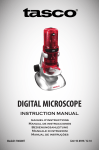
Microphone
Activity light
Focus adjustment dial
Camera lens
Plug and play
Connect the webcam to an available USB
port. The computer recognizes the webcam
and you are ready to start using the webcam.
4. To stop capturing video select Capture again and then Stop
Capture. The video is automatically saved to My Videos or to
the location you specified.
Recording video with audio
1. Double-click the amcap icon on your desktop and then click
Capture.
2. In the drop-down menu select Capture Audio. A checkmark will
appear.
3. Click Capture and select Start Capture.
4. To stop capturing video select Capture again and then Stop
Capture. The video is automatically saved to My Videos or to
the location you specified.
Taking a picture
1. Double-click the amcap icon on your desktop. The live image
from your webcam is shown.
2. Right-click the camera icon near your clock and click Still
Image.
3. Center your image in the viewfinder.
4. Select your desired resolution. The snapshot is taken and a
pop-up window appears.
5. Click File, then Save.
6. Select where you would like your picture to be saved.
OR
Close the window to discard the photo.
Changing webcam settings
Saving videos
Videos are automatically saved to My Videos. To change the
location:
1. Double-click the amcap icon on your desktop and then select
Devices. Make sure that Vimicro USB 2.0 UVC PC Camera is
selected.
2. Click File, then select Save Captured Video As…
3. In the window that opens, select where you would like your
videos to be saved.
4. Click Open.
1