1
Intro
duc
tion
Batt
e
Cha ry Insta
rgin
ll &
g
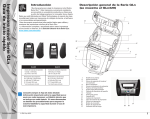
QLn Series Overview (QLn320 Shown)
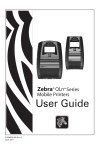
Thank you for choosing the Zebra QLn™ Series Mobile Printers. These rugged printers will
become a productive and efficient addition to
your workplace thanks to their innovative design. Because
it is made by Zebra Technologies you can be assured of
world-class support for all of your bar code printers, software, and supplies.
This document provides an easy reference for operating
and maintaining the QLn Series Mobile Printer.
Complete and current documentation for this printer
is provided by the QLn Series User Guide available on the
Internet at: www.zebra.com/manuals.
1
13
2
3
14
Med
ia Lo
adin
g
6
12
4
7
5
8
Con
n
Print ect Prin
te
er Co
ntro r/
ls
11
Acce
s
Con sories a
tact
n
Info d
Clea
n
Trou ing an
d
bles
hoo
ting
QLn Series Mobile Printers
Quick Start Guide
Introduction
P1031679-002 Rev. A
QLn320
QLn320
QLn220
QLn220
Media width:
1.0 in. to 3.125 in.
(25,4 mm to 79,4 mm)
Media width:
.63 in. to 2.18 in.
(16 mm to 55,37 mm)
Printer Dimensions
H: 6.85 in. (173,659 mm)*
W: 4.65 in.(117,856 mm)
D: 3.15 in (76,9 mm)
* with belt clip
Printer Dimension
H: 6.73 in. (170,9 mm)*
W: 3.60 in. (91,4 mm)
D: 2.75 in. (69,9 mm)
* with belt clip
Always refer to the Important Safety Information data
sheet shipped with each printer and the Technical Bulletin
shipped with each battery pack. These documents detail
procedures to ensure maximum reliability and safety while
using this printer.
© ZIH Corp 2011
10
1.
2.
3.
4.
5.
6.
7.
8.
9. 10. 11.
12.
13.
14.
15.
16.
17.
Platen Roller
Bar Sensor
Media Support Disks
Tear Bar
Label Present Sensor
Peeler Lever
Peeler Bail
Latch Release Lever
Keypad
Strap Post
LCD Screen
Printhead
Media Cover
Gap Sensor
Power Button
Feed Button
LED Charge Indicator
17
15
16
1
Intro
duc
tion
Batt
e
Cha ry Insta
rgin
ll &
g
Squeeze clip on battery pack
and remove.
20
Med
ia Lo
adin
g
21
19
22
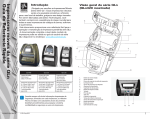
18.
19.
20.
21.
22.
23.
Belt Clip
Battery
USB/RS232 Comm Ports
MAC Address Label
Docking Contacts
DC Input
Clea
n
Trou ing an
d
bles
hoo
ting
Con
n
Print ect Prin
te
er Co
ntro r/
ls
Removing the Battery
Rotate the Belt Clip out of the
way of the Battery
18
Acce
s
Con sories a
tact
n
Info d
QLn Series Mobile Printers
Quick Start Guide
QLn Series Overview continued
Installing the Battery
QLn Series Smart
Battery
23
2
Intro
duc
tion
Batt
e
Cha ry Insta
rgin
ll &
g
There are five (5) ways to charge the QLn Series battery,
two of which being with the battery outside the printer (Quad
Charger and Smart Charger-2), and three inside the printer
(AC Power Adapter, Single Bay Ethernet Cradle, and Four Bay
Ethernet Cradle). All five options are detailed in the following
sections.
UCLI72-4 Quad Charger
The UCLI72-4 Quad Charger charges up to four QLn Series
battery packs simultaneously. Batteries must be removed
from the printer to be charged in the Quad Charger.
Smart Charger-2 (SC2) Single Battery Charger
Battery
Pack
The indicators under the battery will allow you to monitor the
charging process per the table below:
Charge Status
LED Indicator
Con
n
Print ect Prin
te
er Co
ntro r/
ls
Med
ia Lo
adin
g
1. Plug Power Supply
into A.C. Outlet.
•Plug the SC2 charger into the AC outlet.
•Insert the smart battery pack in the SC2 charger.
•The LED on the front of the charger will indicate the battery pack’s
charge status. Green indicates fully charged, Yellow indicates charging, and Amber indicates a fault.
Power Supply
3. Rock Battery Pack
into place
Fast
Char
ge
Full
Char
ge
Read
y
Fast
Char
ge
Faul
t
Full
Char
ge
Read
y
Clea
n
shoo ing and
ting
Trou
ble-
Health Status
LED Indicator
2. Slide Battery Pack
into Charger bay
Faul
t
Acce
s
Con sories a
tact
n
Info d
QLn Series Mobile Printers
Quick Start Guide
Charging the Battery
Fast
Char
ge
Faul
t
Amber
Indicator
Full
Char
ge
Read
y
Fast
Char
ge
Faul
t
Full
Char
ge
Read
y
Pow
er
Charger Bay
Green
Indicator
Power Indicator
Amber
On
Green
Off
On
Flashing
Off
On
Flashing
Off
Battery Status
Charging
80% charged (O.K.
to use)
Completely
Charged
Fault
When the SC2 is plugged in but no battery is present, the Charge Status LED
indicator will be green.
•A second LED will indicate the health of the battery pack:
Green=GOOD, Yellow=CAPACITY DIMINISHED, Yellow
Flashing=PAST USEFUL LIFE, and Amber=UNUSABLE-REPLACE
BATTERY. If the LED is off, there is either no battery or power present.
Consult the QLn Series User Guide available at www.zebra.com/manuals for
complete information on using the SC2 Single Charger.
The charge state of the QLn Series battery is reflected by the LED Charge
Indicator located on the front of printer (as illustrated in the Printer Controls
section on Page 8).
Caution • Do not incinerate, disassemble, short circuit, or expose to
temperatures higher than 60oC (140oF).
3
Ethernet Cradle (Single Bay & Four Bay)
Intro
duc
tion
Single Bay (QLn-EC)
Batt
e
Cha ry Insta
rgin
ll &
g
Qln320 AC
Adapter
AC Power Cord
(varies with
location)
DC Input Jack
Med
ia Lo
adin
g
Ethernet Status
Indicator
•Open the protective cover on the QLn Series printer
to expose the DC input charger jack.
• Connect the appropriate AC power cord for your geography
to the adapter and then plug the power cord into an AC receptacle.
•Plug the barrel plug from the AC adapter into the
charger jack on the printer.
•The printer will power up and begin charging. The printer
can be left on or turned off at this point. Charging will continue in either state, the status of which will be monitored
by the LED charge indicator on the front of the printer.
Con
n
Print ect Prin
te
er Co
ntro r/
ls
Clea
n
shoo ing and
ting
Trou
ble-
Release Button
Batteries are shipped uncharged. Remove protective shrinkwrap and labels from new battery packs and allow them to
charge completely prior to initial use.
Power Status
Indicator
LED Function
Power
LED Status
Solid Green
Indication
Power On
Ethernet
Blinking Green
Ethernet Activity
NOTE: Remove the “Docking Cradle Access” label (shown below) on the bottom
of the printer before docking the printer in the cradle.
DOCKING CRADLE ACCESS
Four Bay (QLn-EC4)
While it’s possible to charge the battery when using the
printer, charge times will increase under this condition.
Acce
s
Con sories a
tact
n
Info d
QLn Series Mobile Printers
Quick Start Guide
AC Power Adapter (included in kit p/n P1031365-024)
4
Intro
duc
tion
C.
A.
4
Batt
e
Cha ry Insta
rgin
ll &
g
Media Cover
flips open
Media Roll
Note direction media
pulls off the roll.
Pull Media out of
Printer
Press Latch Button
Clea
n
shoo ing and
ting
Trou
ble-
Con
n
Print ect Prin
te
er Co
ntro r/
ls
Med
ia Lo
adin
g
B.
Pull Media Supports
apart where shown.
Close Media
Cover
Acce
s
Con sories a
tact
n
Info d
QLn Series Mobile Printers
Quick Start Guide
Loading the Media
5
Acce
s
Con sories a
tact
n
Info d
Clea
n
shoo ing and
ting
Trou
ble-
Con
n
Print ect Prin
te
er Co
ntro r/
ls
Med
ia Lo
adin
g
Batt
e
Cha ry Insta
rgin
ll &
g
Intro
duc
tion
QLn Series Mobile Printers
Quick Start Guide
Loading the Media (Peeler Activated)
A.
B.
D.
6
7
C.
4
5
E.
To disengage the peeler
bail, press down until it
locks in the home position.
8
6
Cable Communications with a PC
Cable Communications with a Terminal.
Terminal
Intro
duc
tion
Med
ia Lo
adin
g
Batt
e
Cha ry Insta
rgin
ll &
g
Connect The Printer With a Cable
You can connect your printer to a terminal or a PC using either RS232C or USB protocols. USB drivers are included in the Zebra Designer Driver which is available on the QLn Series product CD or can be downloaded from the Zebra Web site at www.zebra.com/software .
Communications
Port
USB
Connector
RS232C or USB Communications
Cable to Terminal
Refer to Appendix A in the QLn Series
User Guide for part numbers.
RS-232C or USB Communications
Cable to Computer
Refer to Appendix A in the User Guide
for part numbers.
Clea
n
Trou ing and
bles
hoo
ting
Con
n
Prin ect Prin
ter C
t
ontr er/
ols
RS232
Connector
To provide strain relief for the communication cables, twist the locking cap
in a clockwise direction to secure. Only
one cable can be used at a time in this
orientation.
Acce
s
Con sories a
tact
n
Info d
QLn Series Mobile Printers
Quick Start Guide
Connecting the Printer
Locking Cap
7
Intro
duc
tion
Batt
e
Cha ry Insta
rgin
ll &
g
LED Charge Indicator
Solid Yellow: Charging
Solid Green: Fully charged
Off: No DC Power Applied
Off: With DC Power Applied: Charge Fault
Med
ia Lo
adin
g
Power Button
Press to turn unit on. There will be a 10
second boot up time.
Press again to turn unit off
Feed Button
Press to advance a blank label or a software determined length of journal media.
Printer Status Bar
Main Menu Screen
Con
n
Prin ect Prin
ter C
t
ontr er/
ols
Indicates the status of several
printer functions.**
Displays graphical options including Communication, Display,
Media, Battery, and Help.
Status Screen
Default screen the
printer will display
when the user is not
navigating the main
menu screen.
Clea
n
Trou ing and
bles
hoo
ting
Navigation Bar
Displays user-selectable
options.
Soft Keys
Press to select a
function on the
Navigation Bar.
Four Way Navigation
Buttons
Acce
s
Con sories a
tact
n
Info d
QLn Series Mobile Printers
Quick Start Guide
Printer Controls
Scroll through menu
choices on Status Screen
Press “OK” to enter.
** Not every icon will be displayed on the Status Bar at one
time, only those applicable to the
printer’s configuration.
8
Intro
duc
tion
Caution • To avoid possible personal injury or damage to the printer never insert sharp or
pointed objects into the printer mechanism.
Scraper
Peeler Bar
Platen Surface
Avoid using alcohol on
linerless platen surface
Batt
e
Cha ry Insta
rgin
ll &
g
Bar Sensor
Bearing Points
Med
ia Lo
adin
g
Linerless Platens only
Printhead
Elements
Media Support Disks
Con
n
Print ect Prin
te
er Co
ntro r/
ls
Tear Bar
Area
Cleaning Method
Printhead
Use the supplied cleaning pen to clean the print
elements from end to end (the print elements are
located in the thin gray line on the printhead).
Rotate the platen roller and clean it thoroughly
with the cleaning pen.
Linerless Platen
Units with linerless platens: Rotate platen & clean
Surface
bearing points only. Avoid use of alcohol on the
surface of linerless platens!
Peeler bar
Clean thoroughly with the cleaning pen.
Scraper (Linerless Clean thoroughly with the cleaning pen.
units only)
Platen Surface
Clea
n
Trou ing and
bles
hoo
ting
Linerless units only
Gap Sensor
Label Present
Sensor
Acce
s
Con sories a
tact
n
Info d
QLn Series Mobile Printers
Quick Start Guide
Cleaning the Printers
Tear bar
Exterior
Interior
Interior of units
with Linerless
Platens
Linerless View
Interval
After every five rolls of media (or more often,
if needed) Linerless media requires more
frequent cleaning
As needed
After every five rolls of media (or more
often, if needed)
Clean thoroughly with the cleaning pen.
Wipe with water-dampened cloth
As needed
Brush/air blow. Ensure the Bar Sensor, Gap
Sensor and Label Present Sensor windows are
free of dust.
Clean inside surfaces of Media Supports & Media After every five rolls of media (or more
Support Disks with the supplied cleaning pen or 70% often, if needed)
isopropyl alcohol on a cotton swab.
9
Intro
duc
tion
Batt
e
Cha ry Insta
rgin
ll &
g
Med
ia Lo
adin
g
Con
n
Print ect Prin
te
er Co
ntro r/
ls
Clea
n
Trou ing and
bles
hoo
ting
Acce
s
Con sories a
tact
n
Info d
QLn Series Mobile Printers
Quick Start Guide
Troubleshooting
LCD Control Panel
The top of the display shows icons indicating the status of various printer functions. Check
the indicator status and refer to the referenced Troubleshooting table below.
Icon
Status
Indication
On
Bluetooth Link established
Not Present
Bluetooth Link inactive
Blinking
Connecting and Transmitting Labels
Antenna Blinking
Looking for AP
Antenna Blinking 1 Parenthesis Solid
Associated/Attempting WLAN Authentication
Antenna and 2 Parentheses Solid
Associated and Authenticated
Antenna and 2 Parentheses Blinking
Receiving Data
Not Present
No Radio Present
4 Bars
>80% Charged
3 Bars
60%-80% Charged
2 Bars
40%-60% Charged
1 Bar
20%-40% Charged
0 Bars
Low Battery
4 Bars Blinking w/ Lightning Bolt
Charging at >80% Capacity
3 Bars Blinking w/ Lightning Bolt
Charging at 60-80% Capacity
2 Bars Blinking w/ Lightning Bolt
Charging at 40-60% Capacity
1 Bar Blinking w/ Lightning Bolt
Charging at 20-40% Capacity
0 Bars w/ Lightning Bolt
Charging at <20% Capacity
Blinking
Media Cover Open
Blinking
Retrieving printer data
Solid
Connected & Not Receiving Label Data
Not Present
No Ethernet Connection
Blinking
Data processing in progress
Steady
No data being processed
Blinking
Out of Media
Steady
Media present
Blinking
Error exists (excluding Media Out and Head Latch
Open)
Not Present
No error exists
4 Bars
802.11 signal strength > 75%
3 Bars
802.11 signal strength </= 75%
2 Bars
802.11 signal strength </= 50% but >25%
1 Bar
802.11 signal strength </= 25%
0 Bars
No signal strength
10
Hand Strap
Intro
duc
tion
Adjustable Shoulder Strap
Pull Strap
here to
lengthen
Hold Buckle
Insert loop
into cut-outs
on printer.
Secure loop
over button to
fasten.
Clea
n
Trou ing and
bles
hoo
ting
Con
n
Print ect Prin
te
er Co
ntro r/
ls
Med
ia Lo
adin
g
Batt
e
Cha ry Insta
rgin
ll &
g
Pull
Strap
here to
shorten
Belt
Belt Clip (standard on most printers)
Clip printer to
belt
To use: Hook the clip over your belt, and ensure that the clip is
securely attached to the belt. The belt clip will pivot in all directions to allow you to move freely while wearing the printer.
Soft Case
Both the QLn220 and 320 have soft case options that
also allow you to carry the printer from your belt.
Acce
s
Con sories a
tact
n
Info d
QLn Series Mobile Printers
Quick Start Guide
Accessories
Printer can pivot
freely
11
Intro
duc
tion
Batt
e
Cha ry Insta
rgin
ll &
g
For product support, and the latest versions of all customer documentation, contact
Zebra Technologies at: www.zebra.com
Refer to Appendix D in the QLn320 User Guide for more detailed contact information
In the Americas contact:
Zebra Technologies Corporation
Clea
n
Trou ing and
bles
hoo
ting
Con
n
Print ect Prin
te
er Co
ntro r/
ls
Med
ia Lo
adin
g
475 Half Day Road, Suite 500
Lincolnshire, IL 60069
Phone: +1.847.634.6700 or +1.866.230.9494
Fax: +1.847.913.8766
In Europe, Africa, the Middle East, and India contact:
Zebra Technologies Europe Limited
Dukes Meadow, Millboard Road
Bourne End
Buckinghamshire, SL8 5XF, UK
Phone: +44.1628.556000
Fax: +44.1628.556001
In the Asia Pacific region contact:
Zebra Technologies Asia Pacific Pte. Ltd.
120 Robinson Road
#06-01 Parakou Building
Singapore 068913
Phone: +65-6858 0722
Fax: +65-6885 0838
Go to www.zebra.com/contact for complete contact information.
Zebra Technologies Corporation
475 Half Day Road, Suite 500
Lincolnshire, IL 60069
Phone: +1.847.634.6700 or +1.800.423.0442
Fax: +1.847.913.8766
Acce
s
Con sories a
tact
n
Info d
QLn Series Mobile Printers
Quick Start Guide
Product Support
12