1
Intro
duc
tion
Batt
e
Cha ry Insta
rgin
ll &
g
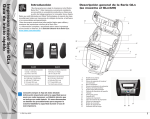
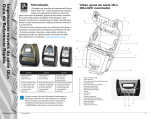
LED Charge Indicator
Solid Yellow: Charging
Solid Green: Fully charged
Off: No DC Power Applied
Off: With DC Power Applied: Charge Fault
Med
ia Lo
adin
g
Power Button
Press to turn unit on. There will be a 10
second boot up time.
Press again to turn unit off
Feed Button
Press to advance a blank label or a software determined length of journal media.
Printer Status Bar
Main Menu Screen
Con
n
Prin ect Prin
ter C
t
ontr er/
ols
Indicates the status of several
printer functions.**
Displays graphical options including Communication, Display,
Media, Battery, and Help.
Status Screen
Default screen the
printer will display
when the user is not
navigating the main
menu screen.
Clea
n
Trou ing and
bles
hoo
ting
Navigation Bar
Displays user-selectable
options.
Soft Keys
Press to select a
function on the
Navigation Bar.
Four Way Navigation
Buttons
Acce
s
Con sories a
tact
n
Info d
QLn Series Mobile Printers
Quick Start Guide
Printer Controls
Scroll through menu
choices on Status Screen
Press “OK” to enter.
** Not every icon will be displayed on the Status Bar at one
time, only those applicable to the
printer’s configuration.
8