1
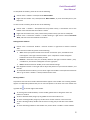
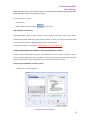
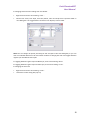
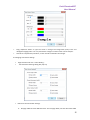
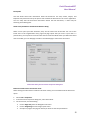
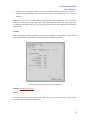
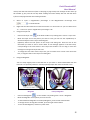
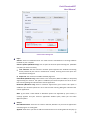
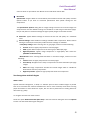
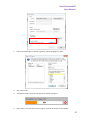
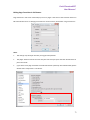
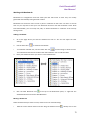
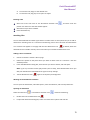
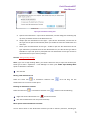
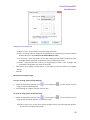
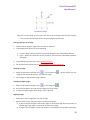
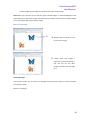
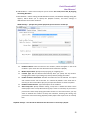
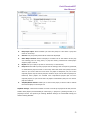
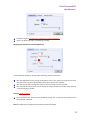
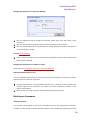
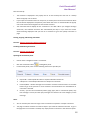
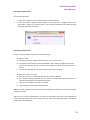
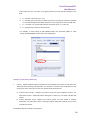
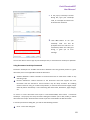
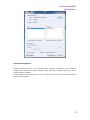
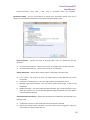
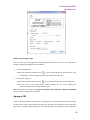
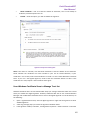
Foxit PhantomPDF User Manual Image placement dialog box A. When to scale – choose when to scale the image you insert. B. Scale – choose to scale the image non-proportionally or proportionally. This option will be disabled when you select Never in the field of When to scale. C. Fit to bounds – check this option to scale the image to fit fully within the bounds of the rectangle without taking into consideration the line width of the border. D. Border – drag and move the scroll bar to change image’s position in the rectangle. The coordinates change when you move the scroll bar. Click OK for your changes to take effect, or click Reset to reset the data to the original settings. Click OK. Moving and resizing an image To move an image, please do the following: 1. Select the Annotation Selection Tool or the Image Tool , put the pointer over the image so that the handle appears. 2. Click and drag the image to another place you like. To resize an image, please do the following: 3. Select the Annotation Selection Tool or the Image Tool , put the pointer over the image so that the handle appears, and click the image. Place the cursor on any corner point. Pointer changes into the cursor showing the direction at which the rectangle will be resized. 82