1
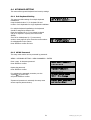
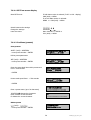
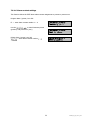
Setup of the RS-485 interface connected to telemetry
cameras, port 1 or 2, 0 for OFF (fixed camera).
Enter 0 (off) for fixed cameras (numeric entry compulsory).
Press Enter to confirm the setting and EEESSSCCC to cancel.
RS485 Connected to
Port : _ [ 0 (off) ] , 1, 2]
If 1 or 2 was selected for PORT, the keyboard will automatically
recognise this camera as a PTZ device in operation mode.
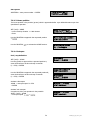
Enter the RS485 Address of the PTZ camera (this menu
item is skipped for fix cameras).
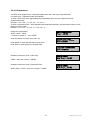
Setup of DVR and video input to which the camera is connected
(requires a DVR installation in the „DVR Setting“ menu)
Enter any value if no DVR is connected
(numeric entry compulsory).
Press EEEN
R
N
R to confirm the setting and EEESSSCCC to cancel.
NTTTEEER
RS485 Address:
001
Video Connected to
DVR : _ _ _ CH : _ _
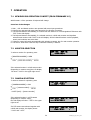
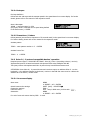
6.3.2 Monitor setting (changed from FW 1.5)
In this menu all monitors in the system have to be assigned to DVR monitor outputs. In difference to
former firmware versions all monitors have to be defined, including main monitors.
All monitors can only be managed by EKB 500 after definition in this menu. By this, an administration of
system access rights for this keyboard can be set up, as only monitors defined in this menu are available
for access.
M
M
N
U
N
R
MEEEN
NU
U > DEVICE SETTING > MONITOR SETTING > EEEN
NTTTEEER
R
[[[M
M
O
N
O
R
N
U
M
R
MO
ON
NIIITTTO
OR
RN
NU
UM
MBBBEEER
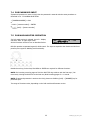
R]]],,, entry 1 ~ 99 (independent
of DVR monitor number).
Press EEEN
N
R
NTTTEEER
R to confirm the setting and EEESSSCCC to cancel.
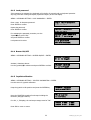
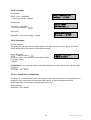
The following menu item allows the matrix monitor assignment
to the respective DVR’s monitor output.
Monitor types:
EKB-Display
Main
Call
M1
M2
M3
M4
DVR - Monitor out
Main monitor
Call - monitor
Matrix - monitor 1
Matrix - monitor 2
Matrix - monitor 3
Matrix - monitor 4
Press EEEN
N
R
NTTTEEER
R to confirm the setting and EEESSSCCC to cancel.
18
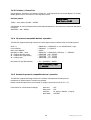
Monitor Name : _ _ _
Video Connected to
DVR : _ _ _ Mon : _ _
Monitor : 1__ changed
[ ENT ] to save
EKB500_ma_en_rev1.5_3.doc