1
Chapter 5: Creating Integrated Striping Volumes | Other Configuration Tasks
SAS2 Integrated RAID Solutions User Guide
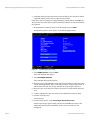
NOTE: Repeat the instructions above to create a second Integrated Striping volume, if
desired and if enough additional disks are available.
5.3 Other Configuration Tasks
This section explains how to perform other configuration and maintenance tasks for
Integrated Striping volumes.
5.3.1 Viewing Volume Properties
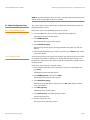
Follow these steps to view the RAID properties of a volume:
1. In the SAS2 BIOS CU, select an LSI SAS2 adapter from the Adapter List.
The Adapter Properties window appears.
2. Select RAID Properties.
The Select New Array Type window appears.
3. Select View Existing Array.
The View Array window appears, showing information about the array and each
disk in it.
4. If the currently displayed array is not the one you want, press Alt+N to view another
array on the adapter.
5.3.2 Activating an Array
A volume (array) can become inactive if, for example, you remove it from one controller
or computer and install it on a different one. The Activate Array option allows you to
reactivate an inactive volume. This option is available only when the selected volume is
currently inactive.
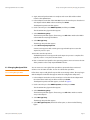
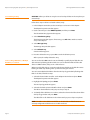
Follow these steps to activate a selected volume:
1. In the Adapter List window, use the arrow keys to select an LSI SAS adapter and
press Enter.
The Adapter Properties window appears.
2. Select RAID Properties, and then press Enter.
The Select New Array Type window appears.
3. Select View Existing Array.
The View Array window appears. If necessary, press Alt + N to switch to another
array on this adapter.
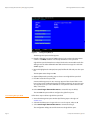
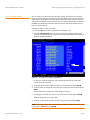
4. Select Manage Array.
The Manage Array window appears.
5. Select Activate Array on the Manage Array window.
A menu window appears.
6. Press Y to activate the array.
The array becomes active after a pause.
LSI Corporation Confidential | July 2009
Page 25