1
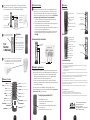
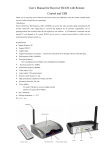
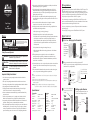
5 Place your receiver close to the remote TV. We have supplied 2 options for connections to your remote TV; Through the Antenna Connection or through the Composite video Input. Choose one: DO NOT USE BOTH! 1. Connect the RCA cables to the back of the Receiver and the TV. RCA Connection Option 2. Connect the 12V power adapter to your transmitter and to your 110v wall outlet. Features 1 Transmitter Follow the instructions from title 1 to title 4. After completing the set-up on title 7 through 11, you are ready for advanced set-up. Advanced set-up is for those customers that want the added value of being able to watch their digital channels and controlling the digital box from the remote location. Note: When watching the digital channels, they will not be independent. 1. C onnect a set of RCA cables from the output of the digital box (from your cable provider) to the RCA input on the back of the transmitter. 2. C onnect the IR extender cable to the rear of the transmitter. Locate the opposite end of the cable in front of the IR receptor of your digital box. 3. S elect the TV/AV button on your remote control. This will switch the coaxial input to the RCA input. You are now seeing the digital channel. 4. To change the digital channels (all functions of your digital box) use the remote that came with your digital box. Simply point your digital box remote at the receiver. SET-UP 3 Connection to another display or DVR for record Turn on the Receiver by pressing the 6 3.power 7 Operation button at bottom of the receiver. 1. Install the batteries into the remote control. Your Receiver is Now Ready Advanced Setup TV/AV Indicator Light (When Lit, you are in “TV” mode) Connect IR Remote Extender Cable Composite Input (Digital Box) RF Channel Indicator Light Incoming Cable from Cable Previder RF Channel Selector Button Power Button Power Button Receiver Advanced Set-Up Illustration 2. Point the remote at the Receiver and push the RF button on the remote to allow the Transmitter and Receiver to synchronize. (The TX and RX should now be on the same RF channel) IR remote Extender Connector TV/AV Selector Button TV/AV Selector Button TV/AV Indicator Light RF Channel Indicator Lights IR Remote Sensor RF Channel Selector Button Digital Cable TV Box Composite Output to Remote TV TV Channel Up TV Channel Down Power Input TV Volume Up TV Volume Down Power Button fter pressing the RF button on the remote to select the cleanest channel, 8 4. Apress SCAN on the remote. The system will now scan all of the available channels. After scanning is complete, you are ready to watch TV using your AITech Wireless Cable TVs system. RCA Cable Connection Multiple Applications Receiver Remote Control Power (Receiver only) Scan (Scans Available TV Channels) TV/AV (Switch to Digital Box if Connected) Fine Tune (Fine Tune TV Channels) Menu (On Screen Menu) Display (Displays TV Channel and Mode) RF (Select RF Channel) JUMP (Previous TV Channel) The Wireless Cable TVs Systems are designed to be used in applications where more than one system is needed. There are two different applications and a solution for each. 1. I f you have two or more locations where a wireless TV solution is needed and those locations are not used simultaneously, then all you need is one complete system and multiple receivers. All receivers will display the same channel. 2. I f you have two or more locations where a wireless TV solution is needed and those locations are used simultaneously, then you will need complete systems to keep all wireless systems completely independent. Note: Each system comes with 4 RF channels. When using multiple systems for independent applications, the systems must be on different RF channels and you must turn “Synchronization” OFF in the on screen menu. Mute (Mutes TV Volume) CH UP (TV Channel Up) Vol Up (TV Volume Up) Vol Down (TV Volume Down) Menu Selection (Use in MENU Mode) OK (Confirm Menu Selection) Menu Selection (Use in MENU Mode) TV Channel Down Channel Selection Channel Add (Add Channel) Channel Minus (Delete Channel) 4 Turning Synchronization OFF Troubleshooting Why does my remote control not change the channels? 1. The Wireless Cable TVs has built in synchronization. If the TX and the RX have not synchronized, the remote control will not work the Channel function. And pls do above firstly a) Pull up flexible antenna b) Used RF splitter. Don't connected to " RF out " ( Because some cable supplier will carrier electrical power inside. This is another type interfere for us.) To test for synchronization, set the RF channel on the transmitter and receiver to channel 4. If you connections are correct, you should see a TV picture Once you have a picture, point the remote control at the receiver and press the RF button. The RF channel should change to RF 1 and the Picture should follow. If you lose the picture, they are not synchronized and the remote will not work. Put the receiver back on RF channel 4 so that you see your picture. Now, go to the transmitter room and move the transmitter one way or the other. By moving the tranmitter, this allows the receiver try and synchronize. You may have to change the position of the transmitter several times to gain synchronization. Once you find the right position for the transmitter, leave it in that position. If you still have problems getting the remote control to work, try moving the transmitter to a diferent cable drop if available. Why am I not getting a picture? 1. Make sure both units are on the same RF Channel (1,2,3 or 4) 2. Make sure that if you are using the system in TV mode, that the top light on both units are ON 3. If you connected the remote TV using coaxial cable, make sure your TV is ON and is on Channel 3 4. Make sure you follow the instructions on page 8 of the owners manual when connecting your transmitter to your incoming cable.. 1. Select MENU on the remote 2. U se the CH Down button to move down to the Synchronization area. 3. U se the small arrow buttons under the Ch Down button to move the selection. 4. When finished, select OK on the remote. 5 AITech International Headquarters 1288 Kifer Rd., Suite 203 Sunnyvale, CA 97086 Tel: 408.991.9699 Fax: 408.991.9691 Web site: www.AITech.com 6