1
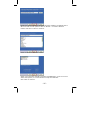
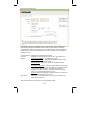
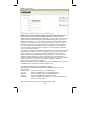
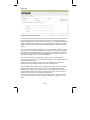
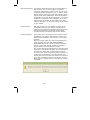
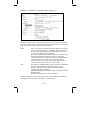
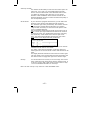
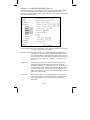
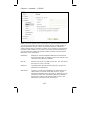
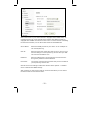
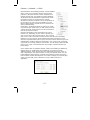
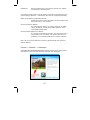
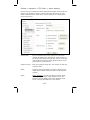
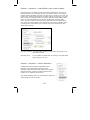
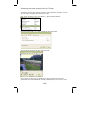
Backup setting data: This function allows saving the current configuration of
the camera to a file on your computer’s hard drive.
Saving the configuration is useful in case you ever want
to reload a specific configuration; e.g., in order to set up
another camera of the same model and firmware version
with the exact same configuration. Since the IP address
configuration is also part of the setting date, you must be
careful not to restore the same settings to two or more
cameras when all of them are connected to the same
network. Otherwise, you would be creating an IP conflict
in your network.
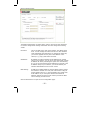
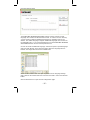
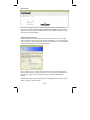
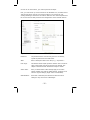
Restore setting:
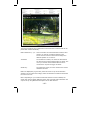
With this function, you can reload a previously saved
configuration back into your camera. Click Browse to
locate the configuration file and OK to begin the process.
The camera will perform a reboot at the end of the
procedure and the new settings will become effective.
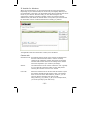
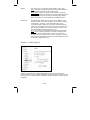
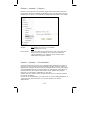
Firmware upgrade:
From time to time, there will be a new firmware version
available for your camera. New firmware versions can
enhance the functionality of the camera, or they can fix
problems.
Before you begin, make sure that you have obtained a
proper firmware from the INTELLINET NETWORK
SOLUTIONS Web site. If you are not 100% sure about
this, do not proceed. Instead, contact the Technical
Support team to verify the firmware version.
Also, do not perform the upgrade from a computer that is
connected to the network wirelessly, as the connection is
inherently less stable than a cable-based connection.
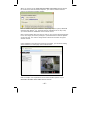
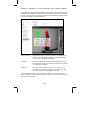
If you have the correct firmware file, make sure that you
uncompress the ZIP file first (if the firmware file is an
archive) and you end up with a file that has an extension
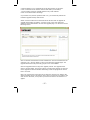
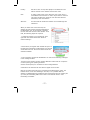
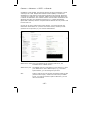
*.bin. Click on Browse and select the *bin file. Click on
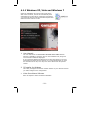
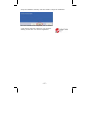
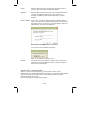
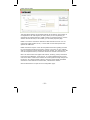
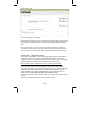
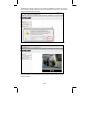
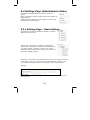
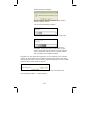
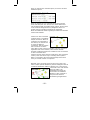
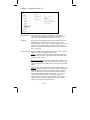
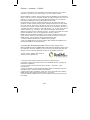
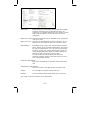
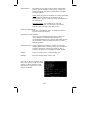
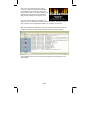
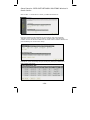
OK to begin the upgrade process. The following message
will appear:
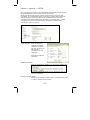
Click OK to continue.
- 51 -