1
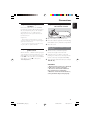
IMPORTANT!
Recording is permissible if copyright or
other rights of third parties are not
infringed upon.
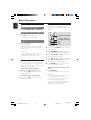
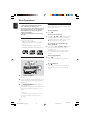
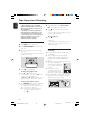
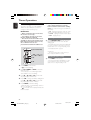
Preparation for recording
1 Press TAPE.
2 Load a recordable tape into the tape deck.
3 Press í or ë on the remote to select the
English
Tape Operations/ Recording
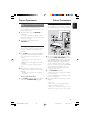
One touch recording
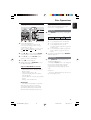
1 Press CD, TUNER or AUX to select the
recording source.
2 Start playback of the selected source.
3 Press REC until REC icon starts flashing on
the display panel to start recording.
To stop recording
● Press Ç on the system.
recording tape side.
➜ A appears on the display for the reverse
side.
➜ B appears on the display for the forward
side.
Helpful Hint:
– One Touch Recording is not possible in TAPE
mode, "SELECT SOURCE" will appear.
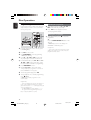
4 Press TAPE A/R on the remote repeatedly
CD Synchronised start recording
to select a recording mode.
➜ å for recording on one side only.
➜ ∂ for recording on both sides.
5 Prepare the source to be recorded.
CD – load the disc.
TUNER – tune to the desired radio station.
AUX/CDR – connect external equipment.
When recording is in progress
➜
REC
starts flashing.
● It is not possible to change tape side.
● It is not possible to listen to another source.
● It is not possible to activate the timer
function.
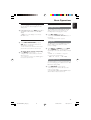
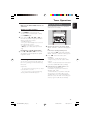
1
Press CD.
● If you want to start recording from a desired
track, press í or ë (S or T on the
main set).
➜ You can programme the tracks in the order
you want them to be recorded (refer to “CD
Operation - Programming the disc tracks”).
2 Press REC to start recording.
➜ The disc will start playback automatically.
To select another track during
recording
1 Press ÉÅto interrupt recording.
2 Press í or ë to select the desired track.
3 Press ÉÅto resume recording.
To stop recording
● Press Ç.
➜ Recording and disc playback will stop
simultaneously.
21
001-025-MCM9-11_22_Eng
21
3/17/05, 11:20
MCM9/22-1