1
RocketRAID 4320 BIOS Utility
Start Task – select this option to schedule specific RAID maintenance tasks such as
RAID Verification.
Stop Task – use this option to terminate scheduled tasks.
Set boot - use this option to set an array to act as a boot volume.
Note: This setting is dependent on the motherboard’s BIOS configuration. An array
designated as a boot volume cannot be used to boot the system unless the card has
been instructed to act as the system’s boot device. Consult the motherboard’s BIOS/
CMOS setup menu, and corresponding manual for more information.
4 - Controller Menu
Press [ALT + C] to access the “Controller” menu.
View Controller information
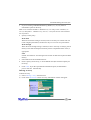
To view information about the controller, access the Controller menu, select “view”
and press ENTER. It can also view the controller’s basic information, include Firmware Version,CPU Temperature and so on.
View Events
To view the RocketRAID event log, access the Controller menu, select “Evnetlog”
and press ENTER. Use [Shift + TAB] to select from the different items (check boxes,
editable fields), and use the SPACE key to confirm the selection. There are three
selectable filter options, which can be used specify the type of information presented
by the selected log. A maximum of 10 logs are listed in the utility at a time; use the
“Prev” and “Next” button to turn the pages. Use the “Clear” button to delete all logs.
Controller Setting
To access the Controller Settings page access the Controller menu, select “Settings”
and press ENTER. Use [Shift + TAB] to select between different menu items Radio
buttons, check boxes, editable fields, etc., and use the SPACE key to confirm the selection.
3-5