1
Chapter 1 — Using the CN3
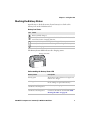
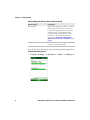
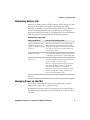
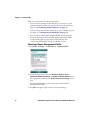
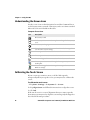
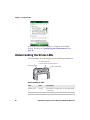
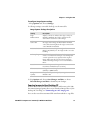
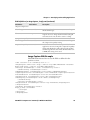
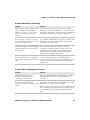
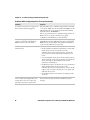
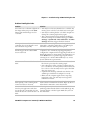
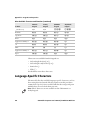
Understanding the Screen Icons
Use the screen icons on the Navigation bar and the Command bar to
see the battery status, network connections, and so on. Some standard
Microsoft icons are included in this table.
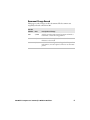
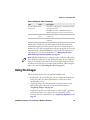
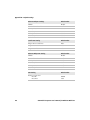
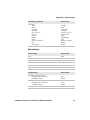
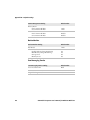
Computer Screen Icons
Icon
Description
The battery is full.
The battery is low. You need to replace or charge the battery very
soon.
The battery is charging.
The volume is turned off. To turn the volume back on, tap this
icon and choose your setting.
The computer is connected to the network.
The computer is not connected to the network.
The 802.11b/g radio is connected to the wireless network.
The computer is connected through the USB port to your
desktop PC.
The iConnect application icon. Tap it to set up Ethernet or
Wireless settings.
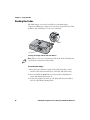
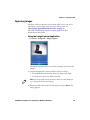
Calibrating the Touch Screen
If your screen taps seem inaccurate, or if the CN3 responds
unexpectedly when you tap the screen, you may need to calibrate the
screen.
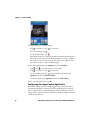
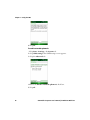
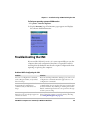
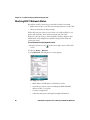
To calibrate the touch screen
1 Tap Start > Settings > the Systems tab > Screen.
2 Tap Align Screen and follow the instructions to align the screen.
3 Click ok.
If the touch screen is so out of alignment that you cannot open the
Start menu, you may need to align the screen using only the keypad as
described in the next procedure.
22
CN3 Mobile Computer User’s Manual for Windows Mobile 6.1