1
8
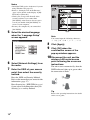
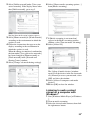
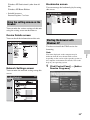
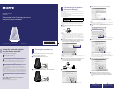
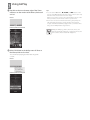
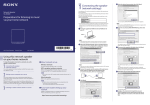
Select [PIN method], then click
[Start].
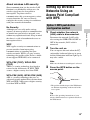
Setting Up Wired
Networks
Option 4: DHCP method
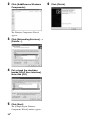
An eight-digit number (PIN code)
appears on the screen.
9
Enter the unit’s PIN code in the
wireless LAN router/access
point.
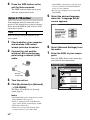
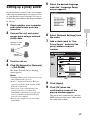
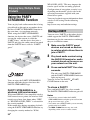
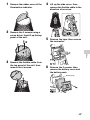
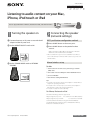
1
Check whether your computer
and router are turned on.
2
Connect the unit and the router
using a network (LAN) cable.
3
Connect the router and your
computer using a second
network (LAN) cable.
Tip
Refer to the operating instructions for details
on the wireless LAN router/access point.
10 Click [OK] on the PIN code
Network (LAN) cable
(not supplied)
screen that is displayed in step
8.
Disconnect the network (LAN) cable,
etc., following the on-screen instructions.
The unit restarts automatically, then the
LINK indicator lights up in green when
the connection is made.
Network
(LAN) cable
4
Note
Turn the unit on.
The LINK indicator lights up in amber
when the connection is made.
Perform the process again from step 1 when the
LINK indicator flashes in red.
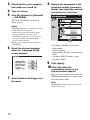
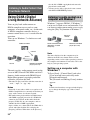
Option 5: Fixed IP method
Your computer must be connected to the
router in advance.
Tip
You can also select the WPS push button
configuration method in step 8.
1
Set the DHCP setting of your
computer and the router to ON.
2
Connect the router and the unit
using a network (LAN) cable.
21GB
Network Connections
Usually, the DHCP setting is set to ON when
you connect your computer to the network.
Try the following method if you are using a
wired network.
Set the DHCP setting of your computer to ON
in advance.