1
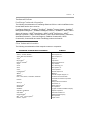
Changes to System Files 2-3
• Some users may encounter issues with the auto-run installation.
• For users of GoldMine 5.0-5.7 who back up GoldMine by copying the
GoldMine folder at C:\Program Files, this means they are not copying
their data files and must browse to Documents and Settings\All
Users\Application Data\GoldMine to find their data folders.
• Customers using a Windows XP system as a server may have problems
with the client workstations accessing the data on the network due to
the “split.” Users may encounter license errors when performing
NetUpdates.
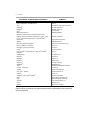
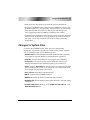
Changes to System Files
Located in the GoldMine folder, these store user and licensing
information. System files typically take a BIN or XML format, whether
you use Firebird or SQL as your database system.
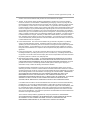
• DataDict.xml: Includes database and field definitions and is required
for creation of required databases and maintenance operations.
• Flags.bin: Controls the number of users logged on to GoldMine.
• License.bin: The system's license control table that stores License
Manager information and validates incoming sync connections.
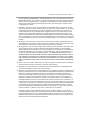
• Users: Formerly Users.dbf, this is now a table. It is rehosted to the SQL
Server starting with version 7.0. It collects the user's information such
as user login and permission information.
• User_info.bin: Stores SQL login information.
• GM.ini: Controls how GoldMine launches.
• DBAlias.ini: Stores the database username and password.
• GoldMine.fdb: Default database name when Firebird is selected during
installation.
• Firebird ODBC driver: Made up of the IscDbc.dll, OdbcJdbc.dll, and
OdbcJdbcSetup.dll files.
Installation Guide