1
3. Reading the VisorALARM Configuration
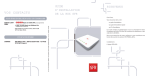
To get or refresh the actual device configuration, click on the “Read configuration device”
button. This is shown in the following figure.
Figure 4
The first time that the VisorALARM Manager connects to the device this is done
automatically.
4. Modifying the VisorALARM general parameters
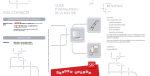
The “General Parameters” tab shown in Fig 3 shows the VisorALARM parameters. To
modify any of these, change the value for the required parameter and then click on the
“Update” button (see Fig 3) to save the change in the VisorALARM. If you want to change
various parameters at the same time, click on the “Update” button once you have executed all
the changes. When the updating process has finished the program will ask you to restart the
VisorALARM device. Press “OK” to restart the equipment so the new parameter values take
effect.
Figure 5
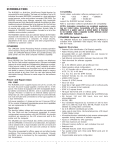
Parameter
IP Address
IP Mask
Gateway
Type of VisorALARM
Communication Port
NTP Server IP Address
Maintenance receiver
password
Sync Port
Main Receiver IP Address
Description
IP Address of the VisorALARM receiver in the Central Station
LAN
IP Mask of the VisorALARM receiver in the Central Station
LAN
Gateway for Internet Access in the Central Station LAN
A receiver can be Main, Backup or Maintenance.
This is the UDP Port where the mIP/IPDACT devices will
send the registration, supervision and alarm data packets
IP Address for a Network Time Protocol Server
Encryption password used by mIP/IPDACT device when
sending data packets to a Maintenance Receiver
This is the port used between Main and Backup receivers to
synchronize configurations
In a Backup receiver this will set up the IP Address of its Main
peer
VisorALARM Manager – Quick Guide
3
Doc. DM380-I
Rev. 3.0