1
▼ To Access the System Console Using the ILOM CLI
1. Connect and log in to the ILOM as described in “Connecting to the ILOM” on
page 18.
The ILOM prompt appears.
2. To power on the system, type the command:
-> start /SYS
Note – You can also power the system on or off using a stylus, as described in
“Routine Power On and Power Off” on page 3.
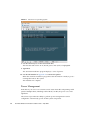
3. To start the system console, type:
-> start /SP/console
4. To exit the system console, press Esc-Shift-9.
5. To stop the system, type:
-> stop /SYS
▼ To Access the System Console Using the ILOM Web
Interface
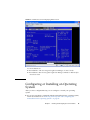
This procedure uses the ILOM to create a remote RKVM session that connects to the
system console.
Note – This procedure shows screens from ILOM 2.0. In ILOM 3.0. The procedures
work the same, but the screens might have slight differences.
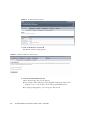
1. Log on to the web interface as described in “To Connect to the ILOM Web
Interface” on page 19.
The Versions screen appears.
Chapter 2
Installing and Configuring the Server Module
23