1
9A10459600
Z
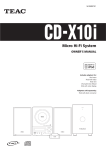
SR- L35USB
CD Clock Radio
OWNER’S MANUAL
The lightning flash with arrowhead symbol,
within an equilateral triangle, is intended to
alert the user to the presence of uninsulated
“dangerous voltage” within the product’s
enclosure that may be of sufficient magnitude
to constitute a risk of electric shock to persons.
CAUTION: TO REDUCE THE RISK OF ELECTRIC
SHOCK, DO NOT REMOVE COVER (OR BACK). NO
USER-SERVICEABLE PARTS INSIDE. REFER
SERVICING TO QUALIFIED SERVICE PERSONNEL.
The exclamation point within an equilateral
triangle is intended to alert the user to the
presence of important operating and
maintenance (servicing) instructions in the
literature accompanying the appliance.
IMPORTANT SAFETY INSTRUCTIONS
1)
2)
3)
4)
5)
6)
7)
Read these instructions.
Keep these instructions.
Heed all warnings.
Follow all instructions.
Do not use this apparatus near water.
Clean only with dry cloth.
Do not block any ventilation openings. Install in
accordance with the manufacturer’s instructions.
8) Do not install near any heat sources such as radiators,
heat registers, stoves, or other apparatus (including
amplifiers) that produce heat.
9) Do not defeat the safety purpose of the polarized or
grounding-type plug. A polarized plug has two
blades with one wider than the other. A grounding
type plug has two blades and a third grounding
prong. The wide blade or the third prong are
provided for your safety. If the provided plug does
not fit into your outlet, consult an electrician for
replacement of the obsolete outlet.
10) Protect the power cord from being walked on or
pinched particularly at plugs, convenience
receptacles, and the point where they exit from the
apparatus.
11) Only use attachments/accessories specified by the
manufacturer.
12) Use only with the cart, stand,
tripod, bracket, or table specified
by the manufacturer, or sold with
the apparatus. When a cart is
used, use caution when moving
the cart/apparatus combination to
avoid injury from tip-over.
13) Unplug this apparatus during lightning storms or
when unused for long periods of time.
14) Refer all servicing to qualified service personnel.
Servicing is required when the apparatus has been
damaged in any way, such as power-supply cord or
plug is damaged, liquid has been spilled or objects
have fallen into the apparatus, the apparatus has
been exposed to rain or moisture, does not operate
normally, or has been dropped.
2
< Do not expose this apparatus to drips or splashes.
< Do not place any objects filled with liquids, such as
vases, on the apparatus.
< Do not install this apparatus in a confined space such
as a book case or similar unit.
< The apparatus draws nominal non-operating power
from the AC outlet with its STANDBY/ON switch in
the standby position.
< The apparatus should be located close enough to the
AC outlet so that you can easily grasp the power
cord plug at any time.
< An apparatus with Class ! construction shall be
connected to an AC outlet with a protective
grounding connection.
WARNING: TO PREVENT FIRE OR SHOCK
HAZARD, DO NOT EXPOSE THIS
APPLIANCE TO RAIN OR MOISTURE.
CAUTION
< DO NOT REMOVE THE EXTERNAL CASES OR
CABINETS TO EXPOSE THE ELECTRONICS. NO USER
SERVICEABLE PARTS ARE WITHIN!
< IF YOU ARE EXPERIENCING PROBLEMS WITH THIS
PRODUCT, CONTACT TEAC FOR A SERVICE
REFERRAL. DO NOT USE THE PRODUCT UNTIL IT HAS
BEEN REPAIRED.
< USE OF CONTROLS OR ADJUSTMENTS OR
PERFORMANCE OF PROCEDURES OTHER THAN
THOSE SPECIFIED HEREIN MAY RESULT IN
HAZARDOUS RADIATION EXPOSURE.
Contents
Before Using the Unit
Thank you for choosing TEAC. Read this manual
carefully to get the best performance from this
unit.
Read this before attempting any operations
< As the unit may become warm during operation,
always leave sufficient space around the unit for
ventilation.
Before Using the Unit. . . . . . . . . . . . . . . . . . . . . . . . . . 3
< The voltage supplied to the unit should match the
voltage as printed on the rear panel. If you are in any
doubt regarding this matter, consult an electrician.
Discs . . . . . . . . . . . . . . . . . . . . . . . . . . . . . . . . . . . . . . 4
MP3 compatibility . . . . . . . . . . . . . . . . . . . . . . . . . . . . 5
Use of the folding supports . . . . . . . . . . . . . . . . . . . . . 5
Wall Mounting. . . . . . . . . . . . . . . . . . . . . . . . . . . . . . . 5
Connections . . . . . . . . . . . . . . . . . . . . . . . . . . . . . . . . 6
Remote Control Unit . . . . . . . . . . . . . . . . . . . . . . . . . . 7
Unit Functions . . . . . . . . . . . . . . . . . . . . . . . . . . . . . . . 8
Basic Operation . . . . . . . . . . . . . . . . . . . . . . . . . . . . . 10
Listening to a Disc . . . . . . . . . . . . . . . . . . . . . . . . . . . 11
Listening to a USB Memory Card . . . . . . . . . . . . . . . . 12
Basic Operations for a Disc and USB Memory Card. . . 13
Repeat Playback . . . . . . . . . . . . . . . . . . . . . . . . . . . . . 15
Search Mode (MP3 only) . . . . . . . . . . . . . . . . . . . . . . 16
Programmed Playback . . . . . . . . . . . . . . . . . . . . . . . . 18
Shuffle Playback. . . . . . . . . . . . . . . . . . . . . . . . . . . . . 19
Listening to the Radio . . . . . . . . . . . . . . . . . . . . . . . . 20
Preset Tuning . . . . . . . . . . . . . . . . . . . . . . . . . . . . . . . 21
< Choose the installation location of your unit carefully.
Avoid placing it in direct sunlight or close to a source
of heat. Also avoid locations subject to vibrations and
excessive dust, heat, cold or moisture.
< Do not place the unit on an amplifier/receiver.
< Do not open the cabinet as this might result in
damage to the circuitry or electrical shock. If a foreign
object should get into the unit, contact your dealer or
service company.
< When removing the power plug from the wall outlet,
always pull directly on the plug, never yank the cord.
< To keep the laser pickup clean, do not touch it.
Always close the disc compartment lid when not in
use.
< Do not attempt to clean the unit with chemical
solvents as this might damage the finish. Use a clean,
dry cloth.
Setting the Clock . . . . . . . . . . . . . . . . . . . . . . . . . . . . 22
Setting the Timer . . . . . . . . . . . . . . . . . . . . . . . . . . . . 23
Troubleshooting. . . . . . . . . . . . . . . . . . . . . . . . . . . . . 25
Specifications . . . . . . . . . . . . . . . . . . . . . . . . . . . . . . . 26
< Keep this manual in a safe place for future reference.
DO NOT MOVE THE UNIT DURING PLAYBACK
During playback, the disc rotates at high speed. Do
NOT lift or move the unit during playback. Doing so
may damage the disc or the unit.
WHEN MOVING THIS UNIT
When moving or packing the unit, be sure to remove
the disc. Moving this unit with the disc loaded may
result in damage to this unit.
3
Discs
Discs which can be played on this unit:
• Conventional audio CDs bearing the COMPACT
DISC DIGITAL AUDIO logo on the label:
• Properly finalized CD-R and CD-RW discs
• MP3 CDs
Note:
< Depending on the quality of the disc and/or the
condition of the recording, some CD-R/CD-RW discs
may not be playable.
< This player cannot play Windows Media-formatted
audio files.
(Windows Media is a trademark of Microsoft
Corporation.)
< Copy-protected discs and other discs that do not
conform to the CD standard may not play back
correctly in this player. If you use such discs in this
unit, TEAC Corporation and its subsidiaries cannot be
responsible for any consequences or guarantee the
quality of reproduction. If you experience problems
with such non-standard discs, you should contact the
producers of the disc.
< Always place the disc on the disc tray with the label
side up. (Compact discs can be played or recorded
only on one side.)
< To remove a disc from its storage case, press down
on the center of the case and lift the disc out, holding
it carefully by the edges.
< Never use such chemicals as record sprays, antistatic
sprays or fluid, benzine or thinner to clean the discs.
Such chemicals will do irreparable damage to the
disc’s plastic surface.
< Discs should be returned to their cases after use to
avoid dust and scratches that could cause the laser
pickup to “skip.”
< Do not expose discs to direct sunlight or high
humidity and temperature for extended periods. Long
exposure to high temperatures will warp the disc.
< Do not play any disc that is warped, deformed or
damaged.
Playing such discs may cause irreparable harm to the
playing mechanisms.
< CD-R and CD-RW discs are more sensitive to the
effects of heat and ultraviolet rays than ordinary CDs.
It is important that they are not stored in a location
where direct sunlight will fall on them, and away
from sources of heat such as radiators or heatgenerating electrical devices.
< Printable CD-R and CD-RW discs aren’t
recommended, as the label side might be sticky and
damage the unit.
< Do not stick papers or protective sheets on the discs
and do not use any protective coating spray.
< Use a soft oil-based felt-tipped pen to write the
information on the label side. Never use a ball-point
or hard-tipped pen, as this may cause damage to the
recorded side.
< Never use a stabilizer. Using commercially available
CD stabilizers with this unit will damage the
mechanisms and cause them to malfunction.
How to remove the disc
How to hold the disc
< Do not use CDs with an irregular shape (octagonal,
heart shaped, business card size, etc.). CDs of this
sort can damage the unit:
< Should the disc become dirty, wipe the surface
radially (from the center hole outward towards the
outer edge) with a soft, dry cloth:
< If you are in any doubt as to the care and handling of
a CD-R/CD-RW disc, read the precautions supplied
with the disc, or contact the disc manufacturer
directly.
4
MP3 compatibility
< File names of MP3 should be alphanumeric characters.
This unit cannot display symbols and full-size or 2
bytes-wide characters (such as Japanese, Chinese,
etc.) correctly. Also, be sure to use the file extension
“.mp3”.
Wall Mounting
If you want to, you can mount the unit on a wall.
You need to have hooks available that snugly fit into the
hanging holes in the back of the unit.
< The CD-ROM must be ISO 9660 compatible.
Precaution:
< Be aware of the best possible direction for receiving
AM broadcasts (this unit has no AM anntena you can
turn around).
< When more than 200 files or folders are recorded on
the disc, the unit might not be able to play it correctly.
1. Use the supplied guide sheet to mark the exact
drilling points on the wall.
< The file must be mono or stereo MPEG-1 Audio Layer
3 format, 44.1 or 48 kHz, fixed bit-rate.
2. Drill holes in the wall at the marked points.
< The disc must be finalized in order to play.
3. Screw your hooks into the wall.
4. Using the hanging holes in the back of the unit,
carefully hang it onto the hooks.
Use of the folding supports
Note:
< Ensure that the unit locks onto the hooks and that the
hooks are strong enough to support the weight
before releasing the hands.
For better stability in using the unit on a table or other
flat surface, you can pull out the pair of hinged supports,
as shown.
5
Connections
D
Right side
Rear panel
Left side
F
A
B
C
E
AUDIO OUT
(PHONES)
Portable player, etc.
AC wall socket
CAUTION:
< Switch off the power before making connections.
< Read the instructions of each component you intend
to use with this unit.
A USB connector
This connector is for connecting your USB memory
card containing MP3 music.
B PHONES jack
For private listening, insert the headphones plug
into this jack, and adjust the volume using the
VOLUME button.
C AUX IN jacks
You can connect an external source such as a
portable player to the AUX IN jacks.
Connect the component using a commerciallyavailable RCA cable.
Make sure to connect:
white plug q white jack (L: left channel)
red plug q red jack (R: right channel)
< Use L-shaped pin plugs for connecting into the AUX
IN jacks if you are using the unit on a table or other
flat surface.
< When using the PHONES jack of your mini player,
you must adjust the volume of the mini-player or
you may hear no sound from your SR-L35USB.
< Be sure to insert each plug securely. To prevent hum
and noise, do not bundle the connection cords with
the power cord.
6
Remote Control Unit
D FM lod antenna
While in FM mode, tune in an FM station and
extend the antenna to find the best position for the
reception. This antenna may need to be
repositioned if you move your unit to a new
location.
E DC IN jack
Connect the provided AC adaptor to this jack. Then
connect the AC adaptor’s plug to the AC wall
socket.
< Do not use any AC adaptors other than the one
included with this unit to avoid fire, electric shock,
etc. Be sure to connect the adaptor to an AC outlet
that supplies the correct voltage.
The provided Remote Control Unit allows the unit to be
operated from a distance.
When operating the remote control unit, point it towards
the remote sensor on the front panel of the unit.
< Even if the remote control unit is operated within the
effective range (5m), remote control operation may be
impossible if there are any obstacles between the unit
and the remote control.
< If the remote control unit is operated near other
products which generate infrared rays, or if other
remote control devices using infrared rays are used
near the unit, it may operate incorrectly. Conversely,
the other products may operate incorrectly.
Battery Installation
F RESET switch
In the following cases, function buttons may not
work properly.
• When the system is damaged by electrical shock.
• When the power is irregular or has electrical noises.
In these cases, press the RESET switch once or twice
with a pencil or a ball-point pen lightly.
All the settings kept in memory (such as preset
stations) will be erased.
1. Remove the battery compartment cover.
2. Insert two “AAA” (R03 or UM-4) dry batteries. Make
sure that the batteries are inserted with their positive
“+” and negative “_” poles positioned correctly.
3. Close the cover.
Battery Replacement
If the distance required between the remote control
unit and main unit decreases, the batteries are
exhausted. In this case replace the batteries with new
ones.
Precautions concerning batteries
< Be sure to insert the batteries with correct positive
“+” and negative “_” polarities.
< Use batteries of the same type. Never use different
types of batteries together.
< Rechargeable and non-rechargeable batteries can be
used. Refer to the precautions on their labels.
< When the remote control unit is not to be used for a
long time (more than a month), remove the batteries
from the remote control unit to prevent them from
leaking. If they leak, wipe away the liquid inside the
battery compartment and replace the batteries with
new ones.
< Do not heat or disassemble batteries and never
dispose of old batteries by throwing them in a fire.
7
Unit Functions
Top panel
A
B
C D E F G H I J K
Front panel
M N O
L
P Q
L
Remote control unit
A
J
N P
H
D
8
R
K
P
Q
S
M
A STANDBY/ON
Use this button to turn the unit on or standby.
The equipment draws a nominal amount of power
from the AC outlet even with its STANDBY/ON
switch in the STANDBY position.
B OPEN/CLOSE
Press this button to open and close the CD
compartment.
C TIMER
Use this button together with the SKIP buttons to set
the timer.
D FM MODE/MP3
In FM TUNER mode, use this button to select stereo or
monaural.
During playback of an MP3 file, use this button to
search track name.
During playback of an MP3 file, press and hold this
button for more than 1 second to display MP3
information.
During playback of CD, use this button to switch the
ESP function on or off.
E CD compartment
Press the OPEN/CLOSE button on top of the unit to
open the CD compartment.
F Remote sensor
When operating the remote control unit, point it
towards here.
G Display
K FUNCTION
Use this button to select a source (TUNER, CD, AUX or
CARD-USB).
L Speakers (stereo)
M MUTING
Use this button to mute the sound.
N TUNING
Use this button to tune in a station.
O SHUFFLE
Use this button for shuffle playback.
P Disc/USB memory card operation buttons
When TUNER or AUX is selected, these buttons won’t
work.
STOP (H)
Use this button to stop playback.
PLAY/PAUSE (y/J)
Use this button to start or pause playback.
SKIP/SEARCH (.m/,/)
Press these buttons to skip tracks.
Hold down these buttons to search for a part of a
track.
Q VOLUME
Use this button to adjust the volume.
R SLEEP
Use this button to set sleep timer.
H REPEAT
In CD or CARD-USB mode, use this button for repeat
playback.
I MEMORY/CLOCK ADJ
In CD or CARD-USB mode, use this button to program
tracks.
In TUNER mode, use this button to store preset
channels into memory.
This button is also used for clock adjustment.
J BAND
Use this button to select AM or FM.
S MP3 FOLDER/PRESET
In TUNER mode, use these buttons to select preset
stations.
During playback of MP3 files, use these buttons to
select a folder in the disc or USB memory card.
Note:
To simplify explanations, instructions in this manual
refer to the names of the buttons and controls on the
front panel only. Associated controls on the remote
control will also operate similarly.
9
Basic Operation
1
2
Muting
To mute the sound temporarily, press the MUTING
button. Press the MUTING button again to restore the
sound.
3
1 Press the STANDBY/ON switch to turn the unit
on.
2 Select a source by pressing the FUNCTION
< While muting is engaged, the VOLUME level
indicators blink.
button.
Headphones
< To listen to an external source connected to the AUX
IN jacks, select “AUX”.
For private listening, insert the headphones plug into
the PHONES jack, and adjust the volume using the
VOLUME button. The sound from the speakers is cut
off while the headphone jack is inserted.
3 Play the source and adjust the volume using the
VOLUME button.
Sleep Timer
< When the PHONES jack of your mini player is
connected to the AUX IN jacks of the SR-L35USB, you
must adjust the volume of the mini-player or you may
hear no sound from speakers.
Repeatedly pressing the SLEEP button permits setting
an interval (from 90 down to 10 minutes) after which
you want the unit to automatically turn off and shift
into Standby mode.
Each press of the SLEEP button changes the time
indication by 10 minutes.
90
80
Off
10
………10
Listening to a Disc
1 2 3
< It takes a few seconds for the unit to load the disc.
No buttons will work during loading. Wait until the
total number of the tracks and the total play time of
the disc are displayed.
< When no disc is loaded in the CD player, “NO DISC”
is displayed.
When a CD is loaded
4
1 Press the FUNCTION button to select “CD”.
total tracks
total playing time
When a MP3 disc is loaded
2 Press the OPEN CLOSE button (L) to open the
total number of folders
disc compartment cover.
total tracks
4 Press the Play/Pause button (y /J ) to start
playback.
3 Put a disc onto the center spindle in the CD
compartment, with the label side facing you,
and press the OPEN/CLOSE button to close the
CD compartment.
Playback starts from the first track of the disc.
< MP3 tracks recorded out of folders are automatically
put in the “ROOT” folder, and playback starts from
the first track of the ROOT folder.
< When the playback of all the tracks has finished, the
unit stops automatically.
CD’s must be pressed securely onto the Spindle, until
a “click” is heard.
< Never place more than one disc in the unit.
When opening and closing, press the OPEN/CLOSE
button (L) on top of the unit. Do not force the door
by hand during opening and closing operations.
11
Listening to a USB Memory Card
1
3
< Do NOT use a high-capacity USB hard disc with this
unit.
2
3 Press the Play/Pause button (y /J ) to start
playback.
1 Press the FUNCTION button to select “CARD-
USB”.
Playback starts from the first track on the USB
memory card.
2 Plug your USB memory card into the USB
connector.
< You can reverse steps 1 and 2 .
< It takes a few seconds for the unit to load the USB
memory card. No buttons will work during loading.
Wait until the total number of the tracks and the total
number of folders on the USB memory card are
displayed.
When a USB memory card is loaded
total number of folders
total tracks
12
< MP3 tracks recorded out of folders are automatically
put in the “ROOT” folder, and playback starts from
the first track of the ROOT folder.
< When the playback of all the tracks has finished, the
unit stops automatically.
Basic Operations for a Disc and USB Memory Card 1
To suspend playback temporarily
(pause mode)
Press the Play/Pause button (G/J) during playback.
Playback stops at the current position. To resume
playback, press the Play/Pause button (G/J) again.
To stop playback
Press the Stop button (H) to stop playback.
To skip to the next or a previous track
During playback, press the skip button (.or/)
repeatedly until the desired track is found. The
selected track will be played from the beginning.
In the stop mode, press the skip button (.or/)
repeatedly until the track you want to listen to is
found. Press the Play/Pause button (G/J) to start
playback from the selected track.
< When the . button is pressed during playback,
the track being played will be played from the
beginning. To return to the beginning of the previous
track, press the . button twice.
< During programmed playback, the next or previous
track in the program is played.
Search for a part of a track
During playback, hold down the skip button
(.or/) and release it when the part you want
to listen to is found.
13
Basic Operations for a Disc and USB Memory Card 2
Select a folder of MP3 files (MP3 only)
ESP (Electronic Shock Protection)
During playback of an MP3 file, press the MP3
FOLDER button repeatedly until the desired folder is
found. Playback starts from the first track of the
selected folder.
< If the unit is stopped, press the Play/Pause button to
start playback.
<
<
To display the MP3 information
<
<
During playback of an MP3 file, press the MP3 button
for more than 1 second. The information about the
current track is displayed as follows:
Filename w Title w Artist w Album
< NONE appears when there is no information.
< UNKNOWN appears when the unit cannot read the
information.
Press the MP3 button for more than 1 second again
to cancel the MP3 information mode.
14
The ESP stores the music in the buffer to prevent
sound from skipping.
During playback of a CD, press the MP3 button to
turn the ESP on or off. When you turn the ESP on,
“10 SEC (10 seconds)” briefly appears, and the (ESP)
indicator lights on the display.
The (ESP) indicator blinks while the unit is filling the
buffer.
When the unit is on the stable place and free from
mechanical shocks, you can turn this function off.
During playback of MP3 disc, this function is always
ON.
This function is not available during playback from
USB memory card.
Repeat Playback
Each time the REPEAT button is pressed, the mode is
changed as follows:
CD
REPEAT
REPEAT ALL
(off)
MP3
REPEAT
REPEAT ALL
REPEAT ALBUM
(off)
< If one of the following buttons is pressed, repeat
mode will be canceled:
STOP, FUNCTION, OPEN/CLOSE, STANDBY/ON
Repeat one track
Press the REPEAT button once during playback.
“REPEAT” lights.
The track being played will be played repeatedly. If
you press the Skip button (.or/) and select
another track, the track you selected will be played
repeatedly.
It is also possible to select a track to be repeated in
the stop mode. Press the REPEAT button, select a
track using the Skip button (.or/), and then
press the Play/Pause button (G/J) to start playback.
Repeat all the tracks
All the tracks will be played repeatedly.
Press the REPEAT button twice. “REPEAT ALL” lights.
During programmed playback, programmed tracks
will be played repeatedly.
Repeat all the tracks in the folder
(MP3)
All the tracks in the folder will be played repeatedly.
Press the REPEAT button three times. “REPEAT
ALBUM” lights.
15
Search Mode (MP3 only)
MP3
Search for a name of track
3 Press and hold the SKIP button (. or /).
You can select the track by searching for its name.
< This function is not available during playback from
USB memory card.
1 Press the MP3 button once.
An alphabet (initial letter of a track name) and a track
name are displayed.
Track name
Then you can select the track that has same initial
letter by pressing the SKIP button (. or /).
Track number
4 Press the PLAY/PAUSE button (G/J).
Playback starts from the selected track.
Initial letter of track name
< To cancel the search mode, press the STOP button
(H).
2 Select the initial letter of the track you want to
listen to by pressing the SKIP button (. or
/).
16
MP3
Search for a track in a folder
3 Press and hold the SKIP button (. or /).
1 Press the MP3 button twice in CD mode or once
in CARD-USB mode.
Then you can select the track in the folder by pressing
the SKIP button (. or /).
Folder name
Folder number
The name of folder is displayed.
< MP3 tracks recorded out of folders are in the “ROOT”
folder.
4 Press the PLAY/PAUSE button (G/J) to start
playback.
Playback starts from the selected track.
< If you skip step 3 , playback will start from the first
track in the selected folder.
2 Press the SKIP button (. or /) to find the
folder that the track you want to listen to is
included.
17
Programmed Playback
MEMORY
< Up to 64 tracks can be programmed in the desired
order.
< Shuffle function doesn’t work during programmed
playback.
FUNCTION
4 Press the Skip button (. or /) repeatedly
to select a track, then press the MEMORY
button.
1 Press the FUNCTION button to select “CD” or
“CARD-USB”.
The track is programmed, and “P-02” is displayed.
< Repeat steps 3 and 4 to programme more tracks.
< You can programme up to 64 tracks.
2 Press the MEMORY button in the stop mode.
CD
5 When the selection of track numbers is
completed, press the Play/Pause button (G/J)
to start programme playback.
MP3
The MEMORY indicator appears on the display.
< To cancel the programme mode, press the Stop
button (H).
3 Press the Skip button (. or /) repeatedly
to select a folder of a MP3 disc or USB memory
card, then press the MEMORY button.
< MP3 tracks recorded out of folders are in the “01”
(ROOT) folder.
< Skip this step when programming a CD.
18
< When the playback of all the programmed tracks has
finished, or if the STOP button (H) is pressed, the
MEMORY indicator will go off and the programme
mode will be cancelled.
But the programmed contents are still retained in
memory. You can return to the programmed
playback by pressing the MEMORY button and the
Play/Pause button (G/J).
Shuffle Playback
To check the programmed order
In the stop mode, press the MEMORY button
repeatedly. The track number and programme
number will be shown on the display.
To add a track to the end of the
program
In the stop mode, press the MEMORY button
repeatedly until “00” appears on the display. Select a
track number using the Skip button (.or/) and
then press the MEMORY button. The track is added
to the end of the program.
To overwrite the program
In the stop mode, press the MEMORY button
repeatedly until the programme number to be
changed appears on the display.
Select a new track number using the Skip button
(.or/) and then press the MEMORY button.
The tracks can be played randomly. Press the SHUFFLE
button during playback or when in the stop mode.
“SHUFFLE” will then light up in the display.
< If you press the / button during shuffle playback,
next track will be randomly selected and played. If
you press the . button, the currently played track
will be played from the beginning. A track cannot be
replayed during shuffle playback.
< Shuffle playback doesn’t work during programmed
playback.
< If one of the following buttons is pressed, shuffle
mode will be canceled:
SHUFFLE, STOP, OPEN/CLOSE,
FUNCTION, STANDBY/ON
To clear program
To clear the programmed contents, press the
MEMORY and the STOP button (H) in the stop mode.
< If the OPEN/CLOSE or the STANDBY/ON button is
pressed, the programmed contents will also be
cleared.
< If you press the FUNCTION button to switch the
source from “CD” to “CARD-USB” (or from “CARDUSB” to “CD”), the programmed contents will be
cleared.
< If the unit is disconnected from the power supply, the
programmed contents will be cleared.
19
Listening to the Radio
2
1
FM MODE button
3
1 Press the FUNCTION button to select “TUNER”.
Pressing this button alternates between STEREO
mode and MONO mode.
2 Press the BAND button to select a band.
STEREO
FM stereo broadcasts are received in stereo and the
“STEREO” indicator will light.
MONO
In weak FM stereo reception areas, select this mode.
Reception will now be forced to monaural, reducing
unwanted noise.
3 Select the station you want to listen to (auto
selection).
If the reception is poor
AM broadcast
Turn around the unit to find the best position for AM
stations.
FM broadcast
For a good reception, turn around the antenna so
that you can get the stations clearly.
Hold down the TUNING Up or Down button until the
frequency display begins to change. When a station is
tuned in, the tuning process will stop automatically.
< Press the Up or Down button to stop the auto
selection.
Selecting stations which cannot be tuned
automatically (manual selection)
When the Up or Down button is pressed
momentarily, the frequency changes by a fixed step.
Press the Up or Down button repeatedly until the
station you want to listen to is found.
20
< Unplug the USB memory card when you listening
radio broadcasts.
Preset Tuning
You can store 30 FM and 10 AM stations into preset
channels.
If the power supply is interrupted, the settings
kept in memory (clock, preset stations, timer
setting) will be erased.
How to select preset stations
1 Press the BAND button to select a band.
1 Tune in a station you want to listen to (see steps
1 to 3 on page 20).
2 Press the MEMORY button.
2 Select a preset channel using the PRESET
buttons.
3 Within 5 seconds, select a preset channel to
store the station using the PRESET buttons of
the remote control unit.
4 Within 5 seconds, press the MEMORY button.
The station is stored and the MEMORY indicator goes
off.
To store more stations, repeat steps 1 to 4 .
21
Setting the Clock
STANDBY/ON
1 If the unit is on, press the STANDBY/ON switch
to turn it off.
2 Press and hold down the CLOCK ADJ button.
“12 HOUR” or “24 HOUR” blinks. If you want to
change the hour mode, press the .or/ button.
CLOCK ADJ
5 Press the CLOCK ADJ button.
The “minute” value blinks.
6 Press the SKIP button (. // ) to set the
current minute.
< If no button is pressed for 10 seconds, the time
setting mode will be cancelled.
7 Press the CLOCK ADJ button.
The clock starts.
3 Press the CLOCK ADJ button once more.
The “hour” value blinks.
If the power supply is interrupted, the settings
kept in memory (clock, preset stations, timer
setting) will be erased.
4 Press the SKIP button (. // ) to set the
current hour.
22
Setting the Timer 1
STANDBY/ON
3 Press the SKIP button (.//) to set the start
time (minute), and then press the TIMER button.
TIMER
< Adjust the clock before setting the timer.
< You cannot set the timer in TUNER mode. If TUNER is
selected, press the FUNCTION button to select any
other mode.
1 Press and hold the TIMER button until “TIMER”
and “ON” indicators appear on the display.
“TIMER” and “OFF” indiactors appear on the display
and the “hour” value starts flashing.
4 Press the SKIP button (.//) to set the stop
time (hour), and then press the TIMER button.
The “hour” value starts flashing.
< When no button is pressed for 10 seconds, the timer
setting mode will be cancelled.
2 Press the SKIP button (.//) to set the start
The “minutes” value starts flashing.
time (hour), and then press the TIMER button.
5 Press the SKIP button (.//) to set the stop
time (minute), and then press the TIMER button.
The “minutes” value starts flashing.
23
Setting the Timer 2
6 Press the SKIP button (.//) to select a
source (CD or TUNER), and then press the TIMER
button.
9 Press the STANDBY/ON switch to turn the unit
off (standby).
The clock and the timer indicator are displayed.
The unit will turn on and off at the specified time
every day.
Don’t forget to turn the unit off (standby), or
the timer won’t work.
7 Press the SKIP button (. // ) to set the
volume, and then press the TIMER button.
If the power supply is interrupted, the settings
kept in memory (clock, preset stations, timer
setting) will be erased.
To turn on or off the timer
Setting the timer is now completed and the timer is
turned on.
Your timer setting is displayed one by one, and the
TIMER indicator lights on the display.
8 Prepare the source.
When the source is set to “CD”, set a CD.
When the source is set to “TUNER”, tune in a station.
When you don’t use the timer, press the TIMER
button to turn it off. (The TIMER indicator desappears
from the display.) Press the TIMER button again to
turn it on.
When the timer is turned on, the timer setting is
displayed one by one, and the TIMER indicator lights
on the display.
24
Troubleshooting
If you have problems with your system, look through this
chart and see if you can solve the problem yourself
before calling your dealer or TEAC service center.
Sound skips.
e Place the unit on a stable place to avoid vibration
and shock.
e If the disc is dirty, clean the surface of the disc.
e Don’t use scratched, damaged or warped discs.
General
No power
e Check the connection to the AC power supply.
Check and make sure the AC source is not a
switched outlet and that, if it is, the switch is turned
on. Make sure there is power to the AC outlet by
plugging another item such as a lamp or fan into
the outlet.
No sound from speakers.
e Select the source by pressing the FUNCTION button.
e Adjust the volume.
e Pull out the headphone’s plug from the PHONES
jack.
eIf the VOLUME level indicator is blinking, press the
MUTING button. (When “CD” or “CARD-USB” is
selected, press the Play/Pause button (G/J) to start
playback.)
Tuner
Cannot listen to any station, or signal is too weak.
e Tune in the station properly.
e Rotate the unit or antenna for the best reception
position.
Though the broadcast is stereo, it sounds
monaural.
e Press the FM MODE button.
If normal operation cannot be recovered, unplug
the power cord from the outlet and plug it again.
If the power supply is interrupted, the settings
kept in memory (clock, preset stations, timer
setting) will be erased.
The sound is noisy.
e The unit is too close to a TV or similar appliances.
Install the unit apart from them, or turn them off.
Beware of condensation
Remote control doesn’t work.
e Press the STANDBY/ON switch to turn the unit on.
e When the battery has run out, put in a new one.
e Use remote control unit within the range (5 m) and
point at the front panel.
e Clear obstacles between the remote control unit
and the main unit.
e If a strong light is near the unit, turn it off.
CD Player
Cannot play.
e Load a disc with the label side up.
e If the disc is dirty, clean the surface of the disc.
e A blank disc has been loaded. Load a prerecorded
disc.
e Depending on the disc, etc. it may not be possible
to play back CD-R/RW discs. Try again with another
disc.
e You cannot play back unfinalized CD-R/RW discs.
Finalize such a disc in a CD recorder and try again.
When the unit (or a disc) is moved from a cold to a
warm place, or used after a sudden temperature
change, there is a danger of condensation; vapor in
the air could condense on the internal mechanism,
making correct operation erratic or impossible. To
prevent this, or if this occurs, leave the unit for one or
two hours with the power turned on. The unit will
stabilize at the temperature of its surroundings.
Maintenance
If the surface of the unit gets dirty, wipe with a soft
cloth or use diluted mild liquid soap. Never spray
liquid directly on this unit. Apply your cleaner to your
cleaning cloth and wipe gently. Be sure to remove
any excess completely. Do not use thinner, benzene
or alcohol as they may damage the surface of the
unit. Allow the surface of the unit to dry completely
before using.
25
Specifications
TUNER Section
Frequency Range (FM) . . . 87.50 MHz to 108.00 MHz
Frequency Range (AM) . . . . . . . 522 kHz to 1620 kHz
For European customers
Disposal of your old appliance
CD PLAYER Section
Frequency Response . . . . . . . 20 Hz to 20 kHz (±1dB)
Wow and Flutter . . . . . . . . . . . . . . . . . Unmeasurable
1. When this crossed-out wheeled
bin symbol is attached to a
product it means the product is
covered by the European
Directive 2002/96/EC.
SPEAKER SYSTEM Section
Type . . . . . . . . . . . . . . . . . . . . . . . . . . . . . 65 mm x 2
Impedance . . . . . . . . . . . . . . . . . . . . . . . . . . . 4 ohms
GENERAL
Total Output Power . . . . . . . . . . . . . . . . . 3 W + 3 W
Power Requirement (AC adaptor) . . . . . . 230V, 50Hz
Power Consumption . . . . . . . . . . . . . . . . . . . . . 20 W
Dimension (W x H x D) . . . . . . . 390 x 208 x 118 mm
Weight . . . . . . . . . . . . . . . . . . . . . . . . . . . . . . 2.9 kg
Standard Accessories:
AC Adaptor x 1
Remote Control Unit (RC-996) x 1
USB cable x 1
Owner’s Manual x 1
Warranty Card x 1
Template for Wall Mounting x 1
< Design and specifications are subject to change
without notice.
< Illustrations may differ slightly from production
models.
26
2. All electrical and electronic products should be
disposed of separately from the municipal waste
stream via designated collection facilities appointed
by the government or the local authorities.
3. The correct disposal of your old appliance will help
prevent potential negative consequences for the
environment and human health.
4. For more detailed information about disposal of
your old appliance, please contact your city office,
waste disposal service or the shop where you
purchased the product.
Z
TEAC CORPORATION
3-7-3, Nakacho, Musashino-shi, Tokyo 180-8550, Japan Phone: (0422) 52-5081
TEAC AMERICA, INC.
7733 Telegraph Road, Montebello, California 90640 Phone: (323) 726-0303
TEAC CANADA LTD.
5939 Wallace Street, Mississauga, Ontario L4Z 1Z8, Canada Phone: (905) 890-8008
TEAC MEXICO, S.A. De C.V
Campesinos N°184, Colonia Granjas Esmeralda, Delegacion Iztapalapa, CP 09810, México DF Phone: (525) 581-5500
TEAC UK LIMITED
Unit 19 & 20, The Courtyards, Hatters Lane, Watford, Hertfordshire, WD18 8TE , U.K. Phone: (0845) 130-2511
TEAC EUROPE GmbH
Bahnstrasse 12, 65205 Wiesbaden-Erbenheim, Germany Phone: 0611-71580
TEAC AUSTRALIA PTY., LTD.
A.B.N. 11 113 998 048
30 Tullamarine Park Road, Tullamarine, VIC 3043, Australia Phone: (03) 8336-6500
This appliance has a serial number located on the rear panel. Please record
the model number and serial number and retain them for your records.
Model number
Serial number
0406 . MA-1079A