1
Using the Menus
EEl Using the Screen Settings
•
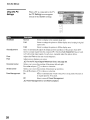
Option
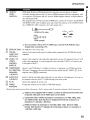
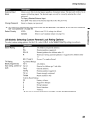
Wide Mode
Description
Wide Zoom
Select to fill screen with minimum distortion.
Normal
Select to display 4:3 picture in original size when the original source is 4:3.
tl:D Normal is not available when you are watching 72Dp or 1DaDi sources.
Full
Select to enlarge the picture horizontally to fill the screen when the
original source is 4:3 (Standard definition source). When the original
source is 16:9 (High definition source), select this mode to enlarge the
picture vertically to fill the display area.
16:9
Select to display 16:9 picture in original size.
Zoom
Select to enlarge the original picture without distorting the aspect ratio.
tl:D Wide Zoom and Normal are not available when you are watching 72Dp or 1DaDi
source from component video input or 72Dp, 1DaDi or 1DaDp source from HDMI
input.
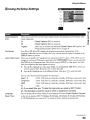
Auto Wide
On
Select to have the screen automatically change to the screen mode that
is best for the current program. If frequent screen changes are disturbing
to you, select Off.
Off
Select to turn off the Auto Wide option. Choose a screen mode from the
Wide Mode option.
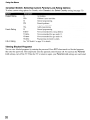
Wide Zoom
4:3 Default
Select the default
Screen Mode to use for Normal
4:3 sources
Full
Select to enlarge the 4:3 picture to fill the display area, keeping the
original image as much as possible.
Select to display the 4:3 picture in its original size.
Select to enlarge the 4:3 picture horizontally only, to fill the display area.
16:9
Select to enlarge the picture to 16:9 aspect ratio.
Zoom
Select to enlarge the picture horizontally and vertically to an equal
aspect ratio that fills the wide screen.
Off
Select to continue using the current Wide Mode setting when the
channel or input is changed.
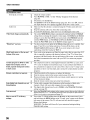
tlJJ
If 4:3 Default is set to anything but Off, the Wide Mode setting changes only for the
current channel. When you change channels (or inputs), Wide Mode is automatically
replaced with the 4:3 Default setting for 4:3 sources.
27