1
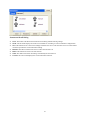
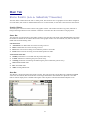
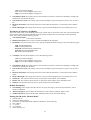
Before you install Carlson GIS-CE, close all running applications on the mobile device. 1. Connect the mobile device to the desktop PC and ensure that the ActiveSync connection is made. 2. Insert the CD into the CD-ROM drive on the desktop PC. If Autorun is enabled, the startup program begins. The startup program lets you choose the version of GIS-CE to install. To start the installation process without using Autorun, choose Run from the Windows Start Menu. Enter the CD-ROM drive letter, and setup. For example, enter d:\setup (where d is your CD-ROM drive letter). 3. On the desktop PC, a Welcome dialog will appear. Press Next. 4. On the next dialog, you must read and accept the Carlson GIS-CE End User License Agreement. If you agree with the EULA, press Yes. If you do not agree with the EULA, press No and the installation program will quit. 5. On the next dialog, type in your name and your company name and press Next. 6. The next dialog asks you to confirm the installation directory. Press Yes. 7. At this point, the necessary files will be copied to the mobile device. The dialog shown below shows you the progress. 8. After this has completed, Figure 1-10 will appear on the mobile device showing the installation progress. When this dialog disappears, the installation is complete. How-To Update Carlson GIS-CE Using a Memory Card This requires that you have a memory card with sufficient free space and WinZip installed on the desktop computer. 1. Download the appropriate Carlson GIS-CE executable to your desktop PC. There are several executables, therefore it is important to get the right one based on the type of hardware you own. 2. Make sure that you have exited Carlson GIS-CE on the handheld. 3. Launch WinZip on the PC. 4. In WinZip, select “File Open Archive”. 5. In the WinZip “Open Archive” dialog, “Archives and .exe Files” from the “Files of type” drop list and navigate to the location of the downloaded Carlson GIS-CE executable. 6. Still in the “Open Archive” dialog, highlight the downloaded Carlson GIS-CE executable and select the “Open” button. 7. Highlight the file that has the .CAB extension and select the “Extract” button. There should only be one .CAB file. 8. Close WinZip. 9. Remove the memory card and put it into the handheld device. 10. Turn on the handheld device. 11. Using “My Computer” on the desktop of the handheld device, navigate to the memory card and locate the .CAB file. 12. Double-Click on the .CAB file and answer “OK” or “YES” to all of the prompts and dialogs. 13. Carlson GIS-CE should be installed or updated and the .CAB file will remove itself from the memory card. 14. Launch Carlson GIS-CE and verify the version number and or date by selecting “Equip About Carlson GIS-CE”. Hardware Notes If GIS-CE quits responding, you can reset the hardware by following the applicable procedures described below. Ranger: Tap the Start button, then choose Programs, Utilities, Reset, Soft Reset. You can also press and hold the power button down for approximately 5 seconds. Juniper Allegro: You press and hold the On\Off button down for approximately 5 seconds. Other hardware: See the hardware documentation. Color Screens GIS-CE 1.21 or greater enables viewing of color. Any red, green, blue or other colored entities in DXF files will retain the color when viewed within GIS-CE. Points will appear with black point numbers, green descriptions and blue elevations. Dialogs and prompting will utilize color throughout GIS-CE. Memory Memory on Allegros and Rangers and other similar CE devices can be allocated for best results. We recommend setting “storage memory” to a minimum of 16,000 to 18,000 KB. The following discussion outlines the procedure for setting that memory on the Allegro. An equivalent process should be used for other CE devices, as available. 7