1
Using Smart Login
To use Smart Login, double-click one of the shortcuts placed on your Desktop,
Quick Launch toolbar or Start menu.
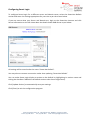
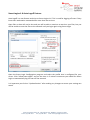
You will see the following login window appear:
Enter your ‘Username’ and ‘Password’ and ensure the correct
session is selected. For most Smart-Net installations this may be
called ‘Smart-Net Default’.
Once you have entered your credentials, click [OK]. Smart Login
will run connect to the server and run the login script. You will
then have access to the server drives related to your group
permissions.
After logging in, Smart Login will minimize itself to the System Tray in Windows (bottom right
corner of your screen).
A single left-click on the Smart Login icon in the system tray will
show details and login status of the user logged in.
To logoff the network, click [Log Off] from the Smart Login window.
To close Smart Login click [Cancel]. This will leave your network
shares connected.
To logoff the network and end your Windows session, right click on the Smart
Login icon in the system tray and select [Log Off username].
If you select [Exit], Smart Login will close but leave your network shares connected until you logoff
or shutdown Windows.
Important Note for Windows Vista and Windows 7
On Windows Vista and Windows 7 you must change the local workstation workgroup setting to
DESKTOPWG. If you do not do this, a Windows Vista/Windows 7 computer may cause problems
on your network when its workgroup name is set the same as your Smart-Net server.
Smart Computer Systems Ltd, 1 Birmingham Drive, Middleton, Christchurch 8024
Phone: (03) 982-2233
Fax: (03) 982-2234
Email: [email protected]