1
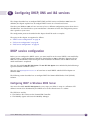
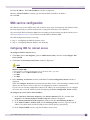
Creating and configuring a Routed WM-AD
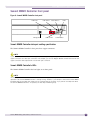
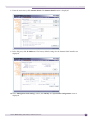
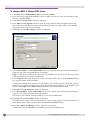
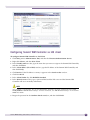
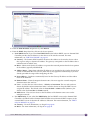
4 From the WM-AD Mode drop-down list, click Routed.
5 From the DHCP drop-down list, click one of the two options:
●
●
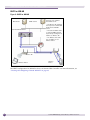
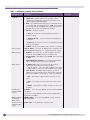
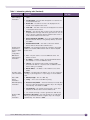
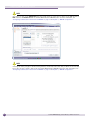
Local DHCP Server: If you select Local DHCP Server, the built-in DHCP server in Summit WM
Controller provides the IP addresses to the devices to the wireless network. For more
information, see “DHCP for WM-AD” on page 12.
■
Gateway – The Summit WM Controller advertises this address to the wireless devices when
they sign on and get a dynamic IP address. The gateway corresponds to the IP address that is
communicated to mobile users
■
Mask – Subnet mask for this IP address to separate the network portion from the host portion
of the address (typically 255.255.255.0).
■
Address Range – Range from which the IP addresses are provided to the wireless devices that
would use this WM-AD. This text box (from and to) may populate automatically, if you have
already provided the range while configuring the APs.
■
B’cast Address – Populates automatically based on the Gateway IP address and the subnet
mask of the WM-AD.
■
Domain Name – External enterprise domain name. You must type the external enterprise
domain name in this text box.
■
Lease – text box has two sub text boxes – default, and maximum. The two sub text boxes
dictate the default and maximum time limits a wireless device can keep the DHCP serverassigned IP address. The default value for Lease default is 36000 seconds (10 hours), the
default value for Lease Max is 2539000 seconds.
■
DNS Server – This text box relates to the IP address of the domain name server on the
enterprise network.
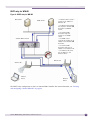
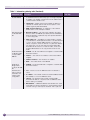
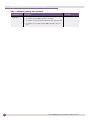
Use DHCP Relay: If you select Use DHCP Relay, the local DHCP server on the Summit WM
Controller is disabled and the Summit WM Controller instead forwards DHCP requests to the
external DHCP server for dynamic IP addresses allocation. For more information, see “DHCP
relay for WM-AD” on page 13
■
Gateway – For more information, see Step #5 on page 69.
■
Mask – For more information, see Step #5 on page 69.
Summit WM20 Getting Started Guide, Software Version 4.2
69