1
CloudBook
⇓
22
User Guide
Simultaneous display capability for LCD and external desktop
computer monitor.
•
Built-in Stereo Speakers
Integrated mini stereo speaker provides sound and audio output for your
multimedia presentations or listening pleasure.
•
Touchpad Pointing Device
Mouse compatible with two Touchpad click buttons. The two select
buttons located at the top left side of the keyboard, and the touchpad
located at the top right side of the keyboard for supporting tapping
selection and dragging functions. These buttons work like a standard
notebook mouse. Simply move your fingertip over the Touchpad to
control the position of the cursor. Use the selection buttons at the top left
side of the keyboard to select menu items.
•
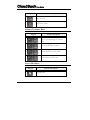
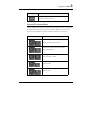
LED Indicators
Keeps you informed of your CloudBook current power status and
operating status. Description of the status icons appears in the latter part
of this section.
•
Keyboard
Standard QWERTY-key layout and full-sized 80 keys keyboard with Linux
system hot-keys, embedded numeric keypad, 8 hot keys, inverted "T"
cursor arrow keys, and separate page screen control keys.
•
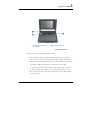
WebCam Module
The webcam can be used as a communication device that transmits instant
image through network for conference.
•
Easy Button
There is one easy button used for accessing Wireless LAN functions
instantly and easily. Description of the easy button appears in the latter
part of this section.











































![complete information [English]](http://vs1.manualzilla.com/store/data/005803910_1-e6b0f51b61ee7060f2602055e87ee74e-150x150.png)