1
Quick Q
Agent’s User Guide for the
Scout II Telephone
Comdial® strives to design the features in our communications
systems to be fully interactive with one another. However, this is not
always possible, as the combinations of accessories and features are
too varied and extensive to insure total feature compatibility.
Accordingly, some features identified in this publication will not operate
if some other feature is activated. Comdial disclaims all liability relating
to feature non-compatibility or associated in any way with problems
which may be encountered by incompatible features. Notwithstanding
anything contained in this publication to the contrary, Comdial makes
no representation herein as to the compatibility of features.
GCA70-382
10/02
Printed in U.S.A.
QuickQ Agent’s User Guide-Scout II
Table of Contents
1. THE SCOUT II TELEPHONE FOR AGENTS................1
2. DESCRIPTION OF THE DISPLAY (IDLE DISPLAY) .3
3. INTERACTION WITH FX II ............................................4
4. SIGNING-IN TO QUICKQ ................................................5
5. RECEIVING AN ACD CALL............................................7
6. TRANSFERRING AN ACD CALL ...................................8
7. REQUESTING HELP .........................................................9
Selecting Conferencing During Help..............................9
Selecting Hold During Help ..........................................10
8. WRAP-UP: DISCONNECTING FROM A CALL ........11
9. PLACING OUTGOING CALLS .....................................12
Assigning an Account Code...........................................12
10. ALARM CONDITION....................................................13
11. THINGS TO REMEMBER ............................................14
12. LOG-IN PROCEDURE...................................................15
13. INCOMING CALL FLOWCHART ..............................16
Log-In for Multiple Groups ..........................................17
Oct ‘02
Comdial
i
Contents
This page is intentionally blank.
ii
Comdial
Oct ‘02
QuickQ Agent’s User Guide-Scout II
1. THE SCOUT II TELEPHONE FOR
AGENTS
• QuickQ versions using software release 3.0 (or later) allow the
use of up to nine Scout II digital wireless telephones. Using
these telephones provides users with maximum freedom to
move about within the call center.
• The F1 button should be programmed as the OAI button
(labeled ACD) on your Scout II telephone. This button enables
you to sign into QuickQ. Buttons F2, F3, and F4 should be
programmed to function the same as the three interactive
buttons on the proprietary 12-button and 24-button telephones
while QuickQ is active.
Oct 02
Comdial
1
The Scout II Telephone for Agents
• All displays shown in this guide are as seen on the 16-character
(8 characters x two lines) Scout II display.
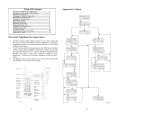
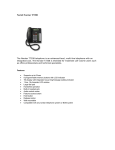
1. Ringer ON/OFF switch
2. Message Display
3. Transfer/Conference (T/C) Button
4. Talk Button
5. Numeric Keypad
6. Function Button
7. Function Button
8. Microphone
2
Comdial
9. Head Set Jack
10. Volume (R/VOL) Button
11. MUTE Button
12. Hold Button
13. Tap Button
14. Redial Button
15. Channel Button
16. Function Button
17. Function Button
Oct, 02
QuickQ Agent’s User Guide-Scout II
2. DESCRIPTION OF THE DISPLAY
(IDLE DISPLAY)
Quick Q Group 01
ByHpLg
This line indicates the function of the interactive buttons.
Please refer to the following table for the interactive
button definitions.
This line indicates your present status.
Scout Interactive Button Definitions
Oct 02
Scout
Display
Standard
Display
Scout
Display
Standard
Display
Ab
ABORT
Ok
OK
Ac
ACC (account)
Ot
OUT
Ag
AGENT
Py
PLAY
Al
ALL
Qt
QUIT
As
ANSWER
Rd
READY
By
BUSY
Rc
RECORD
Cf
CONF
Rj
REJECT
Cn
CANCEL
Rs
RELEASE
Cr
CLEAR
Rp
REPORT
Dy
DAY
Rt
RETRY
Ex
EXIT
Rn
RETURN
Hp
HELP
Sn
SCAN
Hd
HOLD
Se
SELECT
In
IN
Sk
SKIP
Lg
LOG
Sp
SPEC’L (special)
Lg
LOGOUT
St
STOP
Mn
MENU
Tr
TRANS (transfer)
Md
MODE
Vc
VOICE
Ms
MSG (message)
Wp
WRAPUP
Nt
NIGHT
Ys
YES
No
NO
Comdial
3
Interaction with FX II
3. INTERACTION WITH FX II
• To access FX-II features, press the ACD button to exit QuickQ,
if enabled. Then, press F4 (intercom) followed by the desired
code.
• Your telephone will respond normally when you access FXII
features. During FX II operation, QuickQ will be suspended.
This is indicated by a flashing red light above the ACD button.
After completing the FX II feature, press the ACD button to
resume ACD operation.
• Do Not Disturb prevents your phone from ringing on non-ACD
calls; that is, intecom calls and personal calls.
• Call Forward forwards non-ACD cals only; that is, intercom
calls and personal calls.
4
Comdial
Oct, 02
QuickQ Agent’s User Guide-Scout II
4. SIGNING-IN TO QUICKQ
• Press the ACD (F1) button (OAI button).
Welcome ->QuickQ
This display notifies you that you are about to log into QuickQ.
Agt ID:
Rt
Qt
This display prompts you to enter your ID number.
• Use the keypad to enter your ID number. Press the Rt (retry)
Interactive button if you enter an incorrect digit.
Password:
Rt
Qt
This display prompts you to enter your password.
Oct 02
Comdial
5
Signing-in to QuickQ
• Enter your password digits
QQ Group 01
ByHpLg
• The above display indicates you are now signed in as an ACD
agent, ready to accept incoming calls. If it is necessary for you
to leave your desk, press the By (busy) interactive button. This
will prevent the ACD from sending calls to you when you are
unable to answer.
Pressing Busy
Busy
CnHpLg
• The system will automatically set your telephone to Busy under
the following conditions.
• if you do not answer an ACD call sent to you.
• if you place or answer an internal call
• if you answer a transferred call
• if you place an outgoing call during the wrap-up time
6
Comdial
Oct, 02
QuickQ Agent’s User Guide-Scout II
5. RECEIVING AN ACD CALL
• When an ACD call is directed to you, your telephone will ring
and the display will indicate the following:
Group 01
By
The group is identified on the display
Wt
>T
after 2 sec
MsRpAg
The time the call has waited is displayed
• If you do not answer this call within the programmed redirect
threshold time, the call will automatically go to another agent.
When the call is redirected, the ACD wil automatically make
your telephone busy.
• If you are unable to take this cal, press the By (busy) interactive
button, and the system will redirect the call to another idle
agent. If there are no availbable agents, your display will
indicate “All Agents busy”. You must then answer to avoid
losing the call.
• To answer the call, lift the Handset, or if using a headset, press
TALK.
LinNameSupp
AcWpHp
• During your conversation, the display remains on your
telephone.
Oct 02
Comdial
7
Transferring an ACD Call
6. TRANSFERRING AN ACD CALL
• When transferring a call, be aware that you are responsible for
the transferred call until the intended party answers the call.
LineName Supp901
AcWpHp
• To transfer a call, press the T/C button.
• Announce the call to the intedned party (paging may be helpful
for this).
LineName Supp901
AcWpHp
• Press the Wp (wrap-up) interactive button to disconnect from
that call. Your display will enter the WRAP-UP mode (refer to
page 10).
• If the transferred call is not answered, the call will automatically
recall to your telephone (regardless of your activity).
8
Comdial
Oct, 02
QuickQ Agent’s User Guide-Scout II
7. REQUESTING HELP
• The Help function calls the supervisor without interrupting your
present conversation.
• During your conversation, press the HELP interactive button.
Reqt Help!
Cn
When the supervisor responds to your request
Super Redy
Cf
Hd
After 2 seconds
Supp 901
Cf
Hd
Supervisor’s Name
• You now have the option to add the supervisor to your
conversation (CONFerence), or to place the caller on HOLD
while you discuss the situation with your supervisor.
7.1 Selecting Conferencing During Help
• After requesting HELP, press the CONF interactive button to
conference the supervisor, the caller and yourself.
Oct 02
Comdial
9
Requesting Help
LinName
Rs
Supp901
Tr
• The top line of the display identifies the line and supervisor,
indicating a conference. Press the RELEASE interactive button
to drop the supervisor from the call. Press the TRANS
interactive button to send this call to the supevisor.
7.2 Selecting Hold During Help
• Press the Hp (hold) interactive button.
LinName
Held!
CfRtTr
• This action places the caller on hold and connects you directly
with your supervisor.
Cf (conference)
Connects the supervisor, caller, and yourself.
Rt (return)
Return to the caller and release the supervisor.
Tr (transfer)
Transfer the caller to the supervisor and
After 2 seconds
disconnect yourself.
10
Comdial
Oct, 02
QuickQ Agent’s User Guide-Scout II
8. WRAP-UP: DISCONNECTING
FROM A CALL
• To complete a call, hang up the receiver. The system provides a
preprogrammed wrap-up time to allow you to complete any
after call work. During the wrap-up time, no calls will be
directed to you.
Wrp-up--->000s
RdAcBy
Total Calls Waiting
Wt: 12
>T:03
RdAcBy
Calls beyond alarm
• The display indicates the number of calls holding and the
number of calls waiting longer than the programmed acceptable
time (alarm threshold).
• After the wrap-up time has expeired, your telephone will return
to the IDLE display.
• You can bypass the wrap-up time by pressing the READY
interactive button, or you can select the BUSY interactive
button during the wrap-up time, should you requred more time
or need to leave your desk.
Indicates which agent’s conversation you are monitoring.
Press Sn (scan) to have the system select another agent, or press
Qt (quit) to enter another agent’s ID. Press Qt (quit) twice to
return to the idle display.
Oct 02
Comdial
11
Placing Outgoing Calls
9. PLACING OUTGOING CALLS
• Select an outgoing line.
Outgoing
ApWpHp
Number dialed is display
After 2 seconds
9.1 Assigning an Account Code
• To assign an account code to a call, press the Ac (account)
interactive button during or after the call. Account codes must
be preset by the supervisor and can be used on both incoming
and outgoing calls.
LinName Supp901
Ac
Wp
Hp
WrpUp--->
000s
RdAcBy
Acc Cd:___
Rt
12
Ex
Comdial
Oct, 02
QuickQ Agent’s User Guide-Scout II
• Enter the account code using the telephone key pad. If you
press an incorrect digit, press the Rt (retry) interactive button.
AccDesc
Rt
Ok
• If correct, press the Ok interactive button to return to the
previous state.
• Calls can have more than one account code. To enter additional
codes, repeat these steps for each.
10. ALARM CONDITION
• An alarm tone sounds on your telephone when waiting calls
have exceeded the time on hold set by your supervisor.
Alarm Display
Wt
XX
>T:
XX
XX
• This alarm will sound regardless of your activitiy (idle, busy, or
on a call).
Oct 02
Comdial
13
Things to Remember
11. THINGS TO REMEMBER
• If your display is blank, your telephone is either not logged-in,
or the QuickQ is suspended. Press the QuickQ button to
resume.
• QuickQ will automaticaly make your telephone Busy if you
miss an ACD call.
• Quick Q will temporarily make your telephone Busy if you:
• Answer a transferred call
• Retrieve a parked call
• Answer or place an intercom call
• Answer or place a non-ACD call
• When you complete either of the above actions, the system will
automatically return you to your previous state.
• Log out if you are leaving for the day.
• You cannot log out if you are the last agent in the gorup. At the
preset closing time, the system will automatically log you out.
• Remember to make your telephone Busy if you are leaving your
desk or unable to answer ACD calls.
14
Comdial
Oct, 02
QuickQ Agent’s User Guide-Scout II
12. LOG-IN PROCEDURE
Welcome >QuickQ
Agt ID:
Rt
Password:
Rt
Qt
Qt
QuickQ: Group01
By
Hp
Lg
Busy
Cn
Hp
Lg
Log Procedure
By
Cn
Ot
QuickQ
Oct 02
Comdial
Group 01
ByHpLg
15
Incoming Call FlowChart
13. INCOMING CALL FLOWCHART
16
Comdial
Oct, 02
QuickQ Agent’s User Guide-Scout II
12.1 Log-In for Multiple Groups
Group 01
In
Stock
A1
QuickQ
Group01
ByHpLg
Note: Each group that you belong to is displayed in the order
of your priority in each one. For example, if you belong to
three groups (1,2, and 3) and your priority is highest in group
3, group 3 is displayed first.
Oct 02
Comdial
17
Incoming Call FlowChart
This page is intentionally blank.
18
Comdial
Oct, 02
This manual has been developed by Comdial Corporation (the
“Company”) and is intended for the use of its customers and service
personnel. The information in this manual is subject to change
without notice. While every effort has been made to eliminate errors,
the Company disclaims liability for any difficulties arising from the
interpretation of the information contained herein.
The information contained herein does not purport to cover all details
or variations in equipment or to provide for every possible contingency to be met in connection with installation, operation, or maintenance. Should further information be desired, or should particular
problems arise which are not covered sufficiently for the purchaser’s
purposes, contact Comdial, Inside Sales Department, Sarasota,
Florida 34232.
GCA70-382
10/02
Printed in U.S.A.