1
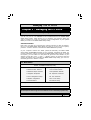
Managing The PC BIOS
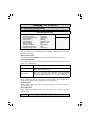
Navigation Keys
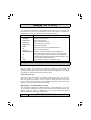
You will notice a legend bar at the bottom of the main menu. The keys in this
legend bar show you how to navigate through the setup menus. The table below lists the control keys with their corresponding functions:
Control Key
Function
Up Arrow
Moves to the previous item.
Down Arrow
Moves to the next item.
Left Arrow
Moves to the item on the left.
Right Arrow
Moves to the item on the right.
Enter
Selects the desired item.
F1
Displays the help screen for the selected feature.
Esc key
Exits to the previous screen.
PgUp(-)/PgDn(+)
Modifies or changes the content of the highlighted item.
F5
Restores the previous CMOS values to the current page setup.
This will not restore the previous values for any other pages.
F7
Loads the SETUP default values from BIOS default table, (only
the current page setup will be loaded).
F10
Saves changes to the CMOS and exits the setup.
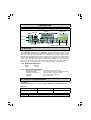
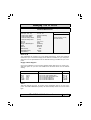
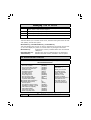
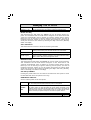
3.3. Standard CMOS Setup (This menu is on page 27)
Date (mm : dd : yy)
Sets your system to the date that you specifiy (usually the current date). The
format is month, day, and year. Press the right or left arrow key to move to
the desired field (month, date, year). Press the PgUp or PgDn key to increment
the setting, or type the desired value into the field.
Time (hh : mm : ss)
Sets your system to the time you specify (usually the current time). The format is hour, minute, second. The time format is based on the 24-hour military-time clock. For example, 1 P.M. is 13:00:00. Press the right or left arrow
key to move to the desired field. Press the PgUp or PgDn key to increment the
setting, or type the desired value into the field.
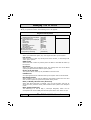
IDE Primary / Secondary Master / Slave
This mainboard supports four IDE Hard Drives. These fields allow you to set
your Hard Drive parameters. Move the selection bar to the IDE Hard Drive you
want to configure. Press the "ENTER" key. If you select “AUTO” the system
BIOS will detect the HDD type automatically.
Page 26
The P4X4-ALH Mainboard