1
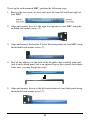
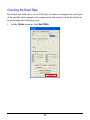
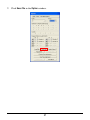
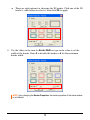
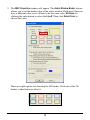
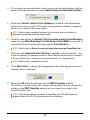
4. To swap the two mouse buttons so that you can use the right button as the left
button, click the checkbox to enable Switch primary and secondary buttons.
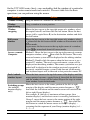
5. If the item Transfer control to This Computer is enabled (with checkmark),
keyboard / mouse control will transfer to the particular window (computer)
that has just entered full screen mode.
NOTE: Default setting is disabled (keyboard / mouse control does not transfer to a
particular computer that enters full screen mode).
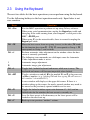
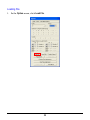
6. Click the radio button for Remain Full Screen when pressing Pause/Break key
under the item When Returning From Full Screen to Host Mode if you wish to
remain in full screen mode upon pressing the Pause/Break key.
NOTE: Default setting is Return to previous layout when pressing Pause/Break key.
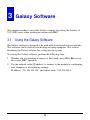
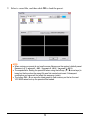
7. When the item Swap with Active Window is enabled (with checkmark) – the
action of entering a computer window (other than the current active window)
will cause both active and newly entered windows to swap position.
NOTE: Default setting is enabled for this item.
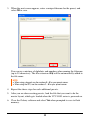
8. Click Select Color to change the background color of the pop-up selections
(default color is dark blue).
9. Then click OK when finished and exit the MKC Properties window.
The Galaxy software retains the settings until the next time you change the
settings in the MKC Properties window or you return the system to the
factory-default state.
NOTE: Other Galaxy software commands for controlling your VCC-8000 series are
available. Refer to the VCC-8000 series manual for more details.
79