1
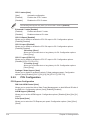
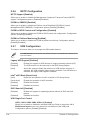
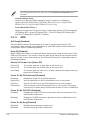
The following items appear only when you set the Parallel Port Configuration item to
[Enabled].
Change Settings [Auto]
Allows you to select an optimal setting for Super I/O devices. Configuration
options: [Auto] [IO=378h; IRQ=5;] [IO=378h; IRQ=5,6,7,9,10,11,12;] [IO=278h;
IRQ=5,6,7,9,10,11,12;] [IO=3BCh; IRQ=5,6,7,9,10,11,12;]
Device Mode [STD Printe...]
Allows you to select the Printer Port mode. Configuration options: [STD Printer Mode]
[SPP Mode] [EPP-1.9 and SPP Mode] [EPP-1.7 and SPP Mode] [ECP Mode] [ECP
and EPP 1.9 Mode] [ECP and EPP 1.7 Mode]
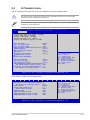
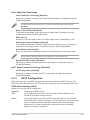
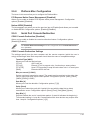
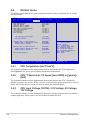
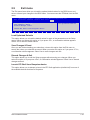
2.5.11APM
ErP Ready [Disabled]
Allow the BIOS to switch off some power at S5 state to get the system ready for ErP
requirement. When this item is set to [Enabled], all other PME options will be switched off.
Configuration options: [Disabled] [Enabled]
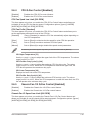
Deep S4 [Disabled]
When enabled, the system in S4 state will further reduce power usage and will power off the
USB and PS/2 devices. The system in deep S4 state can be woken up via the power button,
devices in LAN, or other ways except via the USB and PS/2 devices. Configuration options:
[Disabled] [Enabled]
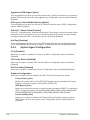
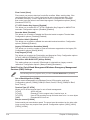
Restore AC Power Loss [Power Off]
[Power On]
The system goes into on state after an AC power loss.
[Power Off]
The system goes into off state after an AC power loss.
[Last State]
The system goes into either off or on state, whatever the system state was
before the AC power loss.
Power On By PS/2 Keyboard [Disabled]
[Disabled]
Disables the Power On by a PS/2 keyboard.
[Space Bar]
Sets the Space Bar on the PS/2 keyboard to turn on the system.
[Ctrl-Esc]
Sets the Ctrl+Esc key on the PS/2 keyboard to turn on the system.
[Power Key]
Sets Power key on the PS/2 keyboard to turn on the system. This feature
requires an ATX power supply that provides at least 1A on the +5VSB lead.
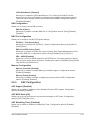
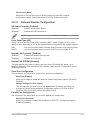
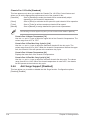
Power On By PCI-E/PCI [Disabled]
[Disabled]
Disables the PCIE/PCI devices to generate a wake-on-LAN feature of the
Intel®/Realtek LAN device.
[Enabled]
Enables the PCIE/PCI devices to generate a wake-on-LAN feature of the
Intel®/Realtek LAN device.
Power On By Ring [Disabled]
2-32
[Disabled]
Disables Ring to generate a wake event.
[Enabled]
Enables Ring to generate a wake event.
Chapter 2: Getting started