1
Appendix
Chapter 10
10.5 Firmware Updating Process
Introduction
The Firmware Updater can be used to update the firmware of most of most Astera lamps
that are equipped with a RF receiver (Antenna).
The firmware version of the controllers must be at least 2.5.0 to support update by RF.
Preparation
•
The .FRM file of the new firmware must be downloaded from www.asteraled.com/downloads . This file must be copied to a micro-SD card (also known as
Trans Flash card) that is formatted with FAT16 or FAT32. Care has to be taken, that
the file is really dedicated for the controller to update. There might be different
hardware releases of the same type controller. If the file does not fit, the lamp will not
accept it.
•
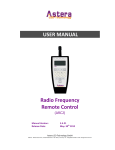
Slide the micro-SD card into the ARC2.
•
Arrange the lamps that are to be updated and the ARC2 to a distance of 0.5-5m.
Make sure, that no disturbances between the antennas can occur during update. If
the transmission is interfered, controllers might get stuck during update. If this
happens, they are unusable until the update is completed. This can be done in two
ways:
1. Do the same update again with the Firmware Updater, not cycling power of the
stuck controllers. They will pick up again at the position they lost the transmission
before.
2. Power off the controllers and start the whole update again.
Update Process
1. Power on the ARC2 and make sure the SD-Card is inserted.
2. Choose SETUP > SD card > Firmware Update > Choose File
3. Choose suitable file with + and – keys, then press Enter
4. Go to “UPDATE FIRMWARE” and press ENTER
5. The LCD will show “SENDING INIT....”. While the init sequence is sent, power up all
controllers you like to update. They will not power up as usual, but stay in the update
routine. Usually they will appear as if they are not powered up while the update is in
process (see table below how each unit reacts). If a controller powers up as usual,
either the wireless link is bad or the .FRM file does not fit the controller.
27