1
Step-by-Step Instructions
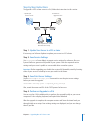
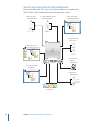
To upgrade a v10.4.11 server to v10.6, follow the instructions in this section.
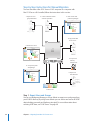
1 Update your
server to v10.4.11.
2 Perform an
upgrade to v10.6.
3 Make adjustments as needed
after initial server setup.
Step 1: Update Your Server to v10.4.11
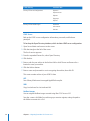
If necessary, use Software Update to update your server to v10.4.11.
Step 2: Save all Service Settings
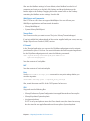
Use serveradmin or Server Admin to export service settings for reference. Also, use
System Profiler to generate a profile of your system. Store the exported service settings
and your server’s profile on a removable disk or another system.
Important: Before upgrading, create a full, bootable, tested-by-booting clone of your
server as a backup in case you need it in the future.
Step 3: Save Print Server Settings
Use the serveradmin settings
you start the upgrade.
print
command to save print server settings before
serveradmin settings print > exported_print_settings
Also, record the names and IDs of the CUPS queues for later use.
Step 4: Perform an Upgrade to v10.6
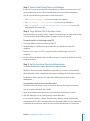
Use the v10.6 installation disc to perform the upgrade locally on your server computer
if it has a display, keyboard, and optical drive attached.
After the upgrade, the computer restarts and Server Assistant leads you through initial
server setup. Your existing settings are displayed, and you can change them as needed.
Chapter 4    Upgrading Mac OS X Server v10.4
51