1
LL2347.Book Page 25 Wednesday, August 13, 2003 11:20 AM
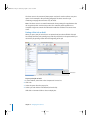
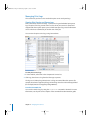
If you set up your server to advertise LPR print queues using Rendezvous or Open
Directory, a client can browse for an LPR queue instead of having to know the address
of the server and the name of the queue when adding a printer.
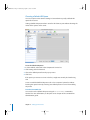
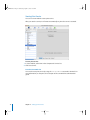
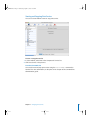
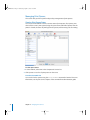
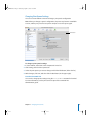
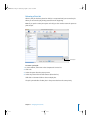
To add an LPR print queue that is advertised via Rendezvous:
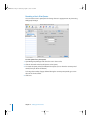
1 Open Printer Setup Utility or Print Center and click Add.
2 Choose Rendezvous from the pop-up menu.
3 Select the queue by name.
4 Choose the printer type from the Printer Model pop-up menu. If you’re not sure of the
type, Generic Postscript works for basic printing needs.
5 Click Add.
For help advertising a printer using Rendezvous, see “Advertising an LPR Queue Using
Rendezvous” on page 16.
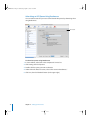
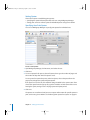
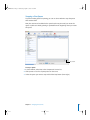
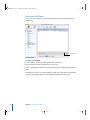
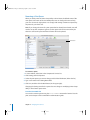
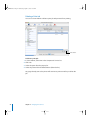
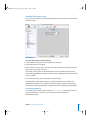
To add an LPR print queue that is listed in Open Directory:
1 Open Printer Setup Utility or Print Center and click Add.
2 Choose Open Directory from the pop-up menu.
3 Select the queue by name.
4 If the printer type is not preselected in the Printer Model pop-up, choose it from the
pop-up menu. If you’re not sure which type to use, Generic Postscript works for most
basic printing needs.
5 Click Add.
For help listing a printer in Open Directory, see “Listing an LPR Queue in Open
Directory” on page 17.
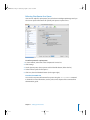
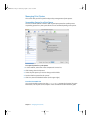
Troubleshooting
If a Mac OS X client is having trouble printing, see Chapter 5, “Solving Problems,” on
page 47.
Chapter 3 Setting Up Printing Clients
25