1
DVD PLAYER
OWNER’S MANUAL
MODEL : SD-3900
3D SSouurrnodund
Before connecting, operating or adjusting this product,
please read this instruction booklet carefully and completely.
1-2
Safety Precautions
CAUTION
RISK OF ELECTRIC SHOCK
DO NOT OPEN
CAUTION: TO REDUCE THE RISK
OF ELECTRIC SHOCK
DO NOT REMOVE COVER (OR BACK)
NO USER-SERVICEABLE PARTS INSIDE
REFER SERVICING TO QUALIFIED SERVICE
PERSONNEL.
This lightning flash with arrowhead symbol within an
equilateral triangle is intended to alert the user to
the presence of uninsulated dangerous voltage
within the product’s enclosure that may be of
sufficient magnitude to constitute a risk of electric
shock to persons.
The exclamation point within an equilateral triangle
is intended to alert the user to the presence of
important operating and maintenance (servicing)
instructions in the literature accompanying the
appliance.
WARNING: TO REDUCE THE RISK OF FIRE OR ELECTRIC SHOCK, DO NOT EXPOSE THIS PRODUCT TO
RAIN OR MOISTURE.
FCC WARNING: This equipment may generate or use radio
frequency energy. Changes or modifications to this
equipment may cause harmful interference unless the modifications are expressly approved in the instruction manual. The
user could lose the authority to operate this equipment if an
unauthorized change or modification is made.
REGULATORY INFORMATION: FCC Part 15
This product has been tested and found to comply with the
limits for a Class B digital device, pursuant to Part 15 of the
FCC Rules. These limits are designed to provide reasonable
protection against harmful interference when the product is
operated in a residential installation. This product generates,
uses and can radiate radio frequency energy and, if not
installed and used in accordance with the instruction manual,
may cause harmful interference to radio communications.
However, there is no guarantee that interference will not occur
in a particular installation. If this product does cause harmful
interference to radio or television reception, which can be
determined by turning the product off and on, the user is
encouraged to try to correct the interference by one or more
of the following measures:
z Reorient or relocate the receiving antenna.
z Increase the separation between the product and
receiver.
z Connect the product into an outlet on a circuit different
from that to which the receiver is connected.
z Consult the dealer or an experienced radio/TV technician
for help.
CAUTION: TO PREVENT ELECTRIC SHOCK, MATCH
WIDE BLADE OF PLUG TO WIDE SLOT, FULLY INSERT.
ATTENTION: POUR ÉVITER LES CHOC ÉLECTRIQUES,
INTRODUIRE LA LAME LA PLUS LARGE DE LA FICHE
DANS LA BORNE CORRESPONDANTE DE LA PRISE ET
POUSSER JUSQU’AU FOND.
WARNING: Do not install this equipment in a confined space
such as a bookcase or similar unit.
CAUTION:
This Digital Video Disc Player employs a Laser System.
To ensure proper use of this product, please read this owner’s
manual carefully and retain for future reference, should the unit
require maintenance, contact an authorized service locationsee service procedure.
Use of controls, adjustments or the performance of procedures
other than those specified herein may result in hazardous
radiation exposure.
Notes on copyrights:
It is forbidden by law to copy, broadcast, show, broadcast
via cable, play in public, or rent copyright material without
permission.
This product is equipped with copy protection measures
developed by Macrovision. Copy protection signals are recorded on some discs. When recording these discs on a VCR,
picture noise will appear during playback.
This product incorporates copyright protection technology that
is protected by certain U.S. patent claims and other intellectual
property rights owned by Macrovision Corporation and other
rights owners. Use of this copyright protection technology must
be authorized by Macrovision Corporation, and is intended for
home and other limited viewing uses only unless otherwise
authorized by Macrovision Corporation. Reverse engineering
or disassembly is prohibited.
SERIAL NUMBER: The serial number is found on the back of
this unit. This number is unique to this unit and not available to
others. You should record requested information here and
retain this guide as a permanent record of your purchase.
Model No. ___________________________________
Serial No. ___________________________________
To prevent direct exposure to laser beam, do not try to open
the enclosure. Visible laser radiation when open. DO NOT
STARE INTO BEAM.
CAUTION: The apparatus shall not be exposed to water,
dripping or splashing and that no objects filled with liquids,
such as vases, shall be placed on the apparatus.
1-3
CAUTION:
PLEASE READ AND OBSERVE ALL WARNINGS AND
INSTRUCTIONS IN THIS OWNER’S MANUAL AND THOSE
MARKED ON THE UNIT. RETAIN THIS BOOKLET FOR
FUTURE REFERENCE.
This set has been designed and manufactured to assure personal safety.
Improper use can result in electric shock or fire hazard. The safeguards
incorporated in this unit will protect you if you observe the following procedures for installation, use, and servicing.
This unit does not contain any parts that can be repaired by the user.
DO NOT REMOVE THE CABINET COVER, OR YOU MAY BE
EXPOSED TO DANGEROUS VOLTAGE. REFER SERVICING TO
QUALIFIED SERVICE PERSONNEL ONLY.
1.
2.
3.
4.
5.
6.
7.
8.
9.
10.
11.
12.
13.
14.
Read These Instructions
All safety and operating instructions should be read before the
product is operated.
Follow All Instructions
All operating and use instructions should be followed.
Keep These Instructions
The safety and operating instructions should be retained for future
reference.
Heed All Warnings
All warnings on the product and in the operating instructions should
be adhered to.
Power Sources
This product should be operated only from the type of power
source indicated on the marking label. If you are not sure of the
type of power supply in your home, consult your product dealer or
local power company. For products intended to operate from battery power, or other sources, refer to the operating instructions.
Grounding or Polarization
Do not defeat the safety purpose of the polarized plug has two
blades with one wider than the other. A grounding-type plug has
two blades and a third grounding prong. The wide blade or the
prong are provided for your safety. If the provided plug does not fit
into your outlet, consult an electrician for replacement of the obsolete outlet.
Ventilation
Slots and openings in the cabinet are provided for ventilation and to
ensure reliable operation of the product and to protect it from overheating. These openings must not be blocked or covered. The openings should never be blocked by placing the product on a bed, sofa,
rug or other similar surface. This product should not be placed in a
built-in installation such as a bookcase or rack unless proper ventilation is provided or the manufacturer’s instructions have been adhered
to.
Heat
Do not install near any heat sources such as radiators, heat registers, stoves, or other apparatus (including amplifiers) that produce
heat.
Water and Moisture
Do not use this apparatus near water. For example: near a bath
tub, wash bowl, kitchen sink, Laundry tub, in a wet basement; or
near a swimming pool.
Cleaning
Unplug this product from the wall outlet before cleaning. Do not use
liquid cleaners or aerosol cleaners. Clean only with dry cloth.
Power-Cord Protection
Protect the power cord from being walked on or pinched particularly
at plugs, convenience receptacles, and the point where they exit
from the apparatus.
Overloading
Do not overload wall outlets, extension cords, or integral convenience receptacles, this can result in a risk of fire or electric shock.
Lightning
Unplug this apparatus apparatus during lightning storms or when
unused for long periods of time. This will prevent damage to the
product due to lightning and power-line surges.
Object and Liquid Entry
Never push objects of any kind into this product through openings
as they may touch dangerous voltage points or short-out parts that
could result in a fire or electric shock. Never spill liquid of any kind
on the product.
15. Attachments
Only use attachments/accessories specified by the manufacturer.
16. Accessories
Use only with the cart, stand, tripod, bracket, or
table specified by the manufacturer or sold with
the apparatus. When a cart is used, use caution
when moving the cart/apparatus combination to
PORTABLE CART
avoid injury from tip-over.
WARNING
17. Disc Tray
Keep your fingers well clear of the disc tray as it is closing. It can
cause personal injury.
18. Burden
Do not place a heavy object on or step on the product. The object
may fall, causing serious personal injury and serious damage to the
product.
19. Connecting
When you connect the product to other equipment, turn off the
power and unplug all of the equipment from the wall outlet. Failure
to do so may cause an electric shock and serious personal injury.
Read the owner’s manual of the other equipment carefully and follow the instructions when making any connections.
20. Sound Volume
Reduce the volume to the minimum level before you turn on the
product. Otherwise, sudden high volume sound may cause hearing
or speaker damage.
21. Sound Distortion
Do not allow the product to output distorted sound for a longtime. It
may cause speaker overheating and fire.
22. Earphone
When you use the earphone, keep the volume at a moderate level.
If you use the earphone continuously with high volume sound, it
may cause hearing damage.
23. Laser Beam
Do not look into the opening of the disc tray or ventilation opening
of the product to see the source of the laser beam. It may cause
sight damage.
24. Disc
Do not use a cracked, deformed, or repaired disc. These discs are
easily broken and may cause serious personal injury and product
malfunction.
25. Damage Requiring Service
Refer all servicing to qualified service personnel. Servicing is
required when the apparatus has been damaged in any way, such
as power-supply cord or plug is damaged, liquid has been spilled or
objects have fallen into the apparatus, the apparatus has been
exposed to rain or moisture, does not operate normal, or has been
dropped.
26. Servicing
Do not attempt to service this product yourself as opening or
removing the cover may expose you to dangerous voltage or other
hazards. Refer all servicing to qualified service personnel.
27. Replacement parts
When replacement parts are required, be sure the service technician has used replacement parts specified by the manufacturer or
have the same characteristics as the original part. Unauthorized
substitutions may result in fire, electric shock, or other hazards.
28. Safety Check
Upon completion of any service or repairs to this product, ask the
service technician to perform safety checks to determine that the
product is in proper operating condition.
1-4
INTRODUCTION
IMPORTANT SAFETY INSTRUCTIONS
Table of Contents
Introduction
Safety Precautions . . . . . . . . . . . . . . . . . . . . . . . . . 2
IMPORTANT SAFETY INSTRUCTIONS . . . . . . . . . . 3
Table of Contents . . . . . . . . . . . . . . . . . . . . . . . . . . 4
Before Use . . . . . . . . . . . . . . . . . . . . . . . . . . . . . . 5-6
Playable Discs . . . . . . . . . . . . . . . . . . . . . . . . . . . 5
Precautions . . . . . . . . . . . . . . . . . . . . . . . . . . . . . 6
Notes on Discs . . . . . . . . . . . . . . . . . . . . . . . . . . 6
About Symbols . . . . . . . . . . . . . . . . . . . . . . . . . . 6
Front Panel and Display Window . . . . . . . . . . . . . . 7
Remote Control . . . . . . . . . . . . . . . . . . . . . . . . . . . . 8
Rear Panel . . . . . . . . . . . . . . . . . . . . . . . . . . . . . . . . 9
Preparation
Connections . . . . . . . . . . . . . . . . . . . . . . . . . . . 10-11
Connecting to a TV . . . . . . . . . . . . . . . . . . . . . . 10
Connecting to Optional Equipment . . . . . . . . . . . 11
Before Operation . . . . . . . . . . . . . . . . . . . . . . . 12-15
General Explanation. . . . . . . . . . . . . . . . . . . . . . 12
On-Screen Display . . . . . . . . . . . . . . . . . . . . . . . 12
Initial Settings . . . . . . . . . . . . . . . . . . . . . . . . 13-15
z Initial Settings General Operation. . . . . . . . . 13
z Language . . . . . . . . . . . . . . . . . . . . . . . . . . 13
z Picture. . . . . . . . . . . . . . . . . . . . . . . . . . . . . 13
z Sound . . . . . . . . . . . . . . . . . . . . . . . . . . . . . 14
z Others . . . . . . . . . . . . . . . . . . . . . . . . . . . . . 14
z Parental Control. . . . . . . . . . . . . . . . . . . . . . 15
Operation
Operation with DVD and Video CD . . . . . . . . . 16-18
Playing a DVD and Video CD. . . . . . . . . . . . . . . 16
General Features . . . . . . . . . . . . . . . . . . . . . . . . 16
z Moving to another TITLE . . . . . . . . . . . . . . . 16
z Moving to another CHAPTER/TRACK . . . . . 16
z Search. . . . . . . . . . . . . . . . . . . . . . . . . . . . . 16
z Still Picture and Frame-by-Frame Playback . 16
z Slow Motion. . . . . . . . . . . . . . . . . . . . . . . . . 17
z Random . . . . . . . . . . . . . . . . . . . . . . . . . . . 17
z Repeat . . . . . . . . . . . . . . . . . . . . . . . . . . . . 17
z Repeat A-B . . . . . . . . . . . . . . . . . . . . . . . . . 17
z Time Search . . . . . . . . . . . . . . . . . . . . . . . . 17
z Selecting the sound enhancement . . . . . . . . 17
z Zoom. . . . . . . . . . . . . . . . . . . . . . . . . . . . . . 18
z Marker Search . . . . . . . . . . . . . . . . . . . . . . . 18
Special DVD Features . . . . . . . . . . . . . . . . . . . . 18
z Title Menu . . . . . . . . . . . . . . . . . . . . . . . . . . 18
z Disc Menu . . . . . . . . . . . . . . . . . . . . . . . . . . 18
z Camera Angle . . . . . . . . . . . . . . . . . . . . . . . 18
z Changing the Audio Language . . . . . . . . . . . 18
z Changing the Audio Channel . . . . . . . . . . . . 18
z Subtitle . . . . . . . . . . . . . . . . . . . . . . . . . . . . 18
Operation with Audio CD and MP3/WMA Disc
Playing an Audio CD and MP3/WMA Disc . . .
Notes on MP3/WMA Recordings . . . . . . . . . .
z Pause . . . . . . . . . . . . . . . . . . . . . . . . . . .
z Moving to another Track . . . . . . . . . . . . .
z Repeat Track/ All/ Off. . . . . . . . . . . . . . . .
z Search. . . . . . . . . . . . . . . . . . . . . . . . . . .
z Random . . . . . . . . . . . . . . . . . . . . . . . . .
z Repeat A-B . . . . . . . . . . . . . . . . . . . . . . .
z Selecting the sound enhancement . . . . .
z Changing the Audio Channel . . . . . . . . . .
Operation with JPEG Disc. . . . . . . . . . . . . . . . .
Viewing a JPEG disc . . . . . . . . . . . . . . . . . . .
z Moving to another File . . . . . . . . . . . . . . .
z Still Picture . . . . . . . . . . . . . . . . . . . . . . .
z To flip the picture . . . . . . . . . . . . . . . . . . .
z To rotate picture. . . . . . . . . . . . . . . . . . . .
z Notes on JPEG Recordings . . . . . . . . . . .
Programmed Playback . . . . . . . . . . . . . . . . . . .
Programmed Playback with Audio CD and
MP3/WMA Disc . . . . . . . . . . . . . . . . . . . . . . .
Programmed Playback with Video CD . . . . . .
z Repeat Programmed Tracks . . . . . . . . . .
z Erasing a Track from Program List . . . . . .
z Erasing the Complete Program List . . . . .
Additional Information . . . . . . . . . . . . . . . . . . .
Screen Saver . . . . . . . . . . . . . . . . . . . . . . . . .
Dimmer Function . . . . . . . . . . . . . . . . . . . . . .
Video Mode Setting . . . . . . . . . . . . . . . . . . . .
.
.
.
.
.
.
.
.
.
.
.
.
.
.
.
.
.
.
.
.
.
.
.
.
.
.
.
.
.
.
.
.
.
.
.
.
.
.
19
19
19
20
20
20
20
20
20
20
20
21
21
21
21
21
21
21
22
.
.
.
.
.
.
.
.
.
.
.
.
.
.
.
.
.
.
22
22
22
22
22
23
23
23
23
.
.
.
.
.
.
.
.
24
25
26
27
Reference
Troubleshooting . . .
Language Code List
Area Code List. . . . .
Specifications . . . . .
.
.
.
.
.
.
.
.
.
.
.
.
.
.
.
.
.
.
.
.
.
.
.
.
.
.
.
.
.
.
.
.
.
.
.
.
.
.
.
.
.
.
.
.
.
.
.
.
.
.
.
.
.
.
.
.
.
.
.
.
.
.
.
.
.
.
.
.
.
.
.
.
.
.
.
.
.
.
.
.
.
.
.
.
Others
LIMITED WARRANTY DVD VIDEO PLAYER . . . 28-29
About the symbols for instructions
Indicates hazards likely to cause harm to the unit
itself or other material damage.
Indicates special operating features of this unit.
Indicates tips and hints for making the task easier.
1-5
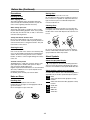
Before Use
Title (DVD only)
The main film content or accompanying feature content
or additional feature content, or music album.
Each title is assigned a title reference number enabling
you to locate it easily.
DVD
(8 cm / 12 cm disc)
Video CD (VCD)
(8 cm / 12 cm disc)
Audio CD
(8 cm / 12 cm disc)
In addition, this unit can play a DVD-R, and CD-R or
CD-RW that contains audio titles, MP3, WMA or JPEG
files.
–
–
–
–
Notes
Depending on the conditions of the recording equipment or the CD-R/RW disc itself, some CD-R/RW
discs cannot be played on the unit.
Do not attach any seal or label to either side (the
labeled side or the recorded side) of a disc.
Do not use irregularly shaped CDs (e.g., heart-shaped
or octagonal). It may result in malfunctions.
Because of problems and errors that can occur during
the creation of DVD software and/or the manufacture
of DVD discs, Toshiba America Consumer Products,
Inc., Toshiba Hawaii, Inc. and Toshiba of Canada, Ltd.
cannot guarantee that this player will play every feature of every DVD bearing the DVD logo. As one of the
creators of DVD technology, Toshiba DVD players are
manufactured to the highest standards of quality and,
as a result, such incompatibilities are very rare. If you
happen to experience and difficulty playing a DVD on a
Toshiba DVD player, please feel free to call our
Contact listed in “How to Obtain Warranty Services” on
page 28.
Notes on DVDs and Video CDs
Some playback operations of DVDs and Video CDs
may be intentionally fixed by software manufacturers.
As this unit plays DVDs and Video CDs according to
disc content designed by the software manufacturer,
some playback features of the unit may not be available
or other functions may be added.
Refer also to the instructions supplied with the DVDs
and Video CDs. Some DVDs made for business purposes may not be played on the unit.
Chapter (DVD only)
Sections of a picture or a musical piece that are smaller
than titles. A title is composed of one or several chapters. Each chapter is assigned a chapter number,
enabling you to locate the chapter you want. Depending
on the disc, chapters may not be recorded.
Track (Video CD and audio CD only)
Sections of a picture or a musical piece on a video CD
or an audio CD. Each track is assigned a track number,
enabling you to locate the track you want.
Scene
On a video CD with PBC (Playback control) functions,
moving pictures and still pictures are divided into sections called “Scenes”. Each scene is displayed in the
menu screen and assigned a scene number, enabling
you to locate the scene you want.
A scene is composed of one or several tracks.
Types of video CDs
There are two types of video CDs:
Video CDs equipped with PBC (Version 2.0)
PBC (Playback control) functions allow you to interact
with the system via menus, search functions, or other
typical computer-like operations. Moreover, still pictures
of high resolution can be played if they are included in
the disc.
Video CDs not equipped with PBC (Version 1.1)
Operated in the same way as audio CDs, these discs
allow playback of video pictures as well as sound, but
they are not equipped with PBC.
Regional code of the DVD player and DVDs
This DVD player is designed and manufactured
for playback of region “1” encoded DVD software. The region code on the labels of some DVD discs
indicates which type of player can play those discs. This
unit can play only DVD discs labeled “1” or “ALL”. If you
try to play any other discs, the message “Check Regional
Code” will appear on the TV screen. Some DVD discs
may not have a region code label even though their playback is prohibited by area limits.
1
1-6
INTRODUCTION
Disc-related terms
Playable Discs
Before Use (Continued)
Precautions
Handling the unit
When shipping the unit
The original shipping carton and packing materials
come in handy. For maximum protection, re-pack the
unit as it was originally packed at the factory.
When setting up the unit
The picture and sound of a nearby TV, VCR, or radio
may be distorted during playback. In this case, position
the unit away from the TV, VCR, or radio, or turn off the
unit after removing the disc.
Storing discs
After playing, store the disc in its case.
Do not expose the disc to direct sunlight or sources of
heat, or leave it in a parked car exposed to direct sunlight, as there may be a considerable temperature
increase inside the car.
Cleaning discs
Fingerprints and dust on the disc can cause poor picture quality and sound distortion. Before playing, clean
the disc with a clean cloth. Wipe the disc from the center out.
To keep the exterior surfaces clean
Do not use volatile liquids, such as insecticide spray,
near the unit. Do not leave rubber or plastic products in
contact with the unit for a long period of time. They will
leave marks on the surface.
Cleaning the unit
To clean the cabinet
Use a soft, dry cloth. If the surfaces are extremely dirty,
use a soft cloth lightly moistened with a mild detergent
solution. Do not use strong solvents such as alcohol,
benzine, or thinner, as these might damage the surface
of the unit.
To obtain a clear picture
The DVD player is a high-tech, precision device. If the
optical pick-up lens and disc drive parts are dirty or
worn, the picture quality will be poor.
Regular inspection and maintenance are recommended
after every 1,000 hours of use. (This depends on the
operating environment.)
For details, please contact your nearest dealer.
Notes on Discs
Handling discs
Do not touch the playback side of the disc.
Hold the disc by the edges so that fingerprints will not
get on the surface.
Do not stick paper or tape on the disc.
Do not use strong solvents such as alcohol, benzine,
thinner, commercially available cleaners, or anti-static
spray intended for older vinyl records.
About Symbols
About the
symbol display
“
” may appear on the TV screen during operation.
This icon means the function explained in this owner’s
manual is not available on that specific DVD video disc.
About the disc symbols for instructions
A section whose title has one of the following symbol is
applicable only to the disc represented by the symbol.
DVD DVD
VCD2.0 Video CDs with the PBC (playback control)
function.
VCD1.1 Video CDs without the PBC (playback control)
function.
CD
Audio CDs.
MP3 MP3 disc.
WMA WMA disc.
JPEG JPEG disc.
1-7
Front Panel and Display Window
N
x
STOP ( )
Stops playback.
X
PAUSE ( )
Pause playback temporarily/ press repeatedly
for frame-by-frame playback.
>
Power indicator
Lights green when the
DVD player is turned on.
1
)
ON/STANDBY ( @ /
Switches the player ON
and OFF.
Forward SKIP (
)
Go to NEXT chapter/track.
Press and hold for two seconds for
a fast forward search.
.
Reverse SKIP ( )
Go to the beginning of the current chapter/
track or to PREVIOUS chapter/track.
Press and hold for two seconds for a fast
reverse search.
Disc Tray
Insert a disc here.
Z
OPEN/CLOSE ( )
Opens or closes the disc tray.
Display window
Shows the current status of the player.
Remote Sensor
Point the DVD Player remote control here.
ANGLE active
TITLE Indicates current title number
CHP/TRK Indicates current chapter or track number
DVD
DVD inserted
Indicates total playing time/elapsed time
CD Audio CD inserted
VCD Video CD inserted
PROG. Programmed playback active
MP3 MP3 or WMA disc
inserted
RANDOM RANDOM playback
active
Indicates current player
function:
Playback, Pause, etc.
MP3 VCD
Indicates repeat
mode
CD DVD
TITLE
CHP/TRK
1-8
PROG.
RANDOM ALL A
B
INTRODUCTION
PLAY (
)
Starts playback.
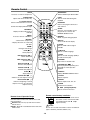
Remote Control
SETUP
Accesses or removes setup menu.
ON/STANDBY
Switches DVD Player ON and OFF.
OPEN/CLOSE
Opens and closes the disc tray.
E.A.M.
Selects sound mode during disc
playback.
0-9 number buttons
Selects numbered items in a menu.
PROGRAM
Enters to the program edit mode or
exits from that.
FL DIM
Controls the Display Window’s light.
CLEAR
Removes a track number on the
program list or a mark on the
MARKER SEARCH menu.
TOP MENU •
Displays the discs Title menu, if
available.
MENU •
Accesses menu on a DVD disc.
MARKER
Marks any point during playback.
RETURN •
- Removes the setup menu.
- Displays the menu of a video CD
with PBC.
DISPLAY
Accesses On-Screen display.
• ANGLE
Selects a DVD camera angle if
available
ZOOM •
Enlarges video image.
N
m
• SUBTITLE
Selects a subtitle language.
PLAY (
)•
Starts playback.
REV (Reverse) (
)•
Search backward.
• AUDIO
Selects an audio language (DVD) or
an audio channel (CD).
FWD (Forward) (
)•
Search forward.
• RANDOM
Plays tracks in random order.
M
t
Forward SLOW ( T ) •
Forward slow playback.
X
Reverse SLOW (
)•
Reverse slow playback.
C
• PAUSE/STEP ( /
)
Pauses playback temporarily/ press
repeatedly for frame-by-frame
playback.
x
• SEARCH
Displays MARKER SEARCH menu.
STOP ( ) •
Stops playback.
>
.
• A-B RPT
Repeat sequence.
Forward SKIP (
)•
Advances to next chapter or track.
• REPEAT
Repeat chapter, track, title, all.
Reverse SKIP (
)•
Returns to beginning of current
chapter or track or go to previous
chapter or track.
• ENTER
Confirms menu selection.
• b B v V (left/right/up/down)
Selects an item in the menu.
Remote control battery installation
Remote Control Operation Range
Point the remote control at the remote sensor and
press the buttons.
z Distance: About 23 ft (7 m) from the front of the
remote sensor.
z Angle: About 30° in each direction of the front of the
remote sensor.
AAA
Detach the battery cover on the rear of
the remote control, and insert two R03
(size AAA) batteries with
and
aligned correctly.
AAA
Caution
Do not mix old and new batteries. Never mix different
types of batteries (standard, alkaline, etc.).
1-9
INTRODUCTION
Rear Panel
COAXIAL (Digital audio out jack)
Connect to digital (coaxial) audio equipment.
AUDIO OUT (Left/Right)
Connect to an amplifier, receiver, or stereo system.
VIDEO OUT
Connect to a TV with video inputs.
AC Power Cord
Plug into the power source.
COMPONENT/PROGRESSIVE SCAN VIDEO OUT (Y Pb Pr)
Connect to a TV with Y Pb Pr inputs.
S-VIDEO OUT
Connect to a TV with S-Video inputs.
OPTICAL (Digital audio out jack)
Connect to digital (optical) audio equipment.
Do not touch the inner pins of the jacks on the rear
panel. Electrostatic discharge may cause permanent
damage to the unit.
1-10
Connections
z
z
z
Tips
Depending on your TV and other equipment you wish
to connect, there are various ways you could connect
the player. Use only one of the connections
described below.
Please refer to the manuals of your TV, VCR, Stereo
System or other devices as necessary to make the
best connections.
For better sound reproduction, connect the player’s
AUDIO OUT jacks to the audio in jacks of your
amplifier, receiver, stereo or audio/video equipment.
See “Connecting to Optional Equipment” on page 11.
z
z
1
If your television is a high-definition or “digital ready”
television, you may take advantage of the DVD
Player’s progressive scan output for the highest
video resolution possible.
If your TV does not accept the Progressive Scan format, the picture will appear scrambled if you try
Progressive Scan on the DVD Player.
Connect the COMPONENT VIDEO OUT/
PROGRESSIVE SCAN jacks on the DVD Player to
the corresponding in jacks on the TV using the
Y Pb Pr cable (C).
the Left and Right AUDIO OUT jacks of
2 Connect
the DVD Player to the audio left/right in jacks on the
TV (A) using the audio cables.
Caution
– Make sure the DVD Player is connected directly to the
TV. Tune the TV to the correct video input channel.
– Do not connect the DVD Player’s AUDIO OUT jack to
the phono in jack (record deck) of your audio system.
– Do not connect your DVD Player via your VCR. The
DVD image could be distorted by the copy protection
system.
Notes
– Set the Progressive to “On” on the setup menu for
progressive signal, see page 13.
– Progressive scan does not work with the analog video
connections (yellow VIDEO OUT jack) or S-VIDEO
connection.
Connecting to a TV
z
Progressive Scan (ColorStream®Pro) connection
Make one of the following connections, depending on
the capabilities of your existing equipment.
Rear of TV
S-VIDEO
INPUT
Video connection (Good)
the VIDEO OUT jack on the DVD Player to
1 Connect
the video in jack on the TV using the video cable (V).
the Left and Right AUDIO OUT jacks of
2 Connect
the DVD Player to the audio left/right in jacks on the
TV (A) using the audio cables.
R
S-Video connection (Better)
1
S
VIDEO
INPUT
AUDIO INPUT
A
COMPONENT VIDEO /
PROGRESSIVE SCAN INPUT
Pr
L
V
Pb
Y
C
Connect the S-VIDEO OUT jack on the DVD Player
to the S-Video in jack on the TV using the S-Video
cable (S).
the Left and Right AUDIO OUT jacks of
2 Connect
the DVD Player to the audio left/right in jacks on the
TV (A) using the audio cables.
Component Video (ColorStream®) connection (Best)
1
2
Connect the COMPONENT VIDEO OUT/
PROGRESSIVE SCAN jacks on the DVD Player to
the corresponding in jacks on the TV using the
Y Pb Pr cable (C).
Rear of
DVD player
Connect the Left and Right AUDIO OUT jacks of
the DVD Player to the audio left/right in jacks on the
TV (A) using the audio cables.
Note
If the TV has an S-video input, connect the DVD player
with the S-video cable. When using an S-video cable,
do not connect the yellow video cable.
1-11
Connections (Continued)
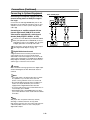
Connecting to Optional Equipment
Rear of DVD player
PREPARATION
Connecting to an amplifier equipped with two
channel analog stereo or Dolby Pro Logic ll/
Pro Logic
Connect the Left and Right AUDIO OUT jacks on the
DVD Player to the audio left and right in jacks on your
amplifier, receiver, or stereo system, using the audio
cables (A).
Connecting to an amplifier equipped with two
channel digital stereo (PCM) or to an Audio/
Video receiver equipped with a multi-channel
decoder (Dolby Digital™, MPEG 2, or DTS)
1
O
Connect one of the DVD Player’s DIGITAL AUDIO
OUT jacks (OPTICAL O or COAXIAL X) to the corresponding in jack on your amplifier. Use an optional digital (optical O or coaxial X) audio cable.
will need to activate the player’s digital output.
2 You
(See “Digital Audio Output” on page 14).
X
OPTICAL
A
COAXIAL
DIGITAL INPUT
Amplifier (Receiver)
Digital Multi-channel sound
A digital multi-channel connection provides the best
sound quality. For this you need a multi-channel
Audio/Video receiver that supports one or more of the
audio formats supported by your DVD Player (MPEG 2,
Dolby Digital™ and DTS). Check the receiver manual
and the logos on the front of the receiver.
Caution:
Due to the DTS Licensing agreement, the digital output
will be in DTS digital out when DTS audio stream is
selected.
Notes
– If the audio format of the digital output does not match
the capabilities of your receiver, the receiver will
produce a strong, distorted sound or no sound at all.
– Six Channel Digital Surround Sound via digital connection can only be obtained if your receiver is
equipped with a Digital Multi-channel decoder.
– To see the audio format of the current DVD in the onscreen display, press AUDIO.
– Repeated pressing of the AUDIO button may allow
you to select between various audio formats available
on the disc.
Note
This player does not perform internal (2 channel)
decoding of a DTS sound track. To enjoy DTS
multi channel surround, you must connect this player to
a DTS compatible receiver via one of this player’s
digital audio outputs.
1-12
R
L
AUDIO INPUT
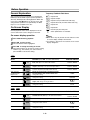
Before Operation
Temporary Feedback Field Icons
General Explanation
This manual gives basic instructions for operating the
DVD Player. Some DVDs require specific operation or
allow only limited operation during playback. When this
occurs, the symbol
appears on the TV screen, indicating that the operation is not permitted by the DVD
Player or is not available on the disc.
TITLE
On-Screen Display
Repeat Chapter
TRACK
Repeat Track (non-PBC Video CDs only)
ALL
Repeat All Tracks (non-PBC Video CDs only)
A B
Repeat A-B
OFF
Repeat Off
Resume play from this point
General playback status can be displayed on the TV
screen. Some items can be changed on the menu.
Action prohibited or not available
On-screen display operation
1
v/V to select an item.
2 Press
The selected item will be highlighted.
b/B to change the setting of an item.
3 Press
The number buttons can be also be used for setting
numbers (e.g., title number). For some functions,
Press DISPLAY during playback.
Repeat Title
CHAPT
z
z
Notes
Some discs may not provide all of the features on the
on-screen display example shown below.
If no button is pressed for 10 seconds, the on-screen
display disappears.
press ENTER to execute the setting.
DVD
Function (Press v/V to select desired item)
Items
1 /3
Shows the current title number and total number of
titles, and skips to the desired title number.
b / B, or
Numbers, ENTER
1 /12
Shows the current chapter number and total number of
chapters, and skips to the desired chapter number.
b / B, or
Numbers, ENTER
Shows the elapsed playing time, and
searches the point by the elapsed time directly.
Numbers, ENTER
Title Number
Chapter Number
Time search
Audio language
and Digital Audio
Output mode
Subtitle language
Angle
VCD2.0
0:20:09
1 ENG
D
5.1 CH
OFF
1 /1
Sound
NORM.
Shows the current audio soundtrack language,
encoding method, and channel number, and
changes the setting.
Shows the current subtitles language, and
changes the setting.
Shows the current angle number and total number of
angles, and changes the angle number.
Shows the current sound mode, and
changes the setting.
b / B, or
AUDIO
b / B, or
SUBTITLE
b / B, or
ANGLE
b / B, or
E.A.M.
VCD1.1
Function (Press v/V to select desired item)
Items
Track Number
1 /4
Time
0:20:09
Audio Channel
STER.
Sound
Selection Method
NORM.
Shows the current track number, total number of tracks
and PBC On mode, and skip to the desired track number.
Shows the elapsed playing time (Display only)
Shows the audio channel, and
changes the audio channel.
Shows the current sound mode, and
changes the setting.
1-13
Selection Method
b / B, or
Numbers, ENTER
–
b / B, or
AUDIO
b / B, or
E.A.M.
Before Operation (Continued)
Picture
You can set your own Personal Preferences on the
player.
TV Aspect
4:3 Letterbox: Select when a standard 4:3 TV is connected. Displays theatrical images with masking bars
above and below the picture.
4:3 Panscan: Select when a conventional TV set is
connected. The video material formatted in the Pan &
Scan style is played back in that style (Both sides of the
picture are cut off).
16:9 Wide: Select when a 16:9 wide TV is connected.
Initial Settings General Operation
1
DVD
Press SETUP.
The setup menu appears.
Disc Audio
Original
Disc Subtitle
English
Disc Menu
French
Rating
German
Disc Audio
4:3 Letterbox
Area Code
Spanish
Disc Subtitle
4:3 Panscan
TV Aspect
Italian
Disc Menu
16:9 Wide
Menu Language
Chinese
Rating
Progressive Scan
Polish
Area Code
Digital Audio Output
Hungarian
5.1 Speaker Setup
Other — — — —
TV Aspect
Menu Language
Progressive Scan
Others
Digital Audio Output
2
5.1 Speaker Setup
Press v/V to select the desired item.
The screen will show the current setting for the
selected item, as well as alternate setting(s).
Others
B, then
3
4
SETUP, RETURN, or PLAY to exit the
5 Press
setup menu.
While the desired item is selected, press
v/V to select the desired setting.
Press ENTER to confirm your selection.
Some items require additional steps.
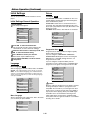
Language
Disc Language
Progressive Scan
DVD
Progressive Scan Video provides the highest quality
pictures with less flickering.
If you are using the COMPONENT VIDEO OUT/
PROGRESSIVE SCAN jacks, but are connecting the
DVD Player to a standard (analog) television, set
Progressive Scan to Off.
If you are using the Component Video jacks for
connection to a TV or monitor that is compatible with a
progressive scan signal, set Progressive Scan to On.
DVD
Disc Audio
Off
Select a language for the disc’s Menu, Audio, and Subtitle.
Disc Subtitle
On
Original : The original language set for the disc is selected.
Other : To select another language, press number buttons to
enter the corresponding 4-digit number according to the language code list on page 25. If you enter the wrong language
code, press CLEAR.
Disc Menu
Rating
Area Code
TV Aspect
Menu Language
Progressive Scan
Digital Audio Output
Disc Audio
Original
Disc Subtitle
English
Disc Menu
French
Rating
German
Area Code
Spanish
TV Aspect
Italian
Menu Language
Chinese
Progressive Scan
Polish
Digital Audio Output
Hungarian
5.1 Speaker Setup
Other — — — —
5.1 Speaker Setup
Others
Others
Menu Language
Select a language for the setup menu. This is the menu
you see when you press SETUP.
Disc Audio
English
Disc Subtitle
Spanish
Disc Menu
French
Caution
Once the setting for progressive scan output is entered,
an image will only be visible on a progressive scan
compatible TV or monitor. If you set Progressive Scan
to On in error, you must reset the unit. Press STOP to
stop any disc that is playing. Next, press STOP again
and hold it for five seconds before releasing it. The
video output will be restored to the standard setting,
and a picture will once again be visible on a conventional analog TV or monitor.
Rating
Area Code
TV Aspect
Menu Language
1-14
PREPARATION
Initial Settings
Before Operation (Continued)
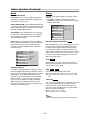
Sound
Others
Digital Audio Output
The DRC, Vocal, PBC and Auto Play settings can be
changed.
z Press v/V to select the desired item and press
ENTER. The setting of the selected item is changed
between On and Off.
Each DVD disc has a variety of audio output options.
Set the player’s Digital Audio Output according to the
type of audio system you use.
DOLBY DIGITAL/PCM: Select “DOLBY DIGITAL/PCM”
if you connected the DVD Player’s DIGITAL OUT jack to
a Dolby Digital decoder (or an amplifier or other equipment with a Dolby Digital decoder).
Disc Audio
DRC
On
Disc Subtitle
Vocal
On
Disc Menu
PBC
On
Rating
Auto Play
Off
Area Code
TV Aspect
Menu Language
Stream/PCM: Select “Stream/PCM” if you connected
the DVD Player’s DIGITAL OUT jack to an amplifier or
other equipment with a DTS decoder, Dolby Digital
decoder or MPEG decoder.
PCM: Select when connected to a 2-channel digital
stereo amplifier. The DVD player outputs sounds in the
PCM 2ch format when you play a DVD video disc
recorded on the Dolby Digital, MPEG1, or MPEG2
recording system.
Disc Audio
DOLBY
DIGITAL
Disc Subtitle
Stream/PCM
Disc Menu
PCM
/PCM
Rating
Area Code
TV Aspect
Menu Language
Progressive Scan
Sample Freq.
Progressive Scan
Digital Audio Output
5.1 Speaker Setup
Others
Dynamic Range Control (DRC)
DVD
With the DVD format, you can hear a program’s soundtrack in the most accurate and realistic presentation
possible, thanks to digital audio technology. However,
you may wish to compress the dynamic range of the
audio output (the difference between the loudest sounds
and the quietest ones). Then, you may listen to a movie
at a lower volume without losing clarity of sound. Set
DRC to On for this effect.
48 KHz
96KHz
Digital Audio Output
5.1 Speaker Setup
Others
Vocal
DVD
Set Vocal to On only when a multi-channel karaoke
DVD is playing. The karaoke channels on the disc will
mix into normal stereo sound.
Sample Frequency
To change the Sample Frequency setting, first select
the desired Digital Audio Output as indicated as above.
If your receiver or amplifier is NOT capable of handling
96KHz signals, select 48KHz. When this choice is
made, this unit will automatically convert any 96KHz
signals to 48KHz so your system can decode them.
If your receiver or amplifier is capable of handling
96KHz signals, select 96KHz. When this choice is
made, this unit will pass each type of signal through
without any further processing.
PBC
VCD2.0
VCD1.1
Set Playback Control (PBC) to On or Off.
On: Video CDs with PBC are played according to the PBC.
Off: Video CDs with PBC are played the same way as Audio
CDs.
Auto Play
DVD
You can set up the DVD Player so a DVD disc automatically starts playing whenever the DVD is inserted.
If Auto Play mode is set to On, this DVD player will
search a title where playback time is longest and then
play back the title automatically.
On: Auto Play function is activated.
Off: Auto Play function is not activated.
Note
The Auto Play function may not work for some DVDs.
1-15
Before Operation (Continued)
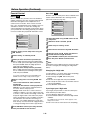
Parental Control
Area Code
Rating
Enter the code of a country/area whose standards were
used to rate the DVD video disc, referring to the list
(See “Area Code List”, page 26.).
Movies on DVDs may contain scenes not suitable for
children. Therefore, discs may contain Parental Control
information that applies to the complete disc or to
certain scenes on the disc. These scenes are rated
from 1 to 8, and alternatively, more suitable scenes are
available for selection on some discs. Ratings are
country-dependent. The Parental Control feature allows
you to prevent discs from being played by your children
or to have certain discs played with alternative scenes.
Disc Audio
Disc Subtitle
Code Set
U S
Disc Menu
Rating
Area Code
TV Aspect
Menu Language
Progressive Scan
Digital Audio Output
5.1 Speaker Setup
Disc Audio
8
Disc Subtitle
7
Disc Menu
6
Rating
Area Code
5
TV Aspect
Menu Language
3
Progressive Scan
1
Digital Audio Output
Unlock
5.1 Speaker Setup
Change
Others
Select Area Code using the v/V buttons on the
1 setup
menu.
While Area Code is selected, press B.
2
3 Follow step 3 of “Rating” on left.
4 Select the first character using the v/V buttons.
Shift the cursor using B button and select the
5 second
character using v/V buttons.
Press ENTER to confirm your area code selec6 tion, then press SETUP to exit the menu.
4
2
Others
“Rating” on the Setup menu using the
1 Select
v/V buttons.
2 While “Rating” is selected, press B.
you have not entered a password yet.
3 When
Enter a 4-digit password using the numbered buttons to create a personal 4-digit security password.
Note
Confirmation of the 4-digit password is necessary when
the code is changed (see “Changing the 4-digit code”
below.).
then press ENTER. Enter the 4-digit password
again and press ENTER to verify.
When you have already entered a password;
Enter a 4-digit password using the numbered buttons to confirm the personal 4-digit security password, then press ENTER.
Changing the 4-digit code
If you make a mistake before pressing ENTER, press
CLEAR and enter 4-digit security password again.
a rating from 1 to 8 using the v/V but4 Select
tons.
Level 1: DVD software for adults cannot be
played back.
Level 8: All DVD software can be played back.
Unlock: If you select Unlock, Parental Control is
not active. The disc will play in full.
Ratings 1 to 8: Some discs contain scenes not
suitable for children. If you set a rating for the player, all disc scenes with the same rating or lower will
be played. Higher rated scenes will not be played
unless an alternative scene is available on the disc.
The alternative must have the same rating or a
lower one. If no suitable alternative is found, playback will stop. You must enter the 4-digit password
or change the rating level in order to play the disc.
1 Follow Steps 1-2 as shown above to the left (Rating).
2 Enter the old code, then press ENTER.
3 Select Change using v/V buttons then press
ENTER.
4 Enter the new 4-digit code, then press ENTER.
5 Enter exactly the same code a second time and verify by pressing ENTER.
6 Press SETUP to exit the menu.
If you forget your 4-digit code
If you forget your password, to clear the current password, follow the procedure below.
1 Press SETUP to display the setup menu.
2 Use the Number buttons to enter the 6-digit number
“210499”.
The 4-digit password is cleared. “P CLr” appears on the
display for a moment.
3 Enter a new code as shown above to the left (Rating).
ENTER to confirm your rating selection,
5 Press
then press SETUP to exit the menu.
1-16
PREPARATION
DVD
DVD
Operation with DVD and Video CD
Playing a DVD and Video CD
Playback Setup
z
z
DVD
VCD2.0
General Features
VCD1.1
Turn on the TV and select the video input source connected to the DVD player.
Audio system: Turn on the audio system and select
the input source connected to the DVD player.
1
your chosen disc in the tray, with the
2 Load
playback side down.
OPEN/CLOSE to close the tray.
3 Press
READING appears on the TV screen, and playback
starts automatically. If playback does not start,
Note
Unless stated otherwise, all operations described use
the remote control. Some features may also be
available on the Setup menu.
Moving to another TITLE
DVD
Press OPEN/CLOSE to open the disc tray.
press PLAY.
In some cases, the disc menu might appear
instead.
The menu screen may be displayed first after loading a
DVD or Video CD which offer a menu.
DVD
Use the b B v V buttons to select the title/chapter you
want to view, then press ENTER to start playback.
Press TOP MENU or MENU to return to the menu
screen.
VCD2.0
z
When a disc has more than one title, you can move to
another title as follows:
z Press DISPLAY, then press the appropriate numbered button (0-9) to select a title number.
Moving to another CHAPTER/TRACK
DVD
If a menu screen is displayed
z
1 /3
Use the number buttons to select the track you want
to view.
Press RETURN to return to the menu screen.
Menu setting and the exact operating procedures for
using the menu may differ depending on the disc.
Follow the instructions on the each menu screen.
You also may set PBC to Off under setup. See page
14.
VCD1.1
VCD2.0
1 /12
1 /12
When a title on a disc has more than one chapter or a
disc has more than one track, you can move to another
chapter/track as follows:
z Press SKIP
or
briefly during
playback to select the next chapter/track or to return
to the beginning of the current chapter/track.
z Press SKIP
twice in quick successions to step
back to the previous chapter/track.
z To go directly to any chapter during DVD playback,
press DISPLAY. Then, press v/V to select the
chapter/track icon. Then, enter the chapter/track
number using the numbered buttons (0-9).
.>
.
Note
For two-digit numbers, press the numbered buttons
(0-9) in rapid succession.
Search
m M
mm m
M m m
M M M M
DVD
1 Press REV
VCD2.0
or FWD
VCD1.1
during playback.
The player will now go into SEARCH mode.
Notes
– If Parental Control is set and the disc is not within the
Rating settings (not authorized), the 4-digit code must
be entered and/or the disc must be authorized (see
“Parental Control”, on page 15).
– DVDs may have a region code.
Your player will not play discs that have a region code
different from your player. The region code for this
player is 1 (one).
2 Press REV
or FWD
repeatedly to select the
required speed:
X2,
X4,
X16,
X100
(backward) or
X2,
X4,
X16,
X100
(forward).
With a Video CD, the Search speed changes:
X2,
X4,
X8, (backward) or
X2,
X4,
X8,
(forward).
3 To exit SEARCH mode, press PLAY.
m m
M M Mm
Still Picture and Frame-by-frame playback
DVD
VCD2.0
VCD1.1
1 Press PAUSE/STEP during playback.
The player will now go into PAUSE mode.
2 You can advance the picture frame-by-frame by
pressing PAUSE/STEP repeatedly on the remote control.
1-17
Operation with DVD and Video CD
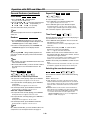
Slow Motion
DVD
VCD2.0
Repeat A-B
A *
VCD1.1
t or T during playback.
2 Use the SLOW t or T to select the required speed:
t 1/16, t 1/8, t 1/4 or t 1/2 (backward), or
T 1/16, T 1/8, T 1/4 or T 1/2 (forward).
3 To exit slow motion mode, press PLAY.
1 Press SLOW
The player will enter SLOW mode.
VCD2.0
Karaoke DVD
CHAPT
TITLE
TRACK
“A B” appears briefly on the TV screen, and the repeat
sequence begins (“AsB” appears the display window).
DVD Video Discs - Repeat Chapter/Title/Off
1 To repeat the currently playing chapter, press REPEAT.
The Repeat Chapter icon appears on the TV screen.
2 To repeat the title currently playing, press REPEAT a
second time.
The Repeat Title icon appears on the TV screen.
3 To exit Repeat mode, press REPEAT a third time.
The Repeat Off icon appears on the TV screen.
Video CDs - Repeat Track/All/Off
1 To repeat the track currently playing, press REPEAT.
The Repeat Track icon appears on the TV screen.
-:--:--
The “-:--:--” appears in the Time Search box.
If you enter the wrong numbers, press CLEAR to remove the
numbers you entered. Then enter the correct numbers.
4 Within 10 seconds, press ENTER to confirm the start
time.
Playback starts from the selected time on the disc. If you enter
an invalid time, playback will continue from the current point.
Selecting the sound enhancement
DVD
OFF
0:20:09
3 Within 10 seconds, use the number buttons to enter
the required start time. Enter hours, minutes, and seconds from left to right in the box.
VCD1.1
ALL
DVD
2 Within 10 seconds, press v/V to select the Time
Search icon in the on-screen display.
Note
This function only works with DVD Karaoke discs and
video CD without PBC.
On a Video CD with PBC, you must set PBC to Off on
the setup menu to use the Random function. See
page 14.
VCD2.0
“ A * ” appears briefly on the TV screen.
2 Press A-B RPT again at your desired end point.
The Time Search box shows the elapsed playing time of the
current disc.
>
DVD
1 Press A-B RPT at your desired starting point.
1 Press DISPLAY during playback. The on-screen display appears on the screen.
Tip
By pressing SKIP
during Random playback, the
unit selects another title (track) and resumes Random
playback.
Repeat
To repeat a sequence in a title:
The Time Search function allows you to start playing at
any desired time on the disc.
VCD1.1
2 To return to normal playback, press RANDOM until
“RANDOM” disappears on the display window.
z
VCD1.1
OFF
Time Search
1 Press RANDOM during playback or in stop mode.
The unit automatically begins Random Playback and
“RANDOM” appears on the display window.
z
A B
VCD2.0
3 To cancel the sequence, press A-B RPT.
Note
Slow motion playback in reverse is not applicable for
Video CD.
Random
DVD
VCD2.0
VCD1.1
NORM.
3D SUR
DIALOGUE
Press E.A.M. to select the sound enhancement during
playback.
NORM. : Normal sound
3D SUR: This player can produce a 3D Surround effect, which
simulates multi-channel audio playback from two conventional
stereo speakers, instead of the five or more speakers normally
required to listen to multi-channel audio from a home theater
system.
DIALOGUE: Enhances critical center channel information to
make dialogue more intelligible (only when playing a DVD
video disc recorded on the Dolby Digital recording system).
• To use this enhancement on audio output from the
DIGITAL AUDIO OUT jack, be sure to set “Digital Audio
Output” to “PCM”. See page 14.
2 To repeat the disc currently playing, press REPEAT a
second time.
The Repeat All icon appears on the TV screen.
3 To exit Repeat mode, press REPEAT a third time.
The Repeat Off icon appears on the TV screen.
Note
On a Video CD with PBC, you must set PBC to Off on the
setup menu to use the Repeat function. See page 14.
1-18
OPERATION
General Features (continued)
Operation with DVD and Video CD
General Features (continued)
Special DVD Features
Zoom
Checking the contents of DVD Video
discs: Menus
DVD
VCD2.0
VCD1.1
The Zoom function allows you to enlarge the video
image and to move through the enlarged image.
1 Press ZOOM during playback or still playback to activate the Zoom function.
If you press ZOOM repeatedly, the magnification level
increases up to six steps.
2 Use the
picture.
b BvV buttons to move through the zoomed
z
Note
The zoom function may not work for some DVDs.
Marker Search
1/9
DVDs may offer menus that allow you to access special
features. To use the disc menu, press MENU. Then,
press the appropriate number button to select an option.
Or, use the b BvV buttons to highlight your selection,
then press ENTER.
Title Menu
3 Press CLEAR to resume normal playback or return to
the paused image.
DVD
VCD2.0
VCD1.1
MARKER SEARCH
You can start playback from a memorized point. Up to
nine points can be memorized.
To enter a mark, follow these steps.
1 During disc playback, press MARKER when
playback reaches the spot that you want to
memorize.
The Marker icon will appear on the TV screen briefly.
2 Repeat step 1 to enter up to nine Marker points on a
disc.
To Recall a Marked Scene
The MARKER SEARCH menu will appear on the screen.
DVD
1 Press TOP MENU.
If the current title has a menu, the menu will appear on the
screen. Otherwise, the disc menu may appear.
2 The menu can list camera angles, spoken language
and subtitle options, and chapters for the title.
3 To remove the title menu, press TOP MENU again.
Disc Menu
DVD
1 Press MENU.
The disc menu is displayed.
2 To remove the disc menu, press MENU again.
Camera Angle
DVD
1 /1
If the disc contains scenes recorded at different camera
angles, you can change to a different camera angle
during playback.
z Press ANGLE repeatedly during playback to select a
desired angle.
The number of the current angle appears on the display.
1 During disc playback, press SEARCH.
2 Within 10 seconds, press b/B to select a Marker
number that you want to recall.
DVD
Changing the Audio Language
DVD
1 ENG
D
5.1 CH
3 Press ENTER.
Playback will start from the Marked scene.
4 To remove the MARKER SEARCH menu, press
SEARCH.
Press AUDIO repeatedly during playback to hear a different audio language or audio track.
Changing the Audio Channel
To clear a Marked Scene
VCD2.0
1 During disc playback, press SEARCH.
The MARKER SEARCH menu will appear on the screen.
2 Press b/B to select the Marker number that you
want to erase.
3 Press CLEAR.
The Marker number will be erased from the list.
4 Repeat steps 2 and 3 to erase additional Marker
numbers.
STER.
VCD1.1
LEFT
RIGHT
Press AUDIO repeatedly during playback to hear a different audio channel (STER., LEFT or RIGHT).
Subtitles
DVD
1 ENG
Press SUBTITLE repeatedly during playback to see the
different subtitle languages.
5 To remove the MARKER SEARCH menu, press
SEARCH.
If
1-19
Note
appears, the feature is not available on the disc.
Operation with Audio CD and MP3/WMA Disc
Notes on MP3/WMA Recordings
Playing an Audio CD and MP3/WMA Disc
MP3
About MP3
WMA
z
The DVD Player can play MP3/WMA formatted recordings on CD-ROM, CD-R or CD-RW discs.
Before playing MP3/WMA recordings, read the notes on
MP3/WMA Recordings on right.
1
Insert a disc and close the tray.
Audio CD; Audio CD menu appears on the TV
screen go to step 3.
MP3/WMA disc; The MP3/WMA-JPEG choice
menu appears on the TV screen. Go to step 2
z
About WMA(Window Media Audio)
z
z
MP3 WMA
JPEG
2
TRACK
TRACK
TRACK
TRACK
TRACK
TRACK
TRACK
TRACK
Program
1.mp3
2.mp3
3.mp3
4.mp3
5.mp3
6.mp3
7.mp3
8.mp3
00:00
Clear All
1
OFF
v/V to select a folder, and ENTER.
3 Press
A list of files in the folder appears.
v/V to select a track then press PLAY or
4 Press
ENTER.
Playback starts.
During playback, the current track’s elapsed playing
time will appear on the display window and menu.
Playback will stop at the end of the disc.
Press TOP MENU to move to the next page.
Press MENU to move to the previous page.
Program
CD
Program
MP3 WMA
TRACK03
TRACK04
TRACK05
TRACK06
TRACK07
Clear All
TRACK08
0: 56: 18
STER.
NORM.
Audio CD menu
TRACK
TRACK
TRACK
TRACK
TRACK
TRACK
TRACK
TRACK
1.mp3
2.mp3
3.mp3
4.mp3
5.mp3
6.mp3
7.mp3
8.mp3
00:00
Clear All
1
1. Sampling Frequency / only at 44.1kHz (MP3),
22.05 - 44.1kHz (WMA)
2. Bit rate / within 32 - 320kbps (MP3),
32 - 128kbps (WMA)
3. CD-R physical format should be “ISO 9660”
4. If you record MP3/WMA files using the software
which cannot create a FILE SYSTEM, for example
“Direct-CD” etc., it is impossible to playback
MP3/WMA files. We recommend that you use “Easy
CD Creator”, which creates an ISO9660 file system.
5. A single session disc requires MP3/WMA files in the
first track. If there is no MP3/WMA file in the 1st
track, it cannot playback MP3/WMA files. If you wish
to playback MP3/WMA files, format all the data in
the disc or use a new one.
6. File names should be named using 8 letters or less
and must incorporate “.mp3” or “.wma” extension
e.g. “********.MP3” or “********.WMA”.
7. Do not use special letters such as “/ : * ? “ < > ” etc.
8. Total number of files on the disc should be less than
650.
This DVD player requires discs/recordings to meet
certain technical standards in order to achieve optimal
playback quality. Pre-recorded DVDs are automatically
set to these standards. There are many different types
of recordable disc formats (including CD-R containing
MP3 or WMA files). That require certain pre-existing
conditions (see above) to insure compatible playback.
TRACK01
TRACK02
An WMA file is a Microsoft audio compression
technology.
WMA(Windows Media Audio) offers double the audio
compression of the MP3 format.
MP3/WMA Disc compatibility with this player is
limited as follows:
Press v/V to select the MP3/WMA then press
ENTER.
The MP3/WMA menu appears on the TV screen.
Press RETURN to move to the MP3/WMA-JPEG
choice menu.
MP3 WMA
An MP3 file is audio data compressed by using the
MPEG1 audio layer-3 file-coding scheme. We call
files that have the “.mp3” file extension “MP3 files”.
The player can not read an MP3 file that has a file
extension other than “.mp3”.
OFF
Customers should also note that permission is
required in order to download MP3/WMA files and
music from the Internet. Our company has no right
to grant such permission. Permission should
always be sought from the copyright owner.
MP3/WMA menu
Tips
If you are in a file list and want to return to the Folder
list, use the vV to highlight
and press ENTER to
return to the previous menu screen.
5 To stop playback at any other time, press STOP.
1-20
Microsoft, Windows Media, and the
Windows Logo are trademarks or
registered trademarks of Microsoft
Corporation in both the United States
and other countries
OPERATION
CD
Operation with Audio CD and MP3/WMA Disc (Continued)
Pause
CD
MP3
Repeat A-B
WMA
1 Press PAUSE/STEP during playback.
CD
To repeat a sequence.
1 During disc playback, press A-B RPT at your desired
starting point.
2 To return to playback, press PLAY or press
PAUSE/STEP again.
The Repeat icon and “A * ” appears on the menu screen.
Moving to another Track
WMA
CD
2 Press A-B RPT again at your desired end point.
MP3
.>
.
The Repeat icon and “A B” appears on the menu screen,
and the sequence begins to play repeatedly.
Press SKIP
or
briefly during
playback to go to the next track or to return to the
beginning of the current track.
3 To exit the sequence and return to normal play, press
A-B RPT again.
z
Press SKIP
vious track.
Selecting the sound enhancement
z
In case of audio CD, to go directly to any track, enter
the track number using the numbered buttons (0-9)
during playback.
z
The Repeat icon and “OFF” appears on the menu screen.
twice briefly to step back to the pre-
Repeat Track/All/Off
CD
MP3
CD
This unit can produce a 3D Surround effect, which
simulates multi-channel audio playback from two
conventional stereo speakers, instead of the five or
more speakers normally required to listen to multichannel audio from a home theater system.
WMA
1 To repeat the track currently playing, press REPEAT.
1 Press E.A.M. to select “3D SUR” during playback.
The Repeat icon and “TRACK” appears on the menu
screen.
2 To turn off the 3D Surround effect, press E.A.M. again
to select “NORM.”.
2 To repeat all tracks on a disc, press REPEAT a second time.
The Repeat icon and “ALL” appears on the menu screen.
Changing the Audio Channel
3 To cancel Repeat mode, press REPEAT a third time.
Press AUDIO repeatedly during playback to hear a
different audio channel (STER., LEFT, or RIGHT).
The Repeat icon and “OFF” appears on the menu screen.
m M
mm m
M m
M M M
Search
CD
1 Press REV
MP3
or FWD
WMA
during playback.
The player will now go into SEARCH mode.
2 Press REV
or FWD
repeatedly to select the
required speed:
X2,
X4,
X8 (backward) or
X2,
X4,
X8 (forward).
Search speed and direction are indicated on the menu
screen.
3 To exit SEARCH mode, press PLAY.
Random
CD
MP3
CD
WMA
1 Press RANDOM during playback or when playback is
stopped.
The unit automatically begins Random Playback and
RANDOM or “RAND.” appears on the display window
and menu screen.
2 To return to normal playback, press RANDOM repeatedly until RANDOM or “RAND.” disappears on the
display window and menu screen.
1-21
Operation with JPEG Disc
.>
Moving to another File
JPEG
Press SKIP
or
once during viewing a picture
to advance to the next file or to the previous file.
This DVD Player can play discs with JPEG files. Before
playing JPEG recordings, read the notes on JPEG
Recordings on right.
1
Still Picture
1 Press PAUSE/STEP during slide show.
The player will now go into PAUSE mode.
2 To return to the slide show, press PLAY or press
PAUSE/STEP again.
Insert a disc and close the tray.
The MP3/WMA-JPEG choice menu appears on the
TV screen.
MP3 WMA
To flip the picture
JPEG
Press v/V during showing a picture to flip the
picture horizontally or a vertically.
v/V to select the JPEG then press
2 Press
ENTER.
The JPEG menu appears on the TV screen.
To rotate picture
Press b/B during showing a picture to rotate the
picture clockwise or counter clockwise.
JPEG
Folder1
Folder2
Folder3
Folder4
Folder5
Notes on JPEG Recordings
Folder6
Folder7
Folder8
z
Depending upon the size and number of the JPEG
files, it could take a long time for the DVD player to
read the disc’s contents. If you don’t see an onscreen display after several minutes, some of the files
are too big — reduce the resolution of the JPEG files
to less than 2 mega pixels and burn another disc.
z
Total number of files and folders on the disc should
be less than 650.
z
Some disc may be incompatible due to different
recording format or condition of disc.
z
If you want to view a particular file, press v/V to
4 highlight
a file and press ENTER or PLAY.
Viewing the file proceeding starts.
When you are using software such as “Easy CD
Creator” to burn the jpeg files into the CD-R, ensure
that all the selected files have the “.jpg” extensions
when copying into the CD layout.
z
During viewing a file, press RETURN to move to
the previous menu (JPEG menu).
If the files have “.jpe” or “.jpeg” extensions, please
rename them as “.jpg” files.
z
File names without “.jpg” extension will not be able to
be read by this DVD player. Even though the files are
shown as JPEG image files in windows explorer.
Slide Speed
Off
v/V to select a folder, and ENTER.
3 Press
A list of files in the folder appears.
Press RETURN to move to the MP3/WMA-JPEG
choice menu.
Tip
If you are in a file list and want to return to the Folder
list, use the vV buttons on the remote to highlight
“
” and press ENTER to return to the previous menu
screen.
Press TOP MENU to move to the next page.
Press MENU to move to the previous page.
JPEG
Folder1
Picture1.jpg
Picture2.jpg
Picture3.jpg
Picture4.jpg
Picture5.jpg
Picture6.jpg
Picture7.jpg
5/32
1024X768
Slide Speed
Off
5/32
1024X768
Picture5.jpg
Tip
There are three viewing Slide Speed options: Fast,
Normal, Slow, and Off. Press b/B to highlight the Slide
Speed then press v/V to select the option you want to
use, and press ENTER.
viewing at any other time, press STOP.
5 ToThestop
JPEG menu appears.
1-22
OPERATION
Viewing a JPEG disc
Programmed Playback
VCD2.0
CD
VCD1.1
Programmed Playback with Audio CD
and MP3/WMA Disc
WMA
Programmed Playback with Video CD
The Program function enables you to store your favorite
tracks from any disc in the player memory.
Program can contain 30 tracks.
1
MP3
Press PROGRAM during playback or in the stop
mode to enter the Program Edit mode.
Note
On a Video CD with PBC, you must set PBC to Off on the
setup menu to use the Program function. See page 14.
1 Insert Video CD and close the tray.
2 Press PROGRAM while playback is stopped.
The VCD Program menu will appear.
The E mark will appear to the right of the word Program
on the right side of the menu screen.
VCD
Program
E
TRACK 1
TRACK 2
Note
Press PROGRAM to exit the Program Edit mode;
the E mark will disappear.
TRACK 3
TRACK 4
TRACK 5
TRACK 6
TRACK 7
TRACK 8
a track, then press ENTER to place the
2 Select
selected track on the Program list.
step 2 to place additional tracks on the
3 Repeat
Program list.
Program
CD
TRACK 1
TRACK 12
TRACK 2
TRACK 8
TRACK 3
TRACK 10
TRACK 4
TRACK 3
E
TRACK 5
TRACK 6
TRACK 7
Clear All
TRACK 8
0: 56: 18
STER.
NORM.
Audio CD menu
Program
MP3 WMA
Note
Press RETURN or PROGRAM to exit the Program menu.
steps 2-6 of “Programmed Playback with
3 Follow
Audio CD and MP3/WMA disc” on left.
resume normal playback from
4 To
programmed playback, press PROGRAM.
E
TRACK 8.mp3
TRACK
TRACK
TRACK
TRACK
TRACK
TRACK
TRACK
TRACK
1.mp3
2.mp3
3.mp3
4.mp3
5.mp3
6.mp3
7.mp3
8.mp3
00:00
TRACK 2.mp3
TRACK 4.mp3
TRACK 3.mp3
Clear All
3
“PROG.” indicator disappears in the display window.
OFF
Repeat Programmed Tracks
MP3/WMA menu
B.
4
Press
5
Press v/V to select the track you want to start
playing.
z
z
To repeat all tracks on the program list, press
REPEAT a second time.
The Repeat icon and “ALL” appears on the menu screen.
z
Press TOP MENU to move to the next page.
Press MENU to move to the previous page.
To cancel Repeat mode, press REPEAT a third time.
The Repeat icon and “OFF” appears on the menu screen.
Erasing a Track from Program List
Playback begins in the order in which you programmed
the tracks and “PROG.” appears on the menu screen.
Playback stops after all of the tracks on the Program list
have played once.
1 Press PROGRAM during playback (Audio CD and
MP3/WMA disc only) or in the stop mode to enter the
Program Edit mode.
To resume normal playback from programmed playback, select a track of CD (or
MP3/WMA) list and then press ENTER.
“PROG.” indicator disappears on the menu screen.
To repeat the track currently playing, press REPEAT.
The Repeat icon and “TRACK” appears on the menu
screen.
The programmed track you selected last is highlighted on
the program list.
6 Press PLAY to start.
7
Clear All
The
E
mark will appear.
2 Press B to move to the Program list.
3 Use v/V to select the track that you wish to erase
from the Program list.
4 Press CLEAR.
The track will be erased from the Program list.
Erasing the Complete Program List
1 Follow steps 1-2 of “Erasing a Track from Program
List” as above.
2 Use v/V to select “Clear All”, then press ENTER.
The complete Program for the disc will be erased.
The programs are also cleared when the disc is removed.
1-23
Additional Information
Screen Saver
Video Mode Setting
The screen saver picture appears when you leave the
DVD Player in stop mode for about five minutes.
After the Screen Saver has been engaged for about five
minutes, the DVD Player will automatically turn itself off.
z
With certain discs, the playback picture may be flickering or Dot Crawl is shown on straight lines. That
means Vertical interpolation or De-interlace is not
perfectly matched with the disc. In this case, the
picture quality may be improved by changing the
video mode.
z
To change the video mode, press and hold
DISPLAY about 3 seconds during disc playback. The
new video mode number selected is displayed on the
TV screen. Check whether the video quality has
improved. If not, repeat the above procedure until picture quality is improved.
z
Video mode sequence:
Auto → Film → Video → Auto
If you turn off the power, the video mode will return to
initial default state (Auto).
You can adjust the Display Window’s brightness in
3 steps. Each press of the FL DIM button modifies the
Display Window’s brightness in the following order:
Normal → Dim → Display Off → Normal
z
VCD2.0
VCD1.1
Detailed Description of each Video Mode
Auto : The source material of the DVD video (film material or
video material) is determined from disc information.
Film : Suitable for playing film based content or video based
material recorded by the progressive scan method.
Video : Suitable for playing video based content with
comparatively little motion.
Note
The video mode setting only works when the
Progressive Scan mode is set to “On” on the setup
menu.
1-24
OPERATION
Dimmer Function
DVD
Troubleshooting
Check the following guide for the possible cause of a problem before contacting service.
Cause
Symptom
Correction
No power.
z
The power cord is disconnected.
z
Plug the power cord into the wall outlet
securely.
The power is on, but
the DVD player does
not work.
z
No disc is inserted.
z
Insert a disc. (Check that the DVD or,
audio CD indicator in the display
window is lit.)
No picture.
z
The TV is not set to receive DVD signal
output.
z
Select the appropriate video input mode
on the TV so the picture from the DVD
player appears on the TV screen.
z
The video cable is not connected
securely.
z
Connect the video cable securely.
z
The connected TV power is turned off.
z
Turn on the TV.
z
The equipment connected with the
audio cable is not set to receive DVD
signal output.
z
Select the correct input mode of the
audio receiver so you can listen to the
sound from the DVD player.
z
The audio cables are not connected
securely.
z
Connect the audio cable securely.
z
The power of the equipment connected
with the audio cable is turned off.
z
Turn on the equipment connected with
the audio cable.
z
The Digital Audio Output is set to the
wrong position.
z
Set the Digital Audio Output to the
correct position, then turn on the DVD
player again by pressing ON/STANDBY.
The playback picture is
poor.
z
The disc is dirty.
z
Clean the disc.
The DVD player does
not start playback.
z
No disc is inserted.
z
Insert a disc. (Check that the DVD, or
audio CD indicator in the DVD display is
lit.)
z
An unplayable disc is inserted.
z
Insert a playable disc. (Check the disc
type, color system, and Regional code.)
z
The disc is placed upside down.
z
Place the disc with the playback side
down.
z
The disc is not placed within the guide.
z
Place the disc on the disc tray correctly
inside the guide.
z
The disc is dirty.
z
Clean the disc.
z
The Rating level is set.
z
Cancel the Rating function or change
the rating level.
z
The remote control is not pointed at the
remote sensor of the DVD player.
z
Point the remote control at the remote
sensor of the DVD player.
z
The remote control is too far from the
DVD player.
z
Operate the remote control within 23 ft
(7 m).
z
There is an obstacle in the path of the
remote control and the DVD player.
z
Remove the obstacle.
z
The batteries in the remote control are
exhausted.
z
Replace the batteries with new ones.
No sound.
The remote control
does not work properly.
1-25
Language Code List
Code
Language
Code
Language
Code
Language
Code
Language
6566
Abkhazian
7074
Fiji
7678
Lingala
8373
Singhalese
6565
Afar
7073
Finnish
7684
Lithuanian
8375
Slovak
6570
Afrikaans
7082
French
7775
Macedonian
8376
Slovenian
8381
Albanian
7089
Frisian
7771
Malagasy
8379
Somali
6577
Ameharic
7176
Galician
7783
Malay
6983
Spanish
6582
Arabic
7565
Georgian
7776
Malayalam
8385
Sudanese
7289
Armenian
6869
German
7784
Maltese
8387
Swahili
6583
Assamese
6976
Greek
7773
Maori
8386
Swedish
6588
Aymara
7576
Greenlandic
7782
Marathi
8476
Tagalog
6590
Azerbaijani
7178
Guarani
7779
Moldavian
8471
Tajik
6665
Bashkir
7185
Gujarati
7778
Mongolian
8465
Tamil
6985
Basque
7265
Hausa
7865
Nauru
8484
Tatar
6678
Bengali; Bangla
7387
Hebrew
7869
Nepali
8469
Telugu
6890
Bhutani
7273
Hindi
7879
Norwegian
8472
Thai
6672
Bihari
7285
Hungarian
7982
Oriya
6679
Tibetan
6682
Breton
7383
Icelandic
8065
Panjabi
8473
Tigrinya
6671
Bulgarian
7378
Indonesian
8083
Pashto, Pushto
8479
Tonga
7789
Burmese
7365
Interlingua
7065
Persian
8482
Turkish
6669
Byelorussian
7165
Irish
8076
Polish
8475
Turkmen
7577
Cambodian
7384
Italian
8084
Portuguese
8487
Twi
6765
Catalan
7465
Japanese
8185
Quechua
8575
Ukrainian
9072
Chinese
7487
Javanese
8277
Rhaeto-Romance
8582
Urdu
6779
Corsican
7578
Kannada
8279
Rumanian
8590
Uzbek
7282
Croatian
7583
Kashmiri
8285
Russian
8673
Vietnamese
6783
Czech
7575
Kazakh
8377
Samoan
8679
Volapük
6865
Danish
7589
Kirghiz
8365
Sanskrit
6789
Welsh
7876
Dutch
7579
Korean
7168
Scots Gaelic
8779
Wolof
6978
English
7585
Kurdish
8382
Serbian
8872
Xhosa
6979
Esperanto
7679
Laothian
8372
Serbo-Croatian
7473
Yiddish
6984
Estonian
7665
Latin
8378
Shona
8979
Yoruba
7079
Faroese
7686
Latvian, Lettish
8368
Sindhi
9085
Zulu
1-26
REFERENCE
Enter the appropriate code number for the initial settings “Disc Audio”, “Disc Subtitle” and/or “Disc Menu”
(See page 13).
Area Code List
Enter the appropriate code number for the initial setting “Area Code” (See page 15).
Code
AD
AE
AF
AG
AI
AL
AM
AN
AO
AQ
AR
AS
AT
AU
AW
AZ
BA
BB
BD
BE
BF
BG
BH
BI
BJ
BM
BN
BO
BR
BS
BT
BV
BW
BY
BZ
CA
CC
CF
CG
CH
CI
CK
CL
CM
CN
CO
CR
CS
CU
CV
CX
CY
CZ
DE
DJ
DK
DM
DO
DZ
EC
EE
EG
EH
Area
Andorra
United Arab Emirates
Afghanistan
Antigua and Barbuda
Anguilla
Albania
Armenia
Netherlands Antilles
Angola
Antarctica
Argentina
American Samoa
Austria
Australia
Aruba
Azerbaidjan
Bosnia-Herzegovina
Barbados
Bangladesh
Belgium
Burkina Faso
Bulgaria
Bahrain
Burundi
Benin
Bermuda
Brunei Darussalam
Bolivia
Brazil
Bahamas
Bhutan
Bouvet Island
Botswana
Belarus
Belize
Canada
Cocos (Keeling) Islands
Central African Republic
Congo
Switzerland
Ivory Coast
Cook Islands
Chile
Cameroon
China
Colombia
Costa Rica
Former Czechoslovakia
Cuba
Cape Verde
Christmas Island
Cyprus
Czech Republic
Germany
Djibouti
Denmark
Dominica
Dominican Republic
Algeria
Ecuador
Estonia
Egypt
Western Sahara
Code
ER
ES
ET
FI
FJ
FK
FM
FO
FR
FX
GA
GB
GD
GE
GF
GH
GI
GL
GM
GN
GP
GQ
GR
GS
GT
GU
GW
GY
HK
HM
HN
HR
HT
HU
ID
IE
IL
IN
IO
IQ
IR
IS
IT
JM
JO
JP
KE
KG
KH
KI
KM
KN
KP
KR
KW
KY
KZ
LA
LB
Area
Eritrea
Spain
Ethiopia
Finland
Fiji
Falkland Islands
Micronesia
Faroe Islands
France
France (European
Territory)
Gabon
Great Britain
Grenada
Georgia
French Guyana
Ghana
Gibraltar
Greenland
Gambia
Guinea
Guadeloupe (French)
Equatorial Guinea
Greece
S. Georgia & S. Sandwich
Isls.
Guatemala
Guam (USA)
Guinea Bissau
Guyana
Hong Kong
Heard and McDonald
Islands
Honduras
Croatia
Haiti
Hungary
Indonesia
Ireland
Israel
India
British Indian Ocean
Territory
Iraq
Iran
Iceland
Italy
Jamaica
Jordan
Japan
Kenya
Kyrgyzstan
Cambodia6
Kiribati
Comoros
Saint Kitts & Nevis Anguilla
North Korea
South Korea
Kuwait
Cayman Islands
Kazakhstan
Laos
Lebanon
Code
LC
LI
LK
LR
LS
LT
LU
LV
LY
MA
MC
MD
MG
MH
MK
ML
MM
MN
MO
MP
MQ
MR
MS
MT
MU
MV
MW
MX
MY
MZ
NA
NC
NE
NF
NG
NI
NL
NO
NP
NR
NU
NZ
OM
PA
PE
PF
PG
PH
PK
PL
PM
PN
PR
PT
PW
PY
QA
RE
RO
RU
RW
SA
SB
1-27
Area
Saint Lucia
Liechtenstein
Sri Lanka
Liberia
Lesotho
Lithuania
Luxembourg
Latvia
Libya
Morocco
Monaco
Moldavia
Madagascar
Marshall Islands
Macedonia
Mali
Myanmar
Mongolia
Macau
Northern Mariana Islands
Martinique (French)
Mauritania
Montserrat
Malta
Mauritius
Maldives
Malawi
Mexico
Malaysia
Mozambique
Namibia
New Caledonia (French)
Niger
Norfolk Island
Nigeria
Nicaragua
Netherlands
Norway
Nepal
Nauru
Niue
New Zealand
Oman
Panama
Peru
Polynesia (French)
Papua New Guinea
Philippines
Pakistan
Poland
Saint Pierre and Miquelon
Pitcairn Island
Puerto Rico
Portugal
Palau
Paraguay
Qatar
Reunion (French)
Romania
Russian Federation
Rwanda
Saudi Arabia
Solomon Islands
Code
SC
SD
SE
SG
SH
SI
SJ
SK
SL
SM
SN
SO
SR
ST
SU
SV
SY
SZ
TC
TD
TF
TG
TH
TJ
TK
TM
TN
TO
TP
TR
TT
TV
TW
TZ
UA
UG
UK
UM
US
UY
UZ
VA
VC
VE
VG
VI
VN
VU
WF
WS
YE
YT
YU
ZA
ZM
ZR
ZW
Area
Seychelles
Sudan
Sweden
Singapore
Saint Helena
Slovenia
Svalbard and Jan Mayen
Islands
Slovak Republic
Sierra Leone
San Marino
Senegal
Somalia
Suriname
Saint Tome and Principe
Former USSR
El Salvador
Syria
Swaziland
Turks and Caicos Islands
Chad
French Southern
Territories
Togo
Thailand
Tadjikistan
Tokelau
Turkmenistan
Tunisia
Tonga
East Timor
Turkey
Trinidad and Tobago
Tuvalu
Taiwan
Tanzania
Ukraine
Uganda
United Kingdom
USA Minor Outlying
Islands
United States
Uruguay
Uzbekistan
Vatican City State
Saint Vincent &
Grenadines
Venezuela
Virgin Islands (British)
Virgin Islands (USA)
Vietnam
Vanuatu
Wallis and Futuna Islands
Samoa
Yemen
Mayotte
Yugoslavia
South Africa
Zambia
Zaire
Zimbabwe
Specifications
Power requirements
AC 120V, 60 Hz
Power consumption
14W
Dimensions (approx.)
430 X 60 X 242 mm (16.9 x 2.4 x 9.5 inches) (w x h x d)
Mass (approx.)
2.4 kg (5.3 lbs)
Operating temperature
5˚C to 35˚C (41˚F to 95˚F)
Operating humidity
5 % to 90 %
System
Laser
Semiconductor laser, wavelength 650 nm
Signal system
NTSC
Frequency response
DVD (PCM 96 kHz): 8 Hz to 44 kHz
DVD (PCM 48 kHz): 8 Hz to 22 kHz
CD: 8 Hz to 20 kHz
Signal-to-noise ratio
More than 100dB (ANALOG OUT connectors only)
Harmonic distortion
Less than 0.008%
Dynamic range
More than 100 dB (DVD)
More than 95 dB (CD)
Outputs
VIDEO OUT
1 Vp-p 75 Ω, sync negative, RCA jack x 1
S-VIDEO OUT
(Y) 1.0 V (p-p), 75 Ω, negative sync, Mini DIN 4-pin x 1
(C) 0.3 V (p-p) 75 Ω
COMPONENT VIDEO OUT
(Y) 1.0 V (p-p), 75 Ω, negative sync, RCA jack x 1
(Pb)/(Pr) 0.7 V (p-p), 75 Ω, RCA jack x 2
Audio output (digital audio)
0.5 V (p-p), 75 Ω, RCA jack x 1
Audio output (optical audio)
5 V (p-p), 75 Ω, Optical connector x 1
Audio output (analog audio)
2.0 Vrms (1 KHz, 0 dB), 600 Ω, RCA jack (L, R) x 1
Accessory
Video cable . . . . . . . . . . . . . . . . . . . . . . .1
Audio cable . . . . . . . . . . . . . . . . . . . . . . .1
Remote control . . . . . . . . . . . . . . . . . . . .1
Batteries . . . . . . . . . . . . . . . . . . . . . . . . .2
z
Design and specifications are subject to change without notice.
Manufactured under license from Dolby Laboratories. Dolby and the double-D symbol are trademarks of Dolby Laboratories.
Confidential unpublished works. Copyright 1992-1997 Dolby Laboratories. All rights reserved.
DTS and DTS Digital Out are trademarks of Digital Theater Systems, Inc.
1-28
REFERENCE
General
LIMITED WARRANTY DVD VIDEO PLAYER
Toshiba America Consumer Products, Inc. (“TACP”) and Toshiba Hawaii, Inc. (“THI”) make the following limited warranties to original consumers for DVD Players purchased and used in the United States. THESE LIMITED WARRANTIES EXTEND TO THE
ORIGINAL CONSUMER PURCHASER OR ANY PERSON RECEIVING THIS DVD PLAYER AS A GIFT FROM THE ORIGINAL
CONSUMER PURCHASER AND TO NO OTHER PURCHASER OR TRANSFEREE.
PRODUCTS PURCHASED IN THE U.S.A. AND USED IN CANADA ARE NOT COVERED BY THESE WARRANTIES.
PRODUCTS PURCHASED IN CANADA AND USED IN THE U.S.A. ARE NOT COVERED BY THESE WARRANTIES.
Limited One (1) Year Warranty*
Your Responsibility
TACP/THI warrants this DVD Player against defects in
materials or workmanship for a period of one (1) year after the
date of the original retail purchase. DURING THIS PERIOD
TACP/THI WILL, AT TACP/THI’S OPTION, REPAIR OR
EXCHANGE A DEFECTIVE DVD PLAYER WITH A NEW OR
REFURBISHED DVD PLAYER, AT TACP/THI’s OPTION.
DURING THE INITIAL NINETY (90) DAYS, THIS REPAIR OR
EXCHANGE WILL BE WITHOUT CHARGE TO YOU, EXCEPT
YOU MUST PAY FOR ALL TRANSPORTATION AND
INSURANCE CHARGES FOR THE DVD PLAYER TO BE
SHIPPED TO THE DESIGNATED TACP/THI FACILITY. AFTER
THE INITIAL NINETY (90) DAYS AND FOR THE REMAINDER
OF THE WARRANTY PERIOD, AN ADDITIONAL HANDLING
FEE WILL APPLY. YOU MUST DELIVER THE ENTIRE DVD
PLAYER AND ALL ACCESSORIES (SUCH AS POWER
CORDS, CABLES, AND THE UNIT’S REMOTE CONTROL
DEVICE) TO THE DESIGNATED TACP/THI FACILITY, AS
INSTRUCTED BY TACP/THI. TACP/THI IS NOT
RESPONSIBLE IF YOUR DVD PLAYER IS LOST OR
DAMAGED DURING SHIPMENT.
THE ABOVE LIMITED WARRANTIES ARE SUBJECT TO THE
FOLLOWING CONDITIONS:
*Commercial Units
DVD Players sold and used for commercial purposes have a
limited ninety (90) day warranty.
(1) You must provide your bill of sale or other proof of
purchase. For rental firms, proof of first rental is also
required.
(2) The limited warranties from TACP and THI are effective
only if the DVD Player is purchased and operated in the
U.S.A. or Puerto Rico.
(3) Labor service charges for installation, set up, and
adjustment of customer controls are not covered by these
limited warranties.
(4) These limited warranties extend only to defects in materials
or workmanship as limited above and do not extend to any
DVD Player or accessories which have been lost or
discarded by you, or to damage to any DVD Player or
accessories caused by misuse, accident, Acts of God
(such as lightning), or to fluctuations in electric power,
improper installation, improper maintenance or use in
violation of instructions furnished by TACP/THI; or to units
which have been modified or which have had the serial
number removed, altered, defaced or rendered illegible.
(5) Physically damaged DVD Players are not acceptable for
repair or exchange whether in or out of warranty and will
be returned as received.
Rental Units
How to Obtain Warranty Services
The warranty period for rental units begins with the first rental
or thirty (30) days from the date of shipment to the rental firm,
whichever comes first.
Owner’s Manual and Demographic Card
You should read this owner’s manual thoroughly before
operating this DVD Player. You should complete and mail the
enclosed Demographic Card within ten days after you, or the
person who has given you this product as a gift, purchased this
DVD Player. This is one way to enable TACP/THI to provide
you with better customer service and improved products.
Failure to return the Demographic Card will not affect your
rights under this warranty.
If, after following all of the operating instructions in this manual
and checking the “Troubleshooting” section, you find that
service is needed, call one of the following Customer Solutions
Centers to obtain further instructions. Have your proof of
purchase and your model and serial numbers available when
you call.
For DVD Players purchased in the United States,
except Hawaii, call TACP, toll free at 1-866-583-7353.
For DVD Players purchased in Hawaii, call THI. at
808-591-9281.
For additional updates, visit TACP’s web site:
www.toshiba.com/tacp.
1-29
LIMITATION OF IMPLIED WARRANTIES
Time for Taking Action
ALL WARRANTIES IMPLIED BY THE LAW OF ANY STATE
OF THE U.S.A., INCLUDING THE IMPLIED WARRANTIES OF
MERCHANTABILITY AND FITNESS FOR A PARTICULAR
PURPOSE, ARE EXPRESSLY LIMITED TO THE DURATION
OF THE LIMITED WARRANTIES SET FORTH ABOVE.
The time within which action must be commenced to enforce
any obligation of TACP or THI arising under this limited
warranty or under any law of the United States or of any state
thereof is hereby limited to 90 days from the date you
discovered, or should have discovered, the defect. This
limitation does not apply to implied warranties arising under
the law of any state of the U.S.A.
LIMITATION OF WARRANTY
WITH THE EXCEPTION OF ANY WARRANTIES IMPLIED BY
THE LAW OF ANY STATE OF THE U.S.A. AS HEREBY
LIMITED, THE FOREGOING LIMITED WARRANTY IS
EXCLUSIVE AND IN LIEU OF ALL OTHER WARRANTIES,
GUARANTEES, AGREEMENTS AND SIMILAR OBLIGATIONS
OF TACP OR THI WITH RESPECT TO YOUR DVD PLAYER.
EXCLUSION OF DAMAGES
IN NO EVENT SHALL TACP OR THI BE LIABLE FOR
CONSEQUENTIAL OR INCIDENTAL DAMAGES.
No Change, Modification, or Extension
HOW STATE LAW RELATES TO WARRANTY
THIS WARRANTY GIVES YOU SPECIFIC LEGAL RIGHTS,
AND YOU MAY ALSO HAVE OTHER RIGHTS WHICH MAY
VARY FROM STATE TO STATE IN THE U.S.A.
SOME STATES OF THE U.S.A. DO NOT ALLOW LIMITATIONS ON HOW LONG AN IMPLIED WARRANTY LASTS,
WHEN AN ACTION MAY BE BROUGHT, OR THE EXCLUSION OR LIMITATION OF INCIDENTAL OR CONSEQUENTIAL DAMAGES, SO THE ABOVE LIMITATIONS OR EXCLUSIONS MAY NOT APPLY TO YOU UNDER SUCH CIRCUMSTANCES.
No person, agent, distributor, dealer or company is authorized
to change, modify or extend the terms of these limited warranties in any manner whatsoever.
ATTENTION CANADIAN CONSUMERS:
Canadian consumers are requested to complete the special Canadian “Warranty Registration Form” enclosed, and forward this
completed form with a copy of bill of sale to TOSHIBA OF CANADA to “Register and Validate” their warranty. Product must be
purchased from an Authorized Canadian Dealer. Products purchased in the U.S.A. and used in Canada are not covered by
these warranties.
Contact: Toshiba of Canada Limited
Consumer Electronics Group
191 McNabb Street
Markham, Ontario L3R 8H2
(905)-470-5400
Consumer Electronics Group
22171 Fraserwood Way
Richmond, B.C. V6W 1J5
(604)-303-2500
Consumer Electronics Group
1643 North Service Road
Droval, QC H9P 1J1
(514)-856-4100
IMPORTANT: PACKING AND SHIPPING INSTRUCTION
When you send the product to a Service Station, you must use the original carton box and packing material, then insert the original carton box containing the unit into another carton using more packing material.
1-30
OTHERS
LIMITED WARRANTY DVD VIDEO PLAYER (Continued)
P/NO: 3834RS0054M
Printed in China
1-31
PRODUCT SAFETY SERVICING GUIDELINES FOR VIDEO PRODUCTS
CAUTION : DO NOT ATTEMPT TO MODIFY THIS PRODUCT IN ANY WAY,
NEVER PERFORM CUSTOMIZED INSTALLATIONS WITHOUT MANUFACTURER’S APPROVAL. UNAUTHORIZED MODIFICATIONS WILL NOT ONLY
VOID THE WARRANTY, BUT MAY LEAD TO YOUR BEING LIABLE FOR ANY
RESULTING PROPERTY DAMAGE OR USER INJURY.
SERVICE WORK SHOULD BE PERFORMED ONLY AFTER YOU ARE
THOROUGHLY FAMILIAR WITH ALL OF THE FOLLOWING SAFETY
CHECKS AND SERVICING GUIDELINES. TO DO OTHERWISE,
INCREASES THE RISK OF POTENTIAL HAZARDS AND INJURY TO THE
USER.
WHILE SERVICING, USE AN ISOLATION TRANSFORMER FOR PROTECTION FROM A.C. LINE SHOCK.
SAFETY CHECKS
AFTER THE ORIGINAL SERVICE PROBLEM HAS BEEN CORRCTED. A
CHECK SHOULD BE MADE OF THE FOLLOWING.
SUBJECT : FIRE & SHOCK HAZARD
1. BE SURE THAT ALL COMPONENTS ARE POSITIONED IN SUCH A WAY
AS TO AVOID POSSIBILITY OF ADJACENT COMPONENT SHORTS.
THIS IS ESPECIALLY IMPORTANT ON THOSE MODULES WHICH ARE
TRANSPORTED TO AND FROM THE REPAIR SHOP.
2. NEVER RELEASE A REPAIR UNLESS ALL PROTECTIVE DEVICES
SUCH AS INSULATORS, BARRIERS, COVERS, SHIELDS, STRAIN
RELIEFS, POWER SUPPLY CORDS, AND OTHER HARDWARE HAVE
BEEN REINSTALLED PER ORIGINAL DESIGN. BE SURE THAT THE
SAFETY PURPOSE OF THE POLARIZED LINE PLUG HAS NOT BEEN
DEFEATED.
3. SOLDERING MUST BE INSPECTED TO DISCOVER POSSIBLE COLD
SOLDER JOINTS, SOLDER SPLASHES OR SHARP SOLDER POINTS.
BE CERTAIN TO REMOVE ALL LOOSE FOREIGN PARTICLES.
4. CHECK FOR PHYSICAL EVIDENCE OF DAMAGE OR DETERIORATION
TO PARTS AND COMPONENTS. FOR FRAYED LEADS, DAMAGED
INSULATION (INCLUDING A.C. CORD). AND REPLACE IF NECESSARY
FOLLOW ORIGINAL LAYOUT, LEAD LENGTH AND DRESS.
5. NO LEAD OR COMPONENT SHOULD TOUCH A RECIVING TUBE OR
A RESISTOR RATED AT 1 WATT OR MORE. LEAD TENSION AROUND
PROTRUNING METAL SURFACES MUST BE AVOIDED.
6. ALL CRITICAL COMPONENTS SUCH AS FUSES, FLAMEPROOF
RESISTORS, CAPACITORS, ETC. MUST BE REPLACED WITH EXACT
FACTORY TYPES, DO NOT USE REPLACEMENT COMPONENTS
OTHER THAN THOSE SPECIFIED OR MAKE UNRECOMMENDED CIRCUIT MODIFICATIONS.
7. AFTER RE-ASSEMBLY OF THE SET ALWAYS PERFORM AN A.C.
LEAKAGE TEST ON ALL EXPOSED METALLIC PARTS OF THE CABINET, (THE CHANNEL SELECTOR KNOB, ANTENNA TERMINALS. HANDLE AND SCREWS) TO BE SURE THE SET IS SAFE TO OPERATE
WITHOUT DANGER OF ELECTRICAL SHOCK. DO NOT USE A LINE
ISOLATION TRANSFORMER DURING THIS TEST USE AN A.C. VOLTMETER, HAVING 5000 OHMS PER VOLT OR MORE SENSITIVITY, IN
THE FOLLOWING MANNER; CONNECT A 1500 OHM 10 WATT RESISTOR, PARALLELED BY A .15 MFD. 150.V A.C TYPE CAPACITOR
BETWEEN A KNOWN GOOD EARTH GROUND (WATER PIPE, CONDUIT, ETC.) AND THE EXPOSED METALLIC PARTS, ONE AT A TIME.
MEASURE THE A.C. VOLTAGE ACROSS THE COMBINATION OF 1500
OHM RESISTOR AND .15 MFD CAPACITOR. REVERSE THE A.C. PLUG
AND REPEAT A.C. VOLTAGE MEASUREMENTS FOR EACH EXPOSED
METALLIC PART. VOLTAGE MEASURED MUST NOT EXCEED 75
VOLTS R.M.S. THIS CORRESPONDS TO 0.5 MILLIAMP A.C ANY
VALUE EXCEEDING THIS LIMIT CONSTITUTES A POTENTIAL SHOCK
HAZARD AND MUST BE CORRECTED IMMEDIATELY.
A.C. VOLTMETER
GOOD EARTH GROUND
SUCH AS THE WATER
PIPE. CONDUIT. ETC
PLACE THIS PROBE
ON EACH EXPOSED
METAL PART
SUBJECT: GRAPHIC SYMBOLS
THE LIGHTNING FLASH WITH APROWHEAD SYMBOL. WITHIN
AN EQUILATERAL TRIANGLE, IS INTENDED TO ALERT THE
SERVICE PERSONNEL TO THE PRESENCE OF UNINSULATED
“DANGEROUS VOLTAGE” THAT MAY BE OF SUFFICIENT MAGNITUDE TO CONSTITUTE A RISK OF ELECTRIC SHOCK.
THE EXCLAMATION POINT WITHIN AN EQUILATERAL TRIANGLE IS INTENDED TO ALERT THE SERVICE PERSONNEL TO
THE PRESENCE OF IMPORTANT SAFETY INFORMATION IN
SERVICE LITERATURE.
SUBJECT : X-RADIATION
1. BE SURE PROCEDURES AND INSTRUCTIONS TO ALL SERVICE PERSONNEL COVER THE SUBJECT OF X-RADIATION. THE ONLY POTENTIAL SOURCE OF X-RAYS IN CURRENT T.V. RECEIVERS IS THE PICTURE TUBE. HOWEVER, THIS TUBE DOES NOT EMIT X-RAYS WHEN
THE HIGH VOLTAGE IS AT THE FACTORY SPECIFIED LEVEL. THE
PROPER VALUE IS GIVEN IN THE APPLICABLE SCHEMATIC. OPERATION AT HIGHER VOLTAGES MAY CAUSE A FAILURE OF THE PICTURE TUBE OR HIGH VOLTAGE SUPPLY AND, UNDER CERTAIN CIRCUMSTANCES, MAY PRODUCE RADIATION IN EXCESS OF DESIRABLE LEVELS.
2. ONLY FACTORY SPECIFIED C.R.T. ANODE CONNECTORS MUST BE
USED. DEGAUSSING SHIELDS ALSO SERVE AS X-RAY SHIELD IN
COLOR SETS, ALWAYS RE-INSTALL THEM.
3. IT IS ESSNTIAL THAT SERVICE PERSONNEL HAVE AVAILABLE AN
ACCURATE AND RELIABLE HIGH VOLTAGE METER. THE CALIBRA
TION OF THE METER SHOULD BE CHECKED PERIODICALLY
AGAINST A REFERENCE STANDARD, SUCH AS THE ONE AVAILABLE
AT YOUR DISTRIBUTOR.
4. WHEN THE HIGH VOLTAGE CIRCUITRY IS OPERATING PROPERLY
THERE IS NO POSSIBILITY OF AN X-RADIATION PROBLEM. EVERY
TIME A COLOR CHASSIS IS SERVICED. THE BRIGHTNESS SHOULD
BE RUN UP AND DOWN WHILE MONITORING THE HIGH VOLTAGE
WITH A METER TO BE CERTAIN THAT THE HIGH VOLTAGE DOES
NOT EXCEED THE SPECIFIED VALUE AND THAT IT IS REGULATING
CORRECTLY, WE SUGGEST THAT YOU AND YOUR SERVICE ORGANIZATION REVIEW TEST PROCEDURES SO THAT VOLTAGE REGULATION IS ALWAYS CHECKED AS A STANDARD SERVICING PROCEDURE. AND THAT THE HIGH VOLTAGE READING BE RECORDER ON
EACH CUSTOMER’S INVOICE.
5. WHEN TROUBLESHOOTING AND MAKING TEST MEASUREMENTS IN
A PRODUCT WITH A PROBLEM OF EXCESSIVE HIGH VOLTAGE,
AVOID BEING UNNECESSARILY CLOSE TO THE PICTURE TUBE AND
THE HIGH VOLTAGE SUPPLY. DO NOT OPERATE THE PRODUCT
LONGER THAN IS NECESSARY TO LOCATE THE CAUSE OF EXCES
SIVE VOLTAGE.
6. REFER TO HV. B+ AND SHUTDOWN ADJUSTMENT PROCEDURES
DESCRIBED IN THE APPROPRIATE SCHEMATIC AND DIAGRAMS
(WHERE USED).
SUBJECT: IMPLOSION
1. ALL DIRECT VIEWED PICTURE TUBES ARE EQUIPPED WITH AN INTE
GRAL IMPLOSION PROTECTION SYSTEM, BUT CARE SHOULD BE
TAKEN TO AVOID DAMAGE DURING INSTALLATION, AVOID
SCRATCHING THE TUBE. IF SCRATCHED REPLACE IT.
2. USE ONLY RECOMMENDED FACTORY REPLACEMENT TUBES.
SUBJECT : TIPS ON PROPER INSTALLATION
1. NEVER INSTALL ANY PRODUCT IN A CLOSED-IN RECESS, CUBBYHOLE OR CLOSELY FITTING SHELF SPACE. OVER OR CLOSE TO
HEAT DUCT, OR IN THE PATH OF HEATED AIR FLOW.
2. AVOID CONDITIONS OF HIGH HUMIDITY SUCH AS: OUTDOOR PATIO
INSTALLATIONS WHERE DEW IS A FACTOR, NEAR STEAM RADIATORS WHERE STEAM LEAKAGE IS A FACTOR, ETC.
3. AVOID PALCEMENT WHERE DRAPERIES MAY OBSTRUCT REAR
VENTING. THE CUSTOMER SHOULD ALSO AVOID THE USE OF DECORATIVE SCARVES OR OTHER COVERINGS WHICH MIGHT
OBSTRUCT VENTILATION.
4. WALL AND SHELF MOUNTED INSTALLATIONS USING A COMMERCIAL MOUNTING KIT. MUST FOLLOW THE FACTORY APPROVED
MOUNTING INSTRUCTIONS A PRODUCT MOUNTED TO A SHELF OR
PLATFORM MUST RETAIN ITS ORIGINAL FEET (OR THE EQUIVALENT
THICKNESS IN SPACERS) TO PROVIDE ADEQUATE AIR FLOW
ACROSS THE BOTTOM, BOLTS OR SCREWS USED FOR FASTENERS
MUST NOT TOUCH ANY PARTS OR WIRING. PERFORM LEAKAGE
TEST ON CUSTOMIZED INSTALLATIONS.
5. CAUTION CUSTOMERS AGAINST THE MOUNTING OF A PRODUCT ON
SLOPING SHELF OR A TILTED POSITION, UNLESS THE PRODUCT IS
PROPERLY SECURED.
6. A PRODUCT ON A ROLL-ABOUT CART SHOULD BE STABLE ON ITS
MOUNTING TO THE CART. CAUTION THE CUSTOMER ON THE HAZARDS OF TRYING TO ROLL A CART WITH SMALL CASTERS ACROSS
THRESHOLDS OR DEEP PILE CARPETS.
7. CAUTION CUSTOMERS AGAINST THE USE OF A CART OR STAND
WHICH HAS NOT BEEN LISTED BY UNDERWRITERS LABORATORIES,
INC. FOR USE WITH THEIR SPECIFIC MODEL OF TELEVISION
RECEIVER OR GENERICALLY APPROVED FOR USE WITH T.V.’S OF
THE SAME OR LARGER SCREEN SIZE.
8. CAUTION CUSTOMERS AGAINST THE USE OF EXTENSION CORDS,
EXPLAIN THAT A FOREST OF EXTENSIONS SPROUTING FROM A SINGLE OUTLET CAN LEAD TO DISASTROUS CONSEQUENCES TO
HOME AND FAMILY.
1-32
SERVICING PRECAUTIONS
CAUTION : Before servicing the DVD covered by this service
data and its supplements and addends, read and follow the
SAFETY PRECAUTIONS. NOTE : if unforeseen circumstances create conflict between the following servicing precautions and any of the safety precautions in this publications, always follow the safety precautions.
Remembers Safety First:
General Servicing Precautions
1. Always unplug the DVD AC power cord from the AC
power source before:
(1) Removing or reinstalling any component, circuit board,
module, or any other assembly.
(2) Disconnection or reconnecting any internal electrical
plug or other electrical connection.
(3) Connecting a test substitute in parallel with an electrolytic capacitor.
Caution : A wrong part substitution or incorrect
polarity installation of electrolytic capacitors may result
in an explosion hazard.
2. Do not spray chemicals on or near this DVD or any of
its assemblies.
3. Unless specified otherwise in this service data, clean
electrical contacts by applying an appropriate contact
cleaning solution to the contacts with a pipe cleaner,
cotton-tipped swab, or comparable soft applicator.
Unless specified otherwise in this service data, lubrication
of contacts is not required.
4. Do not defeat any plug/socket B+ voltage interlocks with
whitch instruments covered by this service manual might
be equipped.
5. Do not apply AC power to this DVD and/or any of its
electrical assemblies unless all solid-state device heat
sinks are cerrectly installed.
6. Always connect test instrument ground lead to the
appropriate ground before connection the test instrument
positive lead. Always remove the test instrument ground
lead last.
Insulation Checking Procedure
Disconnect the attachment plug from the AC outlet and turn
the power on. Connect an insulation resistance meter(500V)
to the blades of the attachment plug. The insulation resistance between each blade of the attachment plug and accessible conductive parts (Note 1) should be more than 1Mohm.
Note 1 : Accessible Conductive Parts including Metal panels, Input terminals, Earphone jacks, etc.
Electrostatically Sensitive (ES) Devices
Some semiconductor (solid state) devices can be damaged
easily by static electricity. Such components commonly are
called Electrostatically Sensitive (ES) Devices. Examples of
typical ES devices are integrated circuits and some field
effect transistors and semiconductor chip components.
The following techniques should be used to help reduce the
incidence of component damage caused by static electricity.
1. Immediately before handling any semiconductor component or semiconductor-equipped assembly, drain off any
electrostatic charge on your body by touching a known
earth ground. Alternatively, obtain and wear a commercially available discharging wrist strap device, which
should be removed for potential shock reasons prior to
applying power to the unit under test.
2. After removing an electrical assembly equipped with ES
devices, place the assembly on a conductive surface such
as aluminum foil, to prevent electrostatic charge buildup or
exposure of the assembly.
3. Use only a grouned-tip soldering iron to solder or unsolder
ES devices.
4. Use only an anti-static solder removal device. Some
solder removal devices not classified a “anti-static” can
generate electrical charges sufficient to damage ES
devices.
5. Do not use freon-propelled chemicals. These can
generate electrical charge sufficient to damage ES
devices.
6. Do not remove a replacement ES device from its protec
tive package until immediately before you are ready to
install it. (Most replacement ES devices are packaged with
leads electrically shorted together by conductive foam,
aluminum foil, or comparable conductive material).
7. Immediately before removing the protective material from
the leads of a replacement ES device, touch the protective
material to the chassis or circuit assembly into which the
device will be installed.
Caution : Be sure no power is applied to the chassis or
circuit, and observe all other safety precautions.
8. Minimize bodily motions when handling unpackaged
replacement ES devices. (Normally harmless motion such
as the brushing together of your clothes fabric or the lifting
of your foot from a carpeted floor can generate static electricity sufficient to damage an ES device.)
1-33