1
Battery Installation
Getting to Know Your Che-ez! SPYZ
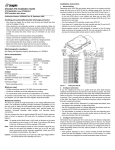
Refer to the picture below for a quick overview for your Che-ez! SPYZ.
Shutter Button
Viewfinder
IMPORTANT
Lens
Important Note:
To avoid lost images when changing batteries, please make sure your
images are uploaded to your PC or Mac before changing batteries. Or make
sure the Che-ez! SPYZ is connected to your PC or Mac via the USB cable
with your PC or Mac switched on.
LED Light
Viewfinder Lever
Front View
Viewfinder
LCD Display
Shutter Button
USB Cable Port
Press the Battery Door Release Button to
release the battery compartment.
The Battery Door will automatic open, please
change the battery and close the battery door.
Battery Position:
Make sure you follow the correct
polarity (+) (-) as indicated.
Connecting your Che-ez! SPYZ to Your Computer
Mode Button
Hinge for Hanging Chain
Battery Door
Back View
Battery Door Release Button
The USB cable allows you to upload images from the
Che-ez! SPYZ to your PC or Mac. One end of the cable
connects to the USB port on the side of the Che-ez! SPYZ
and the other end connects to your PC's or Mac USB port.
When your Che-ez! SPYZ is connected to your PC or
Mac, it will draw power from the PC in order to preserve
your battery life.
* The USB port can be found on the front or back panel of your
PC or Mac. Look for this
symbol next to the connection port.
(Also see your PC or Mac operating manual for the location
of your USB connection port.)