1
L
Loire2 Ref. Guide
Rev.c
A5 size
11-11-96
Chapter 2
DR, pass 0
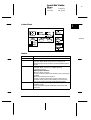
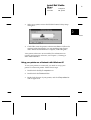
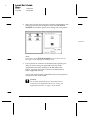
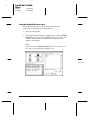
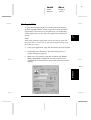
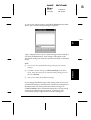
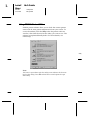
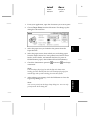
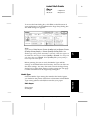
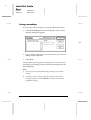
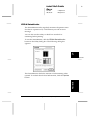
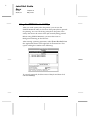
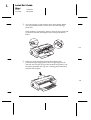
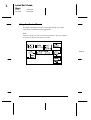
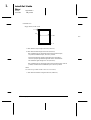
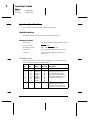
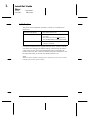
4. Click the Details tab. The following window appears:
PORTL2
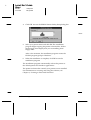
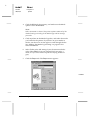
5. Click the Add Port button, then specify the network path to
the printer. Click OK.
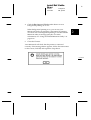
Note:
If you want to print from DOS applications as well as from
Windows applications, click the Capture Printer Port button
instead of the Add Port button. Click anywhere in the Device
box and select the printer port your printer is connected to, then
specify the network path to the printer. Make sure Reconnect
at logon is selected, then click OK.
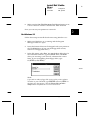
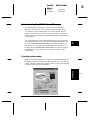
6. After you have made your settings on the Details menu, click
Start, point to Programs and Epson, then click Spool
Manager4. The Spool Manager window opens.
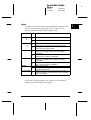
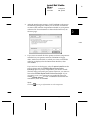
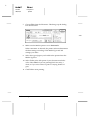
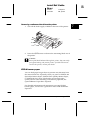
7. Select your printer, click the Queue menu, then click Setup.
The Queue setup window opens.
2-18
Getting Started