1
Loire2 Ref. Guide
Rev.c
A5 size
11-11-96
R
Chapter 2
DR, pass 0
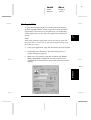
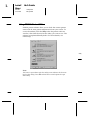
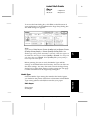
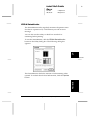
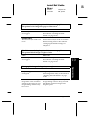
To use this feature, you may need to set the system profile
for your monitor. Access the ColorSync System Profile
utility through the Control Panel and click the Set Profile
button. Select your monitor from the list of monitors that
appears, and then click Select. Close the dialog box.
❑
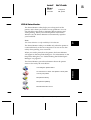
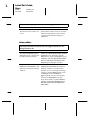
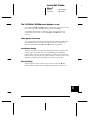
StatusMonitor
Keeps track of the current status of your printer, and alerts
you when printer errors occur. You can open it from the
Utility menu in the printer driver software. For more
information, see “Using EPSON Printer Utilities” in
Chapter 6.
❑
Nozzle Check
Checks the print heads for clogging. You can open this
utility from the Utility menu in the printer driver software.
For more information, see “Using EPSON Printer Utilities”
in Chapter 6.
❑
Head Cleaning
Cleans the print heads to maintain the best print quality.
You can open this utility from the Utility menu in the
printer driver software. For more information, see “Using
EPSON Printer Utilities” in Chapter 6.
❑
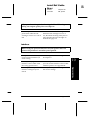
Print Head Alignment
Adjusts the print heads so that vertical and horizontal lines
are aligned. You can open this utility from the Utility menu
in the printer driver software. For more information, see
“Using EPSON Printer Utilities” in Chapter 6.
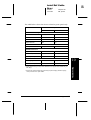
Power Macintosh Extension Module
Increases the printing speed especially when printing CAD
documents or line art. For more information, see your
Macintosh user’s guide.
Getting Started
2-27
2