1
Crestron eServer™
Ethernet OEM Module
Appendix B: Uploading Web Pages
Use the Viewport (from either SIMPL Windows or VT Pro-e) to upload web pages
designed with VT Pro-e or the e-control SDK. Connect the COM IN port of the
eServer to the desired COM port of the PC. Verify communication parameters and
be sure the eServer power pack is connected and supplying power to the device.
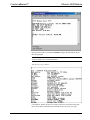
Depress ENTER on the keyboard. If the Viewport responds with ">",
communications is verified.
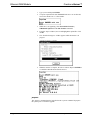
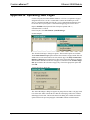
From Viewport, select File Transfer | Send Web Pages.
Crestron Viewport
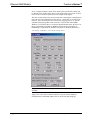
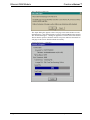
The "Transfer Web Pages" dialog box appears. Three transfer options are available.
The Transfer Entire Project option transfers the selected web page and all files and
subdirectories in the same folder as the selected web page. The Only Transfer Files
that have Changed option transfers those files in the selected file directory that have
different dates from the last time the web page was transferred. The Transfer Single
File option transfers the selected web page only. Choose the appropriate option and
click OK.
"Transfer Web Pages" Dialog Box
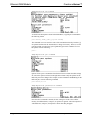
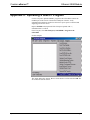
The "Select Web Pages" dialog box appears to prompt the user that a web page needs
to be selected. It further informs the user that the selected page will be the resultant
default page for the URL. The last statement in the dialog box confirms the transfer
option chosen in the previous paragraph. Click OK to continue with the transfer.
Operations Guide - DOC. 8148
Ethernet OEM Module: eServer™ • 33